Comau Robotics Product Instruction
44
ENVIRONMENTS
The following settings can be modified:
– Show Ground (visible/invisible floor) - select the checkbox to make the floor visible
– Ground Color (floor color) - click the displayed number to open the colors table,
choose the wished one and click OK to confirm.
– Background Color - click the colored band to open the colors table, choose the
wished one and click OK to confirm.
In the 3D Visualization environment all the controlled robots by the currently connected
with Roboshop Control Units are displayed,,as well as their movements and any
objects added by means of the Create Cube / Sphere / Cylinder / Cone command.
To act on the robots
and objects 3D visualization mode, select the wished Robot or
Object, clicking it in the corresponding folder (Controllers for robots and Simulation 3D
Scene for objects) of the Nodes Panel.
The wished element (robot or object) could also be selected by CTRL+clicking it, in the
3D visualization area.
This causes its setting parameters to be displayed in the Details Panel: the user is
allowed to modify them according to what is described in the following sections:
– Robot
– Object.
4.6.1.1 Robot
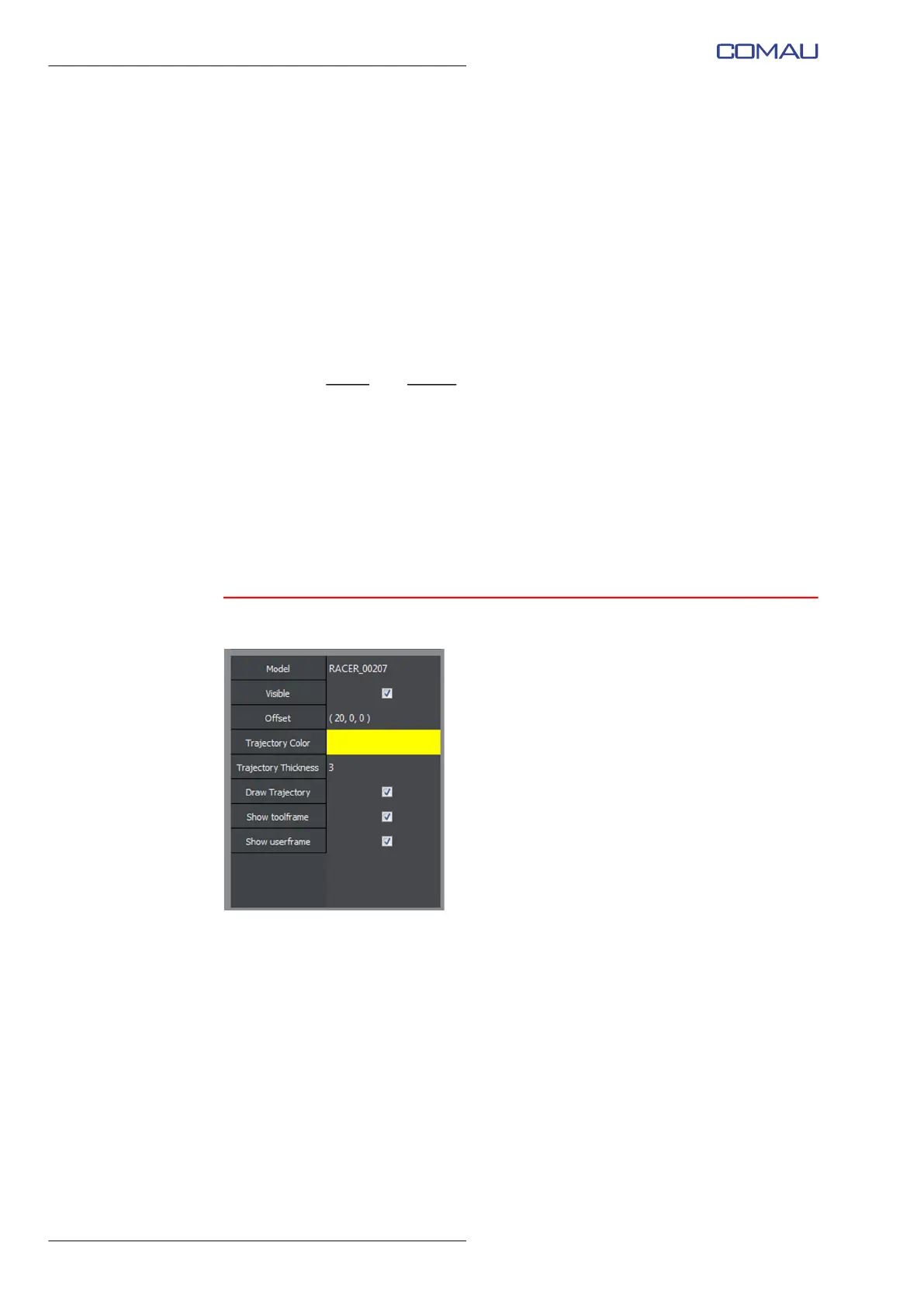
Selecting a robot in the Controllers folder, or by memans of CTRL+click on the
displayed robot, the user is allowed to access the following related viewing settings
(figure above), in the Details Panel:
– Model - model of the selected robot. Read-only field
– Visible - the robot is displayed in the 3D Visualization area when the checkbox is
selected
– Offset - offset, in the X, Y and Z components, referred to the Base reference frame
All the robots are displayed in the reference frame origin. To be able to view them
separately, the user is allowed to “move” them by means of the Offset field. In the
example shown in the next figure, a Six robot is selected.


 To Next Page