59
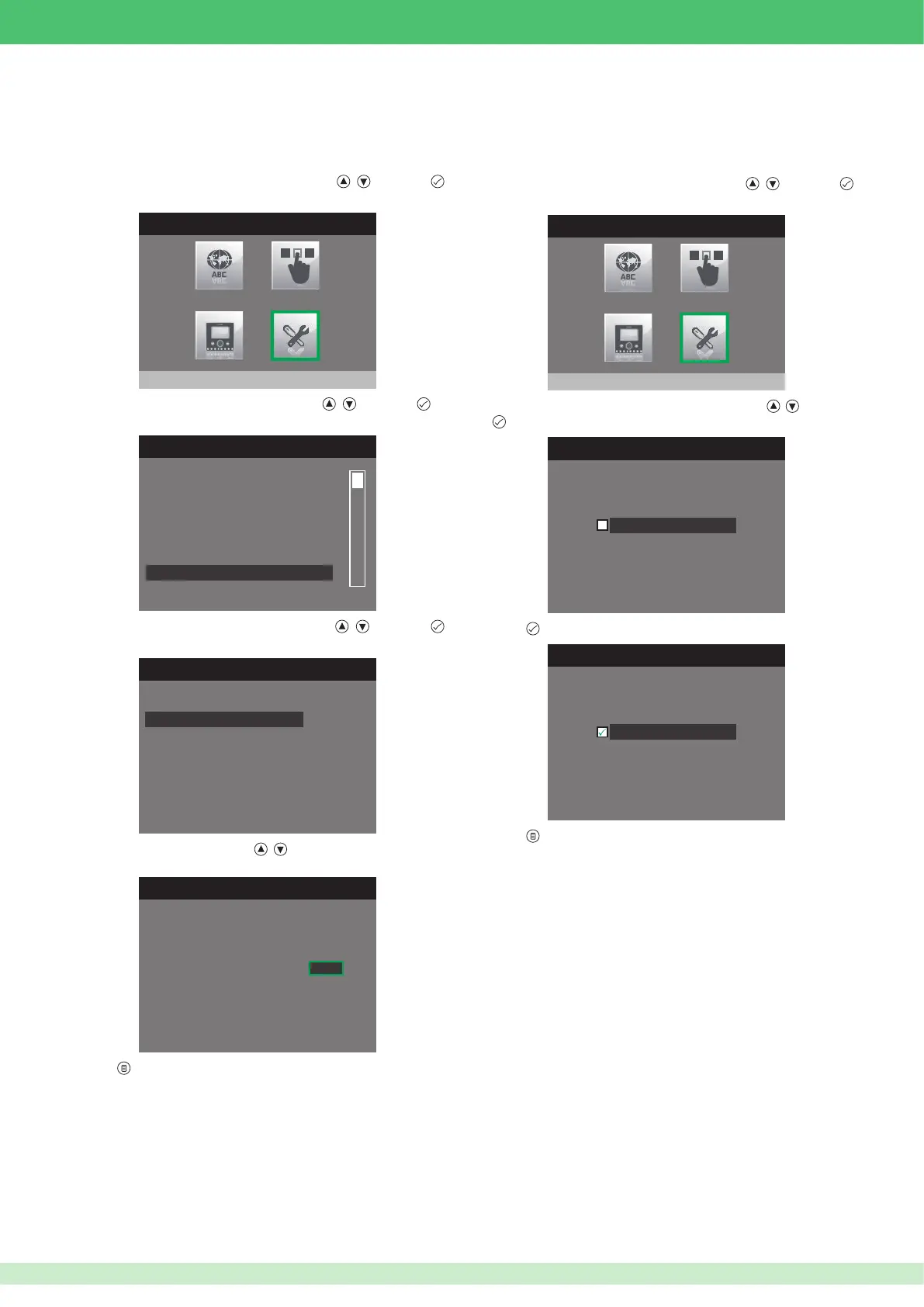
• Setting automatic answer
If the Automatic answer function is enabled, the audio will be activated
automatically on receipt of a call from the external unit, internal unit or
switchboard.
1. Access the installer menu.
2. Select the Special Settings menu by pressing
, and press
to access it.
INSTALLER MENU
Special Settings
SET AUTOMATIC ANSWER
Automatic answer
SET AUTOMATIC ANSWER
Automatic answer
3. Select the Set automatic answer menu by pressing , and press
to access it.
4. Press
to enable it.
5. Press
to exit and save the changes.
• Setting call times
1. Access the installer menu.
2. Select the Special Settings menu by pressing
, and press
to access it.
INSTALLER MENU
Special Settings
3. Select the Set call times menu by pressing , and press to
access it.
SPECIAL SETTINGS MENU
Alarms
Door open
Self-ignition
Call
Set ringtone repetition
Set call times
SET CALL TIMES
Intercom talk time
Talk time
Reply wait time
Reset wait time
4. Select the Reply wait time menu by pressing , and press
to access it.
5. Change the value using buttons
, .
SET REPLY WAIT TIME
Reply wait time
0 6 0
6. Press to exit and save the changes.
Within this menu, the time can be set for various functions. The Reply
wait time setting is shown below, as an example which also applies for
the other functions.
•
Reply wait time: this is the time for which a call from the external or internal unit
remains active and waiting for the user to answer.
•
Tal k ti me: this is the time for which the audio remains active, once a call from
the external unit has been accepted.
•
Intercom talk time: this is the time for which the audio remains active, once a
call from an internal unit or from the switchboard has been accepted.
•
Reset wait time: this is the time for which the audio remains active once a
call has ended. The conversation can be resumed if the audio button is pressed
again within the set time period.



 To Next Page