12 EVOLUTION 1 SYSTEM MANUAL Issue 1.1 20 Dec 2006
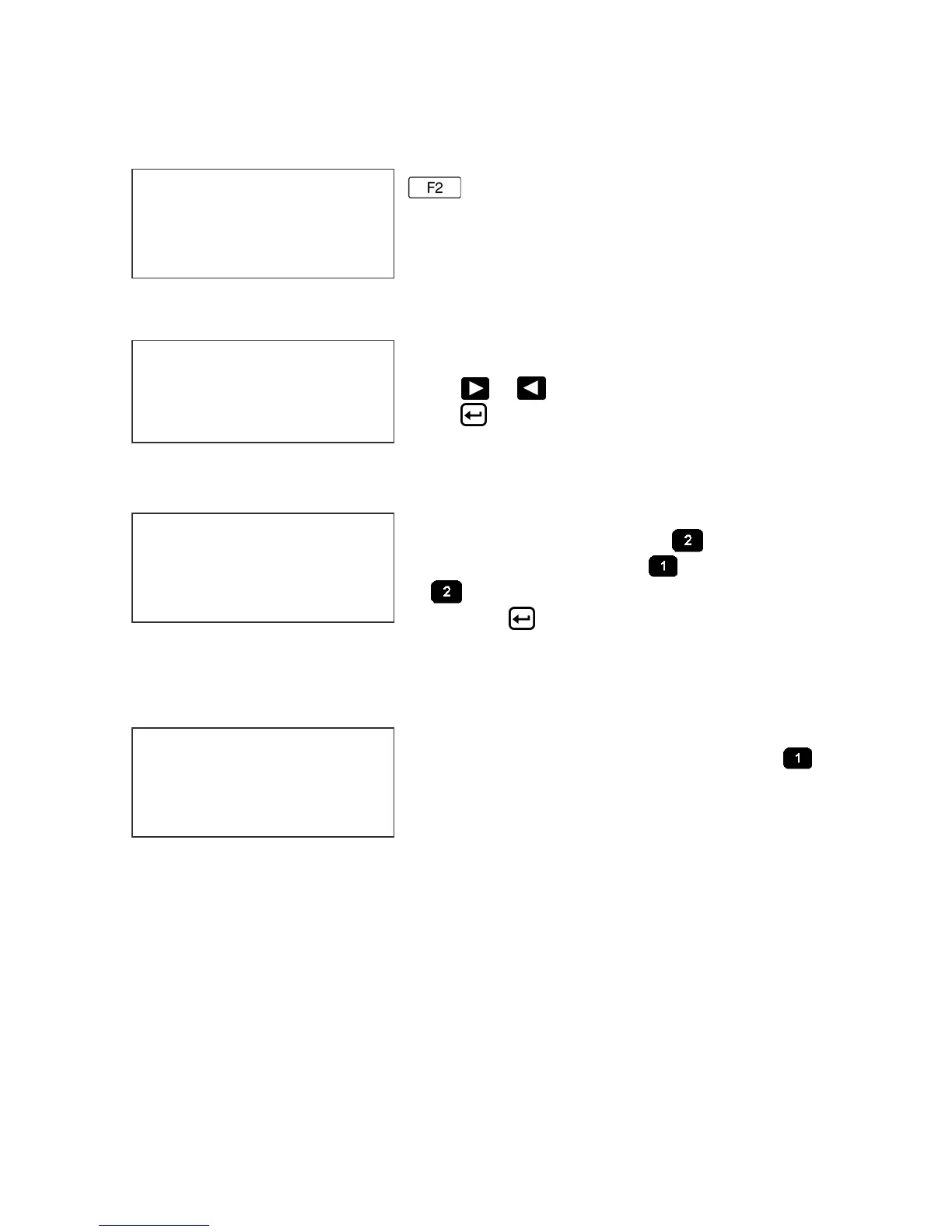
F2 MENU
Place the unit in the Command mode and press
. The screen shown to the left is
produced. Press the correct number to make
changes to that parameter
1 - DIRECTION:
The arrow shown on the LCD’s third line screen
should agree with the direction of product travel.
Press or to change the direction of print.
Press for the unit to accept the change.
2 - PRINT INVERSE:
This parameter allows the code to print right side
up or upside down. Pressing will produce
the following screen. Press for normal print
or for upside down codes. Save the choice
by pressing . Look for the change of direction
on the imprint.
3 – PRODUCT DETECT:
This menu selection allows the user to select the
source of the product detect feature. Press
to use the internal product detect sensor located
at the front of the print carriage just below the
print cartridge. If it becomes necessary to sense
a portion of the product not directly in front of the print head then an external
product detect sensor must be used. This setting also allows the printer to be
controlled from other sources, like a PLC. When external product detect is
selected the user must also change the jumper option within the print head. Refer
to the OPTION SELECT section for proper use.
CODE ORIENTATION
1 = NORMAL PRINT
2 = UPSIDE DOWN
< - - SELECT - - >
LINE DIRECTION
< - - - -
1=DIRECTION
2=PRINT INVERSE
3=PRODUCT DETECT
4=AUTO REPEAT
PRODUCT DETECT
1 = INTERNAL
2 = EXTERNAL


 To Next Page