ICS-90 Ion Chromatography System
3-6 Doc. 031851-05 12/04
3.5.2 Starting Up Chromeleon
1. Turn on the computer.
2. Check the Chromeleon Server icon on the Windows taskbar to
determine whether the server is running. If the icon has a red X over
it
, the server is stopped. Start the server by right-clicking on
the icon and selecting Start Server.
3. From the Windows Start menu, select Programs>
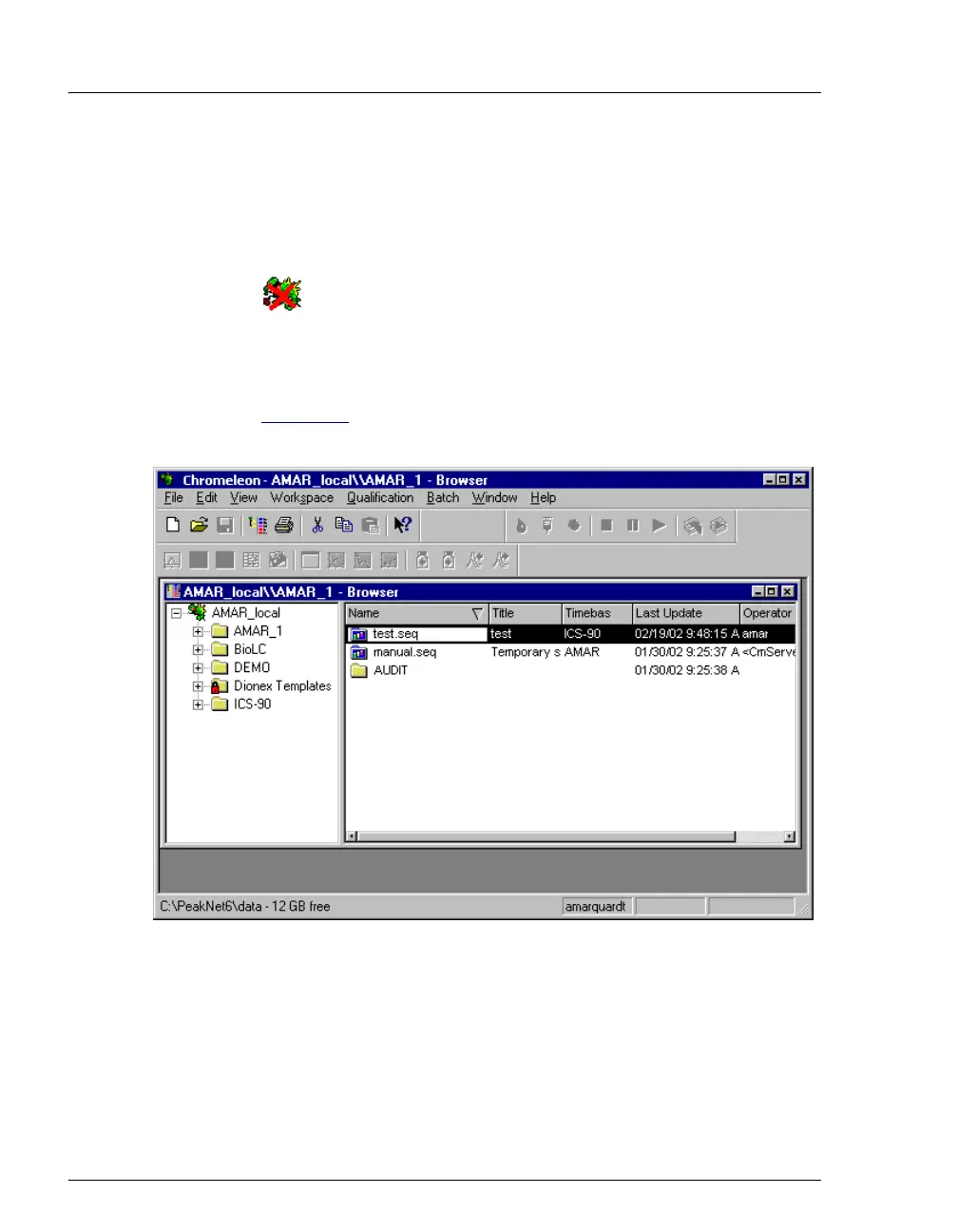
Chromeleon>Chromeleon to start Chromeleon. A window similar
to Figure 3-2
will open. If the Browser is not open, select Browser
from the File menu to open it.
Figure 3-2. Chromeleon Main Window and Browser
4. In the Browser, open the Dionex Templates\Panels\Dionex_IC\ICS-
90 System Panels folder and double-click one of the following ICS-
90 Control panels (depending on whether an AS40 autosampler will
be used):
ICS-90_System
ICS-90_System_AS40


 To Next Page