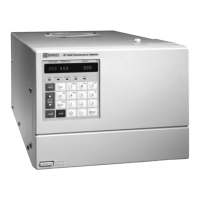
ICS-90 Ion Chromatography System
B-10 Doc. 031851-05 12/04
B.7 Setting Up Chromeleon
NOTE This section provides brief instructions for setting up
Chromeleon. For details about any of these steps, refer
to the Chromeleon Help or user’s guide.
B.7.1 Installing the Chromeleon Software License
For the Chromeleon computer to control the ICS-90, a valid software
license must be installed. To install the license, you first install a dongle
on the computer and then enter a license “Key Code” in Chromeleon. (A
dongle is an adapter that is connected to the parallel PC interface or USB
port. The dongle stores the serial number of a Chromeleon computer.)
NOTE If the software license is managed via a License
Server, a dongle is not required.
1. Plug the dongle into the appropriate port on the computer (either the
parallel or USB port, depending on the type of dongle). For a parallel
port dongle, also tighten the connector screws.
2. If it is not already running, start the Chromeleon Server Monitor
(select Start>Chromeleon>Server Monitor). The Server Monitor
window opens.
• If Chromeleon was installed on the computer before shipping, the
Server Monitor status will display “Chromeleon Server is running
idle.” (This is because the license Key Code was entered before
shipping.) If this is the case, click Close and go on to “Creating a
Timebase” (see Section B.7.2
).


 To Next Page