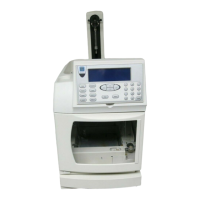
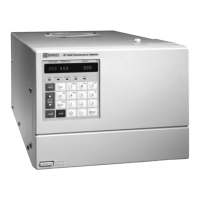
ICS-900 Operator’s Manual
28 Doc. 065215-02 9/09
3.2 Turning On the ICS-900 Power
Press the power switch on the ICS-900 rear panel (see Figure 2-3) to turn on the
system power. These are the conditions at power-up:
• The pump is off.
• The injection valve is in the Load position.
• The conductivity detector begins reading the current conductivity.
3.3 Connecting to Chromeleon or Chromeleon Xpress
1. Turn on the PC.
2. Start the Chromeleon Server, if it is not already running.
a. Check the Chromeleon Server Monitor icon on the Windows taskbar.
• When the server is running, the icon is gray .
• When the Server is not running, the icon is crossed out in red . To
start the server, right-click the icon and select Start Server.
b. If the Server Monitor icon is not on the Windows taskbar, click Start and
select All Programs (or Programs) > Chromeleon > Server Monitor.
The Server Monitor opens. Click Start to start the server.
3. To start the Chromeleon client, click Start and select All Programs (or
Programs) > Chromeleon > Chromeleon.
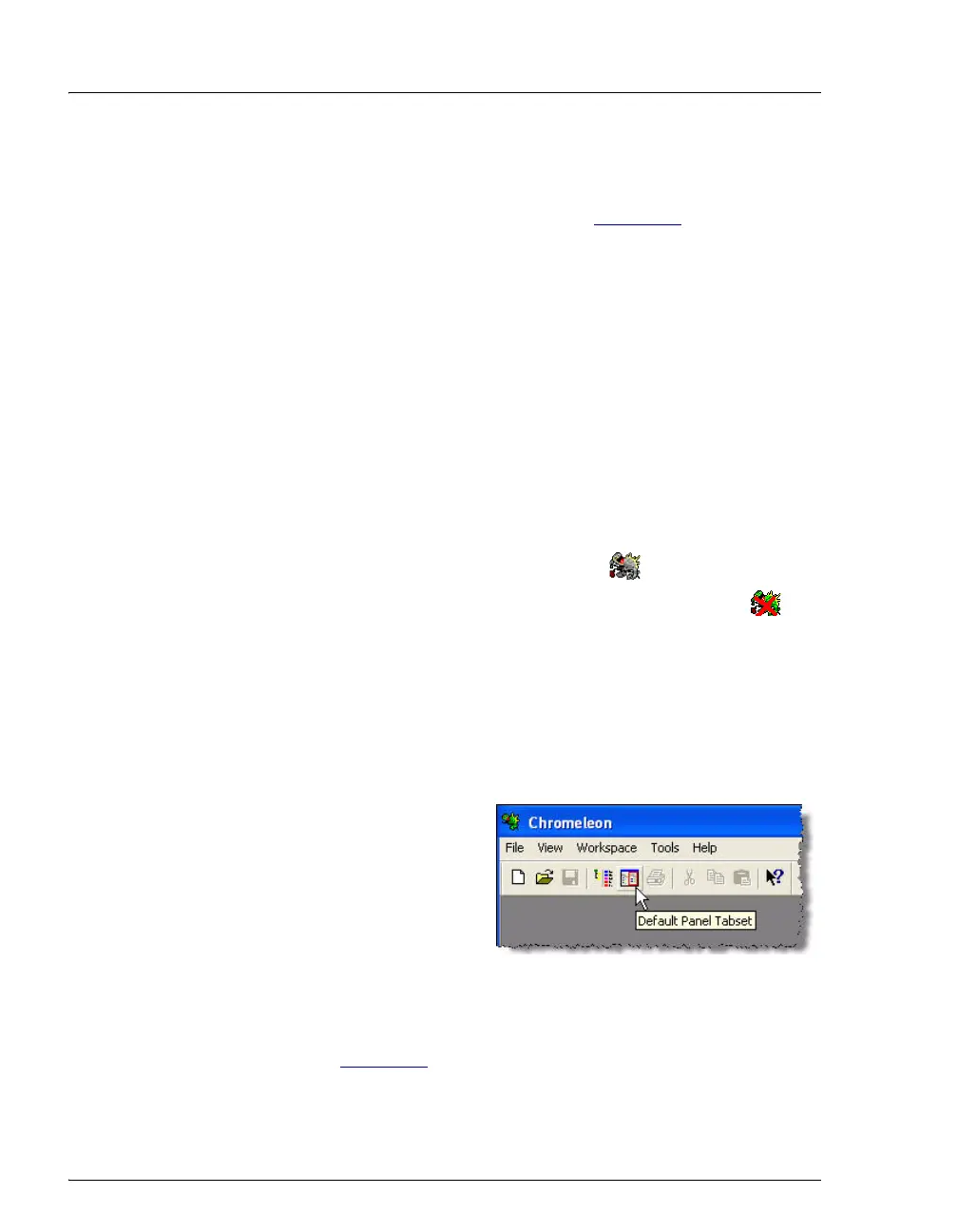
4. If Chromeleon is installed, display
the panel tabset by selecting View >
Default Panel Tabset or by
clicking the Default Panel Tabset
toolbar button.
If Chromeleon Xpress is installed,
starting the application
automatically displays the panel tabset.
5. To display the ICS-900 Control panel, select the tab labeled with the ICS-900
timebase name (see Figure 3-2
).


 To Next Page