VigorPro5300 Series User’s Guide
146
have to do
IP, please choose NAT, otherwise choose Route.
Change default route to
this VPN tunnel (Only
single WAN supports this )
Check this box to change the default route with this VPN
tunnel. Be aware that this setting is available only for one
WAN interface is enabled. It is not available when both
WAN interfaces are enabled.
3
3
.
.
1
1
0
0
.
.
7
7
C
C
o
o
n
n
n
n
e
e
c
c
t
t
i
i
o
o
n
n
M
M
a
a
n
n
a
a
g
g
e
e
m
m
e
e
n
n
t
t
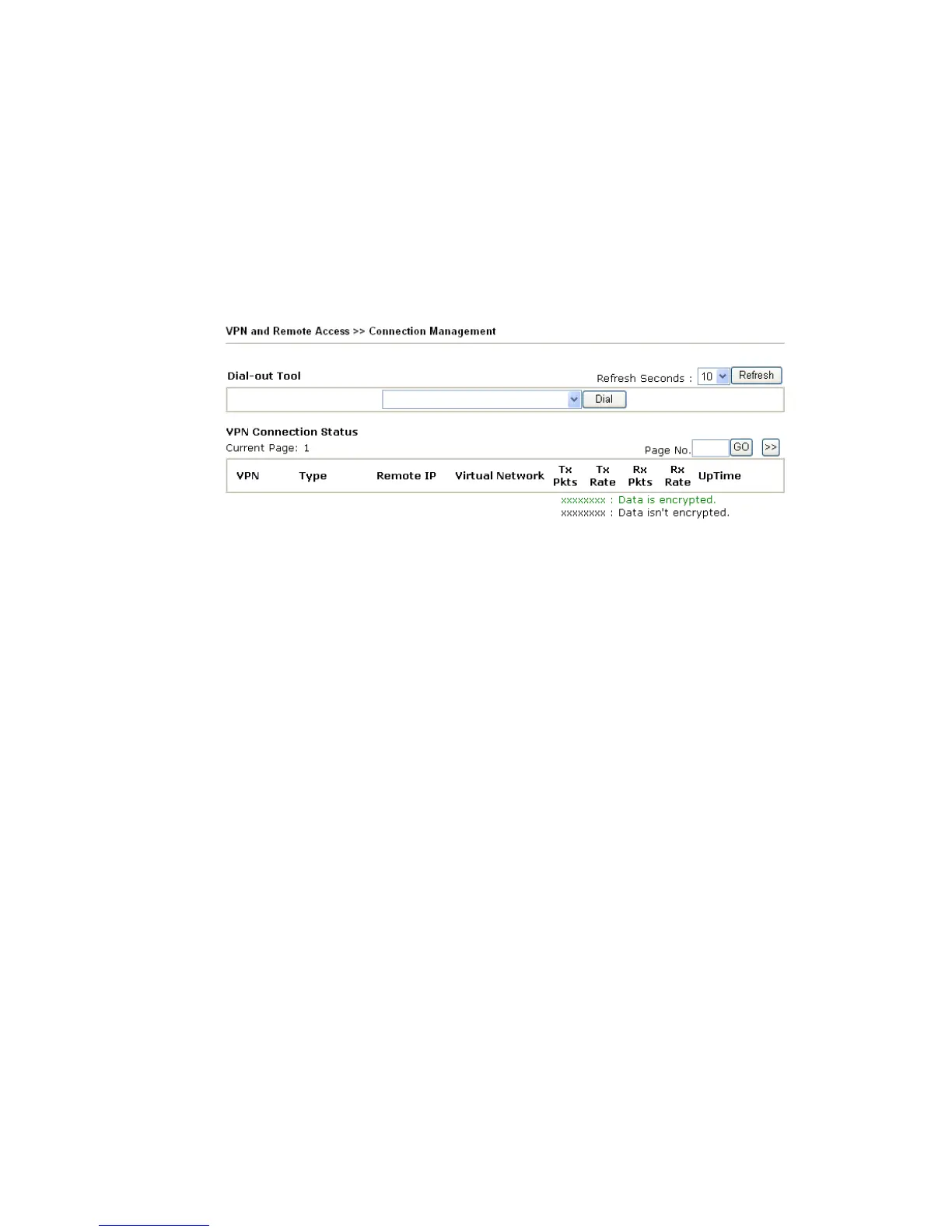
You can find the summary table of all VPN connections. You may disconnect any VPN
connection by clicking Drop button. You may also aggressively Dial-out by using Dial-out
Tool and clicking Dial button.
Dial Click this button to execute dial out function.
Refresh Seconds Choose the time for refresh the dial information among 5, 10,
and 30.
Refresh Click this button to refresh the whole connection status.





 To Next Page