VigorPro5300 Series User’s Guide
259
6. Click the On button on the line with DT-KL service to use that service. Then, the
Status light for DT-DT service will be changed into red which means you can press on
the On button for that one to use it for next time.
7. Now, you have successfully switched the service provider for your router.
4
4
.
.
8
8
E
E
n
n
a
a
b
b
l
l
i
i
n
n
g
g
A
A
n
n
t
t
i
i
-
-
V
V
i
i
r
r
u
u
s
s
/
/
A
A
n
n
t
t
i
i
-
-
I
I
n
n
t
t
r
r
u
u
s
s
i
i
o
o
n
n
/
/
A
A
n
n
t
t
i
i
-
-
S
S
p
p
a
a
m
m
After applying an account, registering your account and router, you have to access into the
web page of Vigor router to enable Anti-Virus/Anti-Intrusion functions. There are two ways
to enable it.
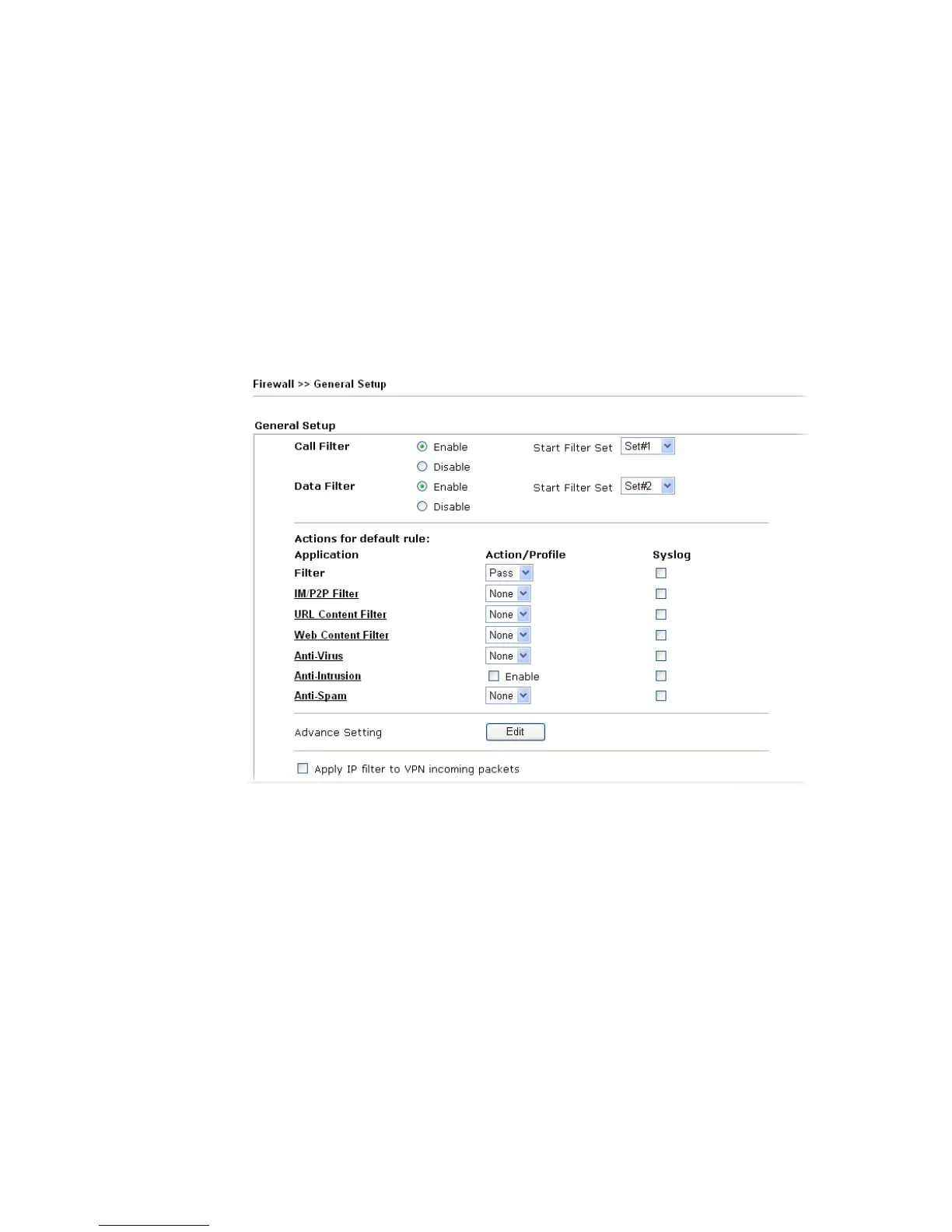
A. For the default rule of firewall, please open Firewall>>General Setup page. Check the
box of Enable for Anti-Intrusion and choose proper action (profile) from the drop down
list of Anti-Virus and Anti-Spam. Next, click OK to finish the procedure of activation.
B. For specified filter rule (there are twelve filter sets in Firewall, and each set is allowed to
set seven filter rules), please check the box of Enable for Anti-Intrusion and choose
proper action (profile) from the drop down list of Anti-Virus. Next, click OK to finish
the procedure of activation.





 To Next Page