VigorPro5300 Series User’s Guide
223
The horizontal axis represents time. Yet the vertical axis has different meanings. For
WAN1/WAN2 Bandwidth chart, the numbers displayed on vertical axis represent the
numbers of the transmitted and received packets in the past.
For Sessions chart, the numbers displayed on vertical axis represent the numbers of the NAT
sessions during the past.
3
3
.
.
1
1
7
7
.
.
8
8
P
P
i
i
n
n
g
g
D
D
i
i
a
a
g
g
n
n
o
o
s
s
i
i
s
s
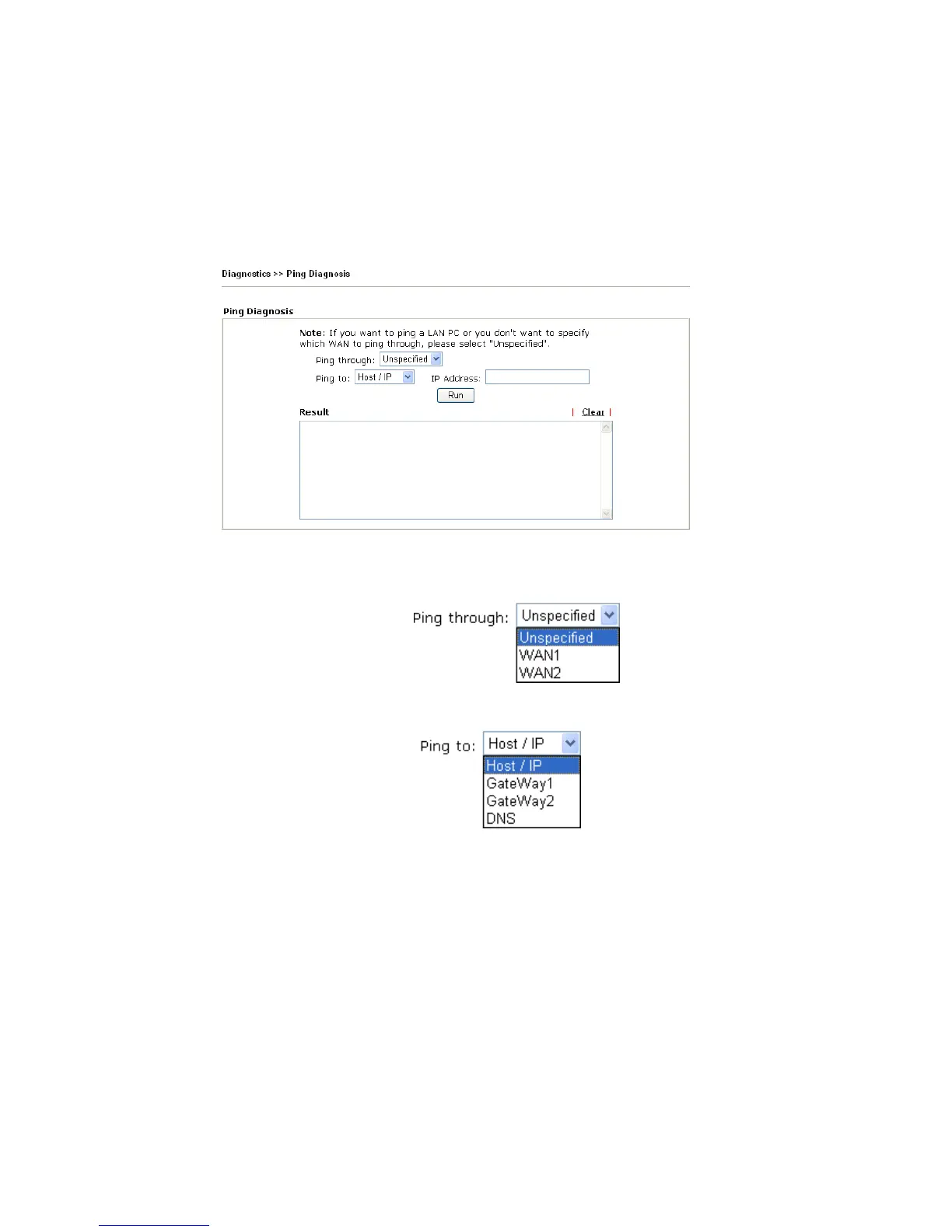
Click Diagnostics and click Ping Diagnosis to pen the web page.
Ping through Use the drop down list to choose the WAN interface that you
want to ping through or choose Unspecified to be determined
by the router automatically.
Ping to Use the drop down list to choose the destination that you want
to ping.
IP Address Type in the IP address of the Host/IP that you want to ping.
Run Click this button to start the ping work. The result will be
displayed on the screen.
Clear Click this link to remove the result on the window.





 To Next Page