VigorPro5300 Series User’s Guide
222
Index Display the number of the data flow.
IP Address Display the IP address of the monitored device.
TX rate (kbps) Display the transmission speed of the monitored device.
RX rate (kbps) Display the receiving speed of the monitored device.
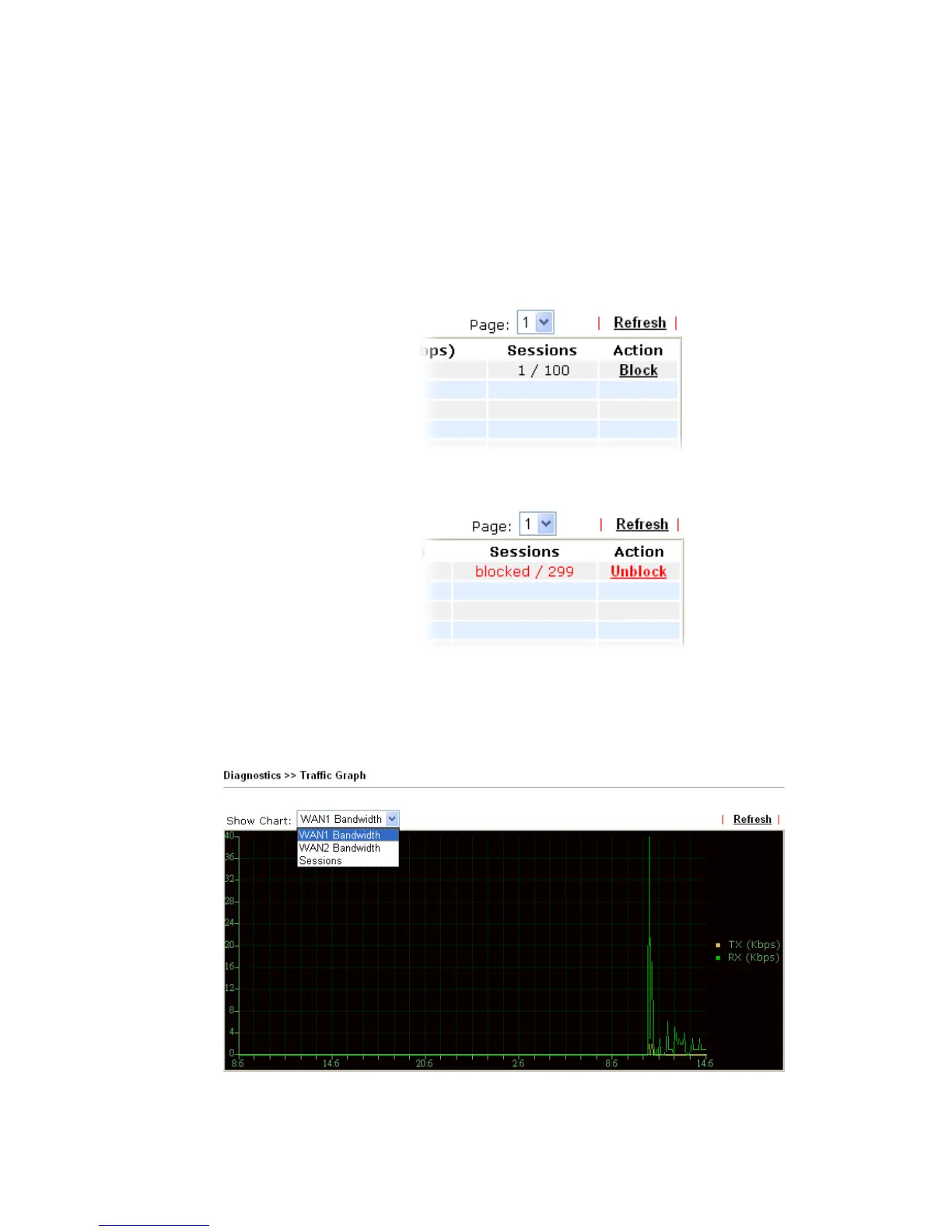
Sessions Display the session number that you specified in Limit
Session web page.
Action Block - can prevent specified PC accessing into Internet
within 5 minutes.
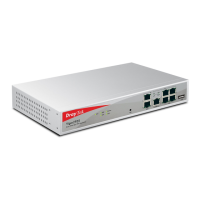
Unblock – the device with the IP address will be blocked in
five minutes. The remaining time will be shown on the session
column.
3
3
.
.
1
1
7
7
.
.
7
7
T
T
r
r
a
a
f
f
f
f
i
i
c
c
G
G
r
r
a
a
p
p
h
h
Click Diagnostics and click Traffic Graph to pen the web page. Choose WAN1
Bandwidth/WAN2 Bandwidth or Sessions for viewing different traffic graph. Click Refresh
to renew the graph at any time.





 To Next Page