VigorPro5300 Series User’s Guide
197
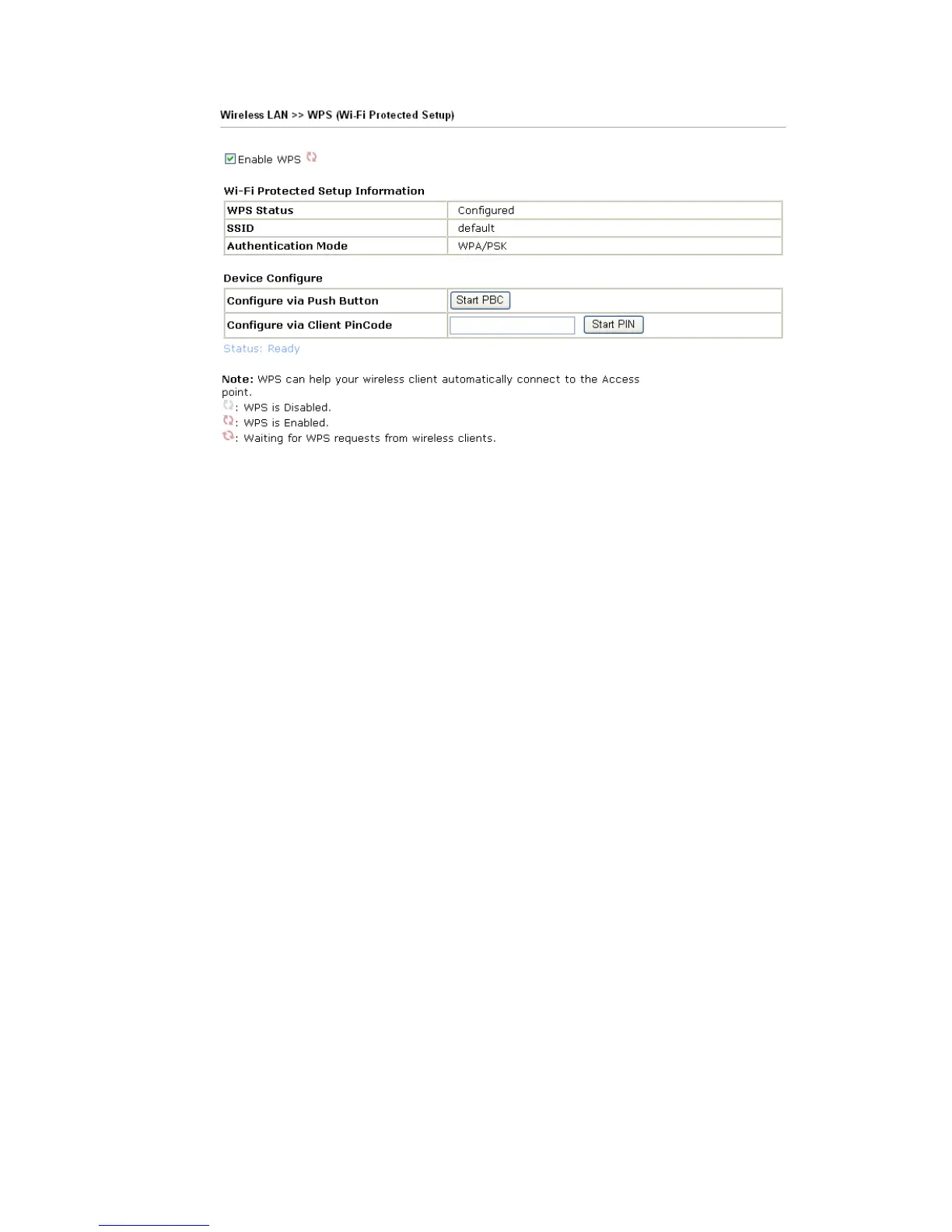
Enable WPS Check this box to enable WPS setting.
WPS Status Display related system information for WPS. If the
wireless security (encryption) function of the router is
properly configured, you can see ‘Configured’ message
here.
SSID Display the SSID1 of the router. WPS is supported by
SSID1 only.
Authentication Mode Display current authentication mode of the router. Only
WPA2/PSK and WPA/PSK support WPS.
Configure via Push Button Click Start PBC to invoke Push-Button style WPS setup
procedure. The router will wait for WPS requests from
wireless clients about two minutes. The WLAN LED on
the router will blink fast when WPS is in progress. It will
return to normal condition after two minutes. (You need
to setup WPS within two minutes)
Configure via Client PinCode Please input the PIN code specified in wireless client you
wish to connect, and click Start PIN button. The WLAN
LED on the router will blink fast when WPS is in
progress. It will return to normal condition after two
minutes. (You need to setup WPS within two minutes)
3
3
.
.
1
1
4
4
.
.
6
6
W
W
D
D
S
S
WDS means Wireless Distribution System. It is a protocol for connecting two access points
(AP) wirelessly. Usually, it can be used for the following application:
y Provide bridge traffic between two LANs through the air.
y Extend the coverage range of a WLAN.
To meet the above requirement, two WDS modes are implemented in Vigor router. One is
Bridge, the other is Repeater. Below shows the function of WDS-bridge interface:





 To Next Page