24
DuraLabel.com 800.788.5572
Printer settings in windows
9. Printing Settings in Windows
Your printer’s operator panel menus provide access to many options.
The Windows printer driver also contains settings for many of these items. Where
items in the printer driver are the same as those in the operator panel menus, and
you print documents from Windows, the settings in the Windows printer driver will
override those items in the operator panel menus.
The illustrations in this chapter show Windows 7. Other Windows versions may
appear slightly different, but the same settings are available.
9.1 Standard Print Settings
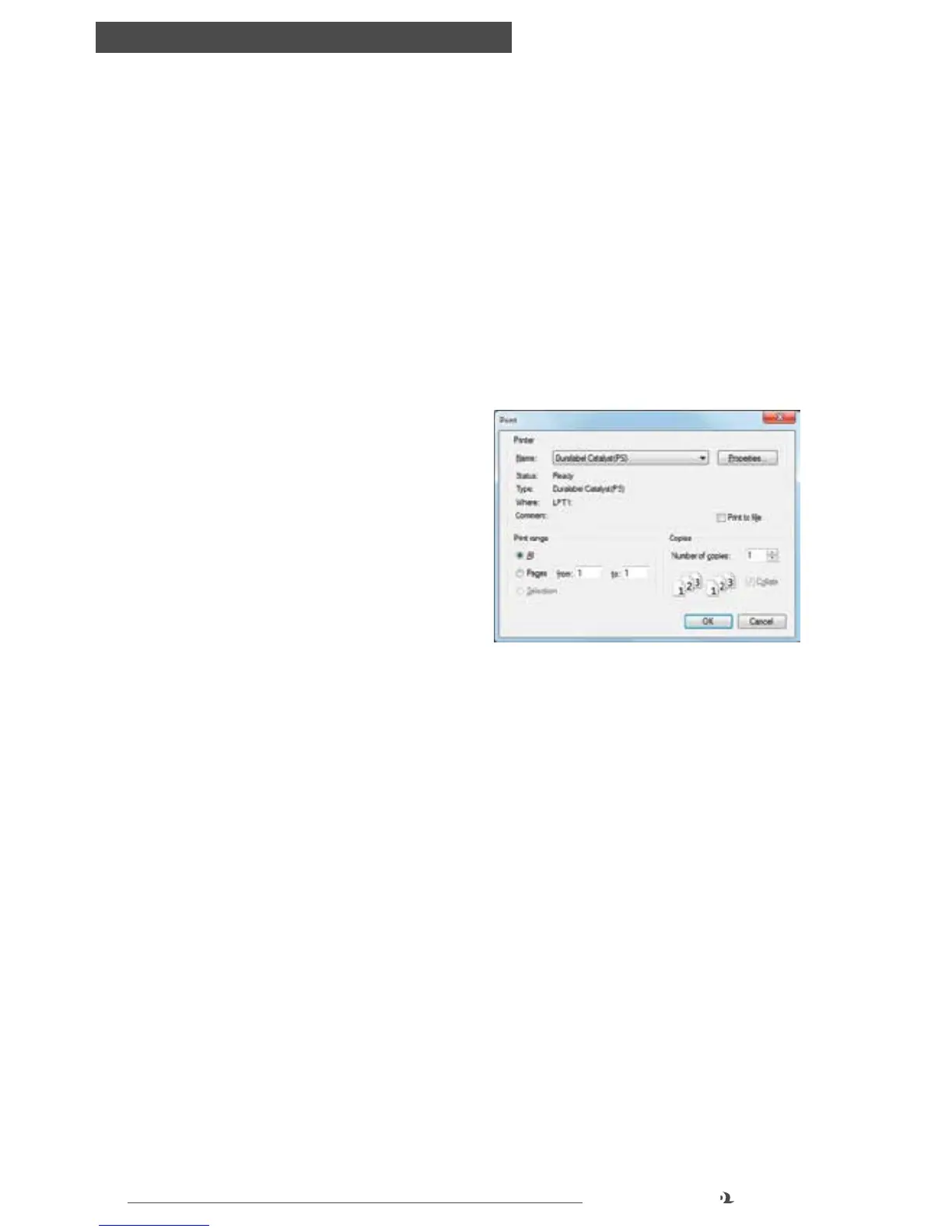
When you choose to print your document
from a Windows application program
a print dialog box appears. This dialog
usually specifies the name of the printer
on which you will print your document.
Next to the printer name is a Properties
button.
When you click Properties a new window
opens which contains commonly-used
print settings. Your initial print window
may differ from what is shown, as
different programs sometimes display a customized print window with additional
program-specific settings. All standard settings will be available to you regardless of
the appearance of this window.
Settings you change here will usually only be retained for as long as that program is
open. If you wish to change default settings that apply to all files printed from your
computer to Catalyst, this can be done through Catalyst settings in Windows. (See
“Windows Control Panel Settings”.) To change Catalyst settings for all users, some
settings can be changed via the Catalyst panel (see “Menu Functions”) or contact
your Systems Administrator.
If default settings may not work for your print job, click Properties on the print
window. Print properties are divided into four subcategories: Layout, Paper/Quality,
Job Options, and Color.
Print window



 To Next Page