30
DuraLabel.com 800.788.5572
Printer settings in windows
9.2 Windows Control Panel Settings
If you wish to change default settings that apply to all files printed from your
computer to Catalyst, this can be done through Catalyst settings in Windows. If you
are not an Administrator, these settings may only apply when you are logged into the
computer. To change Catalyst settings for all users, some settings can be changed
via the Catalyst panel (see “Menu Functions”) or contact your Systems Administrator.
Accessing Catalyst settings through the Windows Control Panel offers you a more
extensive range of settings than what is typically shown while printing from within a
program. Altered settings will be retained even after rebooting.
In Windows XP: click Start, then Control Panel, then choose Printers and Other
Hardware, and click Printers and Faxes. Double-click DuraLabel Catalyst. On menu
click Printer, then choose Properties.
In Windows 7: click Start, then select Devices and Printers. Double-click DuraLabel
Catalyst. On menu click Printer, then choose Properties.
In Windows 8: swipe from the right side of the screen and touch Settings, then
touch Change PC Settings. Choose PC and Devices, then touch Devices. Touch
DuraLabel Catalyst.
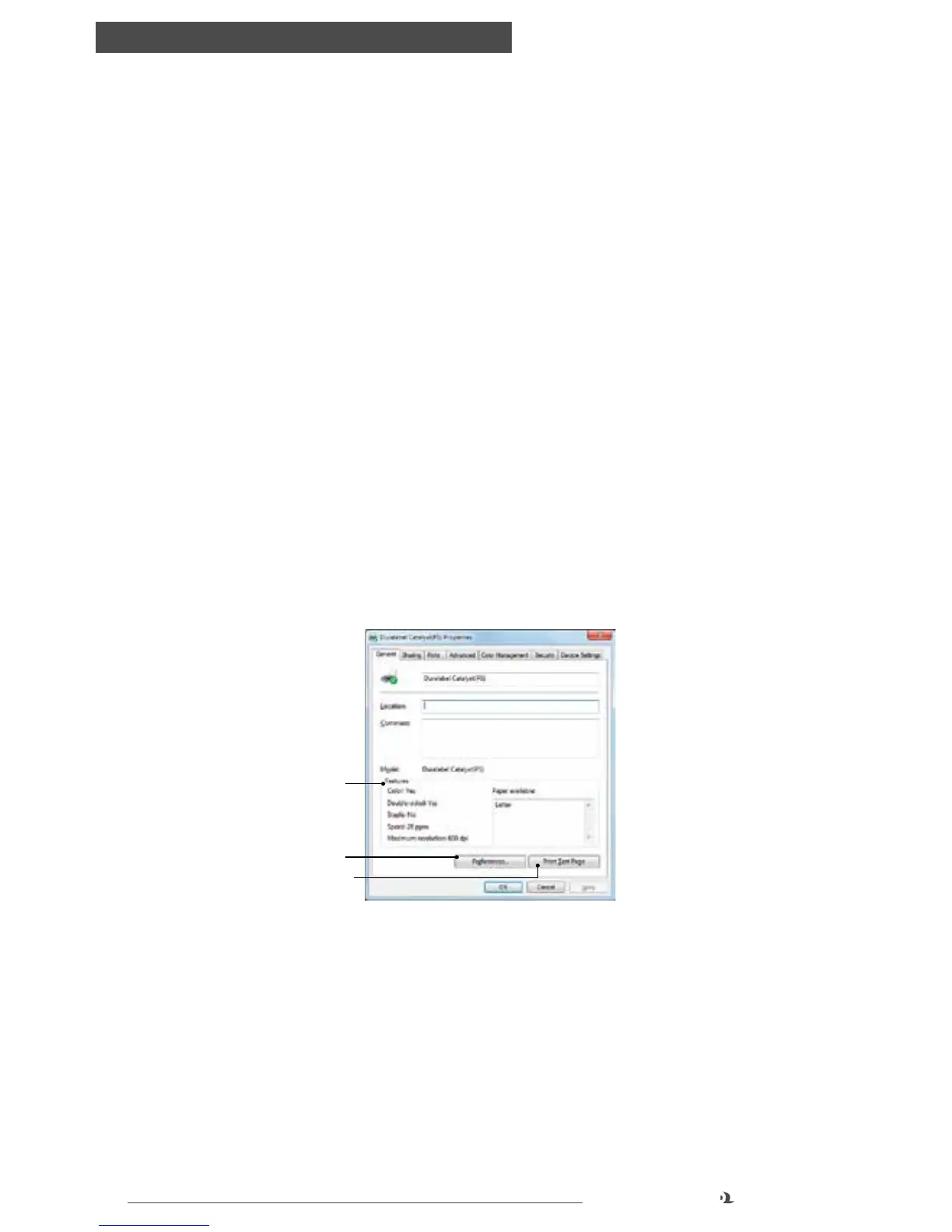
GENERAL TAB
1. This area lists some of the main features of your printer.
2. This button opens the same windows as described earlier for items which can
be set from within application programs. Changes you make here, however, will
become the new default settings for all Windows applications.
3. This button prints a test page to ensure that your printer is working.
1
2
3
General tab



 To Next Page