16 | www.eddy.com
Magni GO Overview
Front Stage Overview
The front stage displays all the information about your current inspection. This is where you will nd all
the tools to acquire, save, and analyze inspection data.
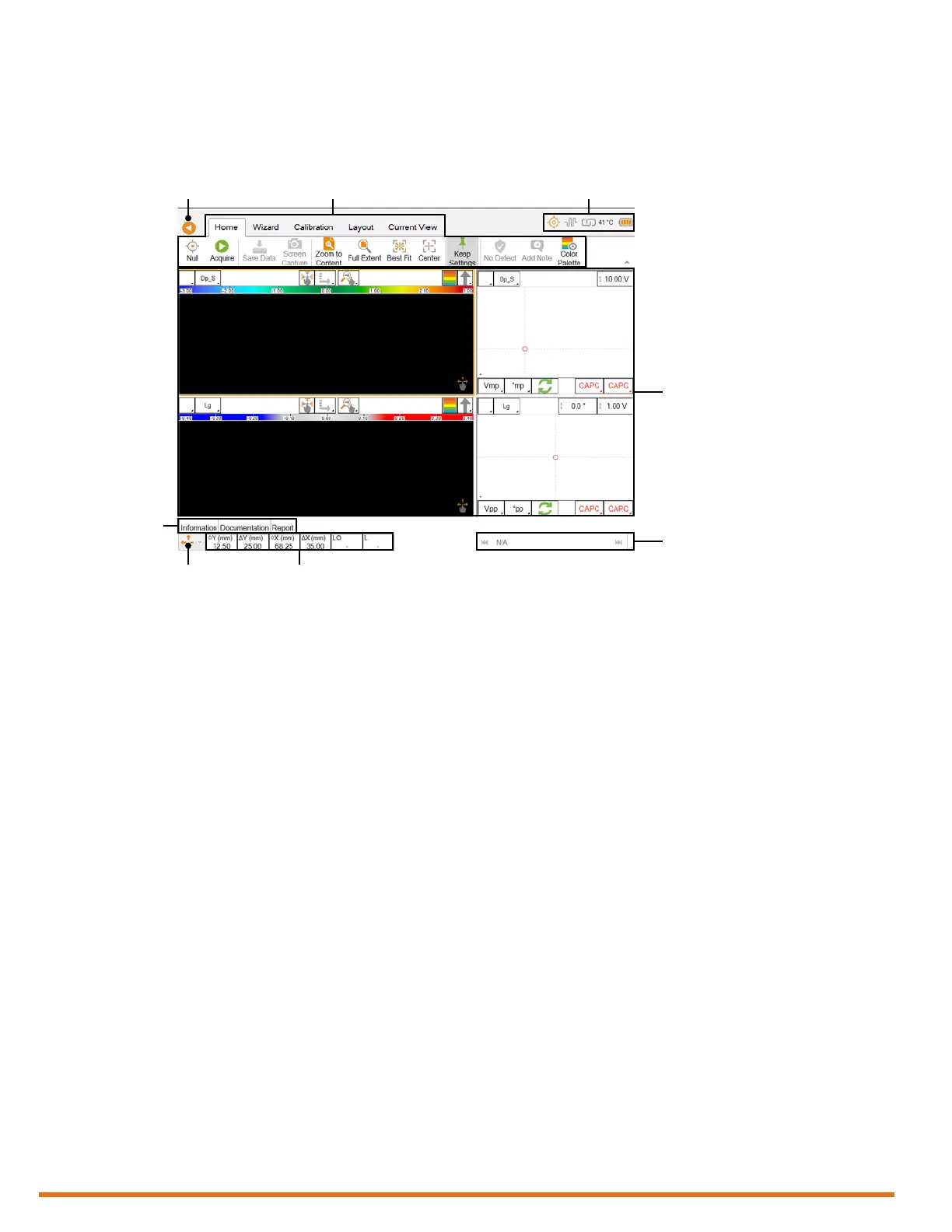
Figure 2–1 Front-stage view
1. Backstage icon
Tap this button to access the backstage
view.
2. Ribbon-style menus
These five menus allow you to perform
several inspection operations. Read on for
details.
3. Status icons
These icons convey unit status information
graphically. Continue reading for details.
4. Data display area
This area is where you see the inspection
data.
5. File navigator
Use the le navigator to display inspection
results in the data display area.
6. Information
This area displays information according to
the tab selected in 8.
7. Keypad arrow mode selector
Tap this icon to change the operational
mode of the keypad arrows. See chapter 1
for details.
8. Information tabs
Tap the tabs to display position information,
documentation information, or report
information. Continue reading for details.
1 2 3
4
67
8
5


 To Next Page