18 | www.eddy.com
Magni GO Overview
C-Scan View
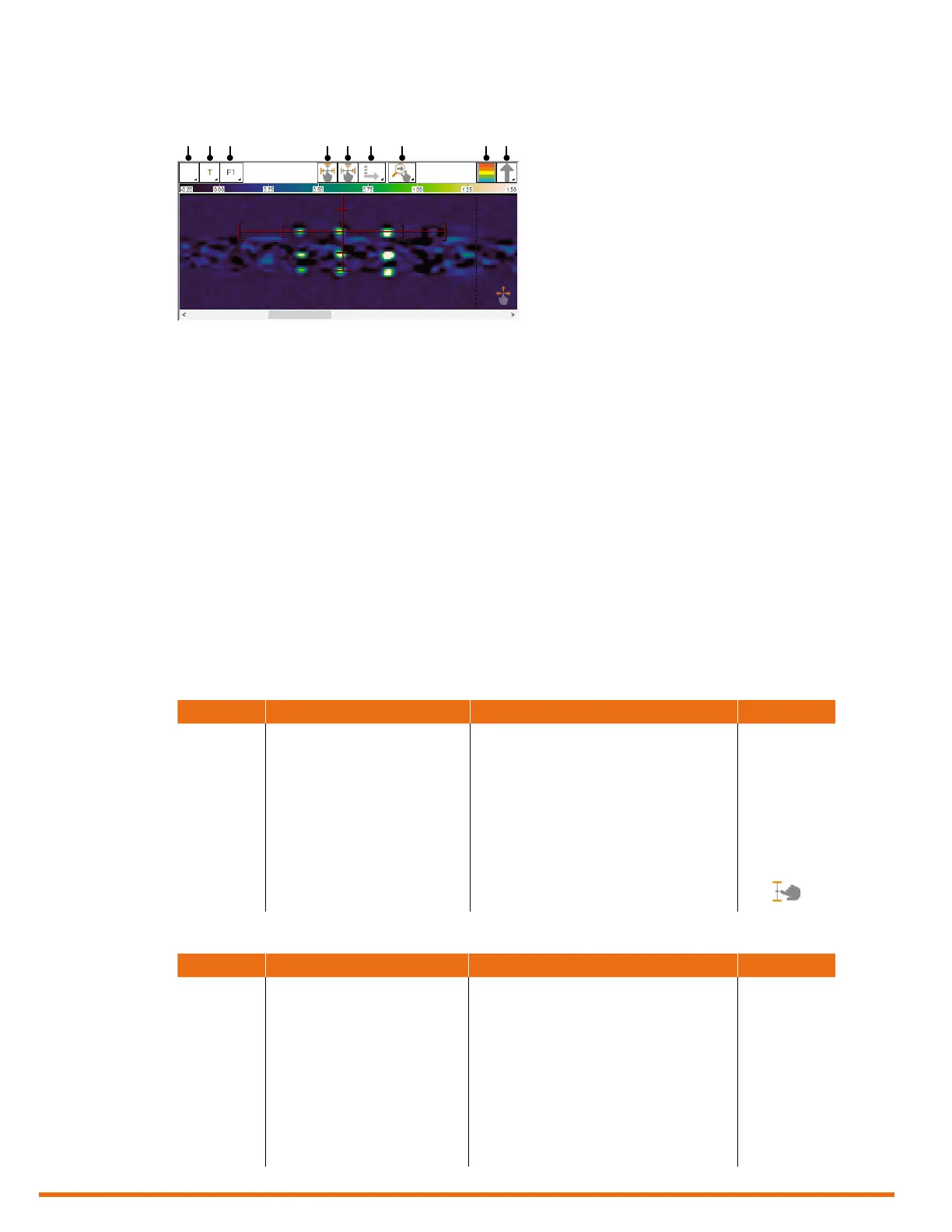
Figure 2–4 C-scan
1. Global channel/C-scan selector
2. Channel/C-scan group name and
selector
3. Frequency selector
4. Resize cursor button (toggle
behavior)
5. Resize mini-cursor (toggle
behavior, available when the mini-
strip chart are active)
6. Component selection for Resize
cursor action
7. Dene the zoom axis when using
the multi-touch pinch mode
8. Show/Hide color palette in the
view
9. Signal component selector
Multi-Touch Interface
The multi-touch interface of Reddy is designed for ease-of-use. According to your location in Magni GO,
the multi-touch behavior changes.
The backstage view uses , dialog boxes, and setup wizards, the multi-touch behavior is standard: a short
tap on an element of the GUI enables the associated function, exactly as it would at the click of a mouse.
Elsewhere, the multi-touch behavior is more elaborated. The tables below summarize the various
behavior according to the view you are using.
Table 2–1 Multi-touch behavior in the strip chart view
Location Touch Behavior Condition
View toolbars Tap List buttons: Selects the next option in list
Toggles: Enables/disables option
Touch and hold List buttons: Displays entire options list
Touch and hold, move up or down Scale: Increases/Decreases the scale
Data area Tap Moves cursor to touch position
Touch and move Moves cursor in view
Two-nger touch, move up or down Pans data in strip chart; same effect as scrollbar
Pinch-zoom in or out Zooms in/out
Table 2–2 Multi-touch behavior in the Lissajous view
Location Touch Behavior Condition
View toolbars Tap List buttons: Selects the next option in list
Toggles: Enables/disables option
Touch and hold List buttons: Displays entire options list
Touch and hold, move up or down Rotation: Rotates data
Scale: Increases/Decreases the scale
Data area Tap Centers selected data in Lissajous
Touch and move Pans data in Lissajous
Two-nger rotation Rotates data in Lissajous Toggle
Pinch-zoom in or out Increases/Decreases the scale
1 2 3
4
5 6 7 8 9


 To Next Page