132
right-click and make a selection from
the menu.
4 Double click color layer bars to collapse
and expand a color layer.
For example, the Needle 3 layer bar was
expanded in the picture above. You can
view all of the segments for Needle 3.
5 Click and drag segments in Sequence
View to resequence segments.
6 To hide a segment on your design
workspace, locate the segment in
Sequence View and click Hide/Show .
You will see a red X over the Hide/Show
tool when hidden.
7 To lock one or more segments, click Lock/
Unlock .
For more information, see “Locking
Segments in Sequence View”.
8 To change a segment’s properties in the
Sequence View dialog, click for a
specific segment.
You see the Segment Settings dialog
appear. Make appropriate changes to
segment properties.
9 Close the Sequence View dialog when
finished.
Moving a segment to the
start or end of a design
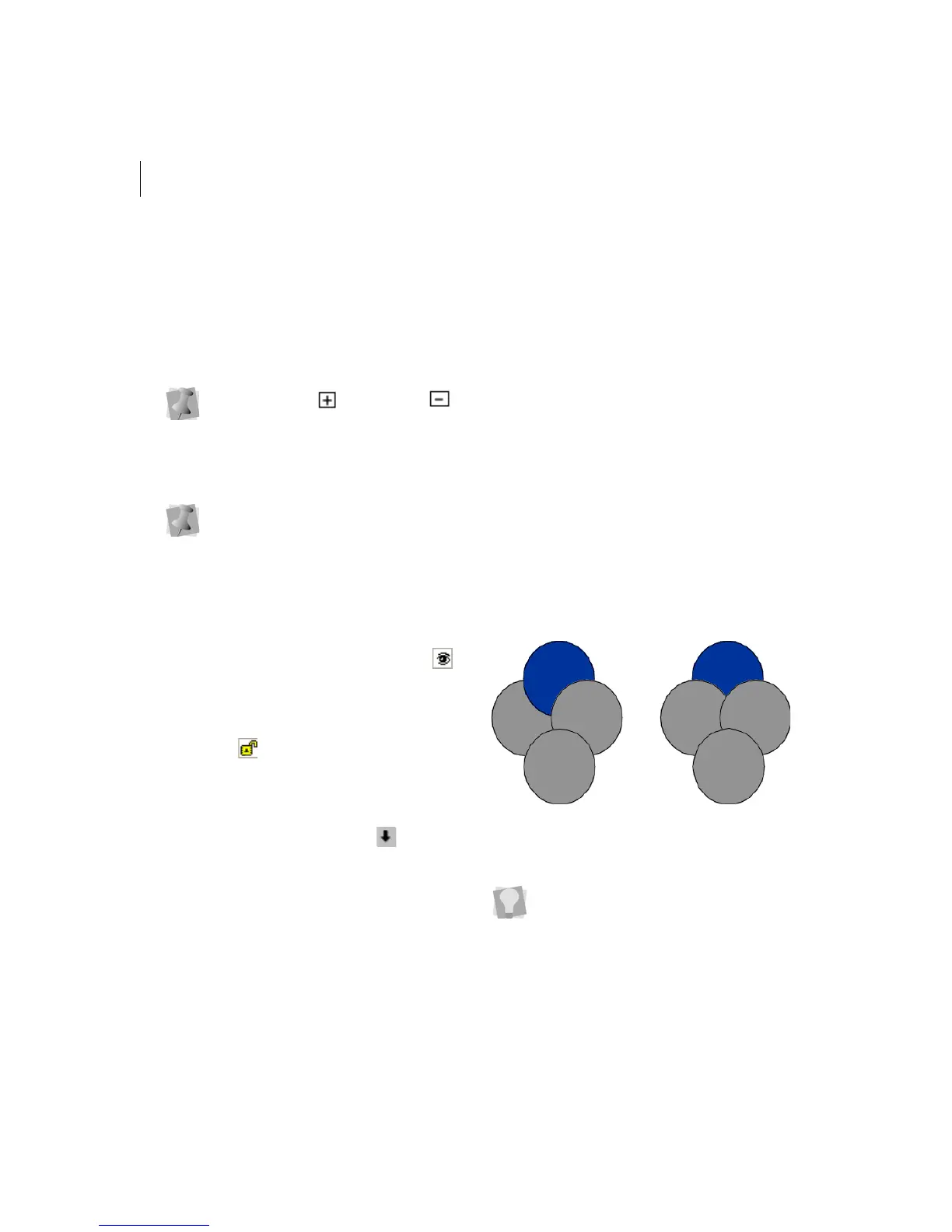
Use the Bring To Start of Design command to
make the selected segment the first one to be
stitched. When a design is sewn, the first
segment sewn is usually "on the bottom" or in
the "back" of the design. Use the Bring To
End of Design command to make the
selected segment the last one to be stitched.
When a design is sewn, the last segment
sewn is usually "on top" or in the "front" of the
design.
To move a segment to the start of a
design:
1 Select the segment you want to move to
the start of your design.
2 Choose Edit—Resequence—Bring To
Start of Design.
To move a segment to the end of a
design:
1 Select the segment you want to move to
the end of your design.
2 Choose Edit—Resequence—Bring To End
of Design.
You can also click to expand and
to collapse a color layer.
You can copy and paste segments in
Sequence View. Press Ctrl+C on your
keyboard to copy segments and press
Ctrl+V on your keyboard to paste
segments.
To view the sequence change, select
View—Sequence View.



 To Next Page