ELNA XPRESSIVE II 81
User’s Guide
Rotating lettering
manually
Xpressive allows you to easily rotate
characters in lettering segments. You no
longer have to convert lettering into
segments in order to perform character edits.
To rotate lettering manually:
1 Create your lettering.
2 Select the center bead of the character
you want to edit.
You see an editing box appear around the
selected character.
3 To rotate a character, do the following:
At the line above the editing box, drag
the round bead to the left or right.
4 To rotate another character in the lettering
segment, select the center bead of the
character and use the editing box to
rotate.
5 When you are finished rotating a
character, click its center bead again.
The editing box will disappear.
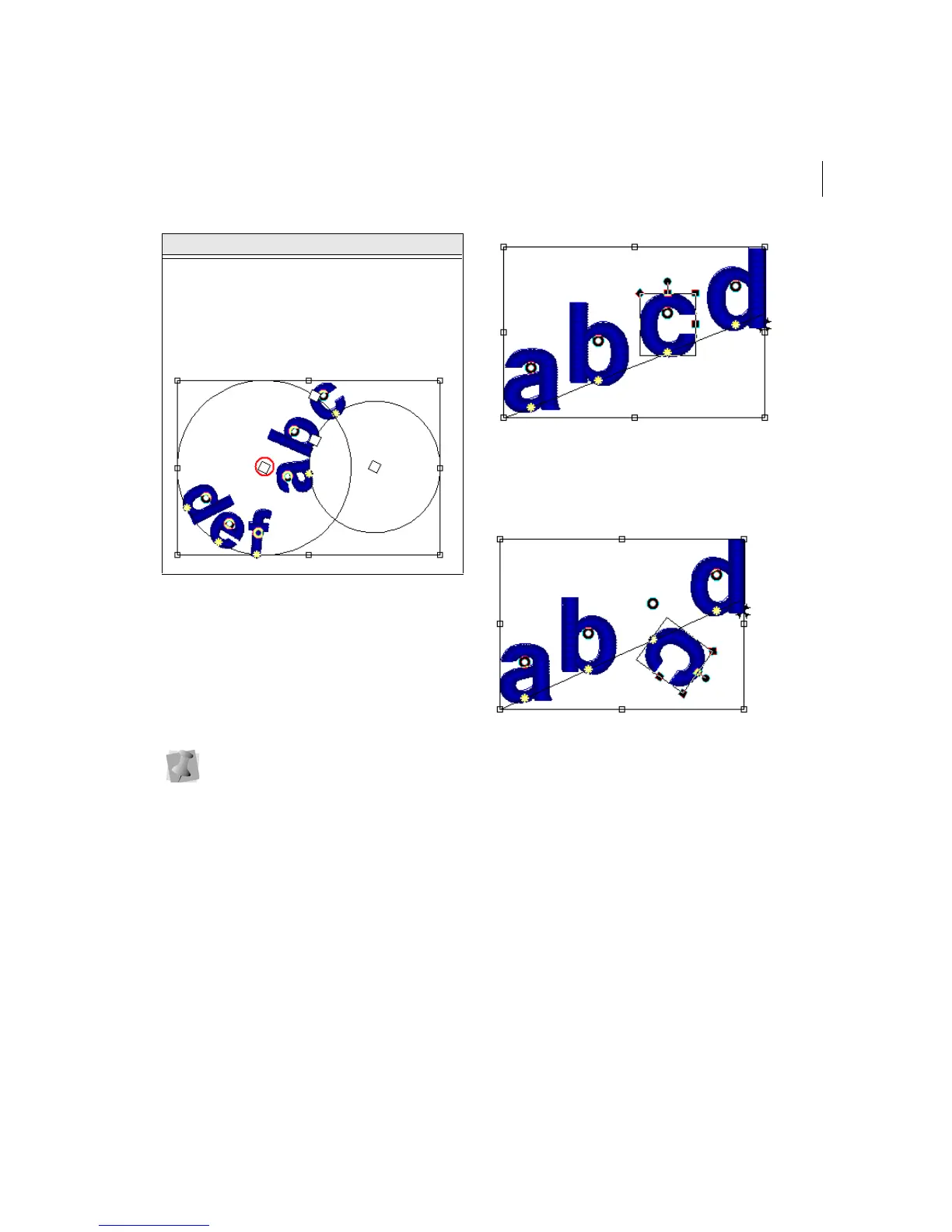
Change the position
and size of the lower
baseline.
Click and drag the
second overlapping
square bead at the
center.
You can open and work with lettering
segments saved in older design file
formats. To save character edits made in
the latest version of Xpressive, you must
save the design file in *.ESX format.
Do this Get this



 To Next Page