ELNA XPRESSIVE II 163
User’s Guide
Creating stitches with the
Complex Fill tool
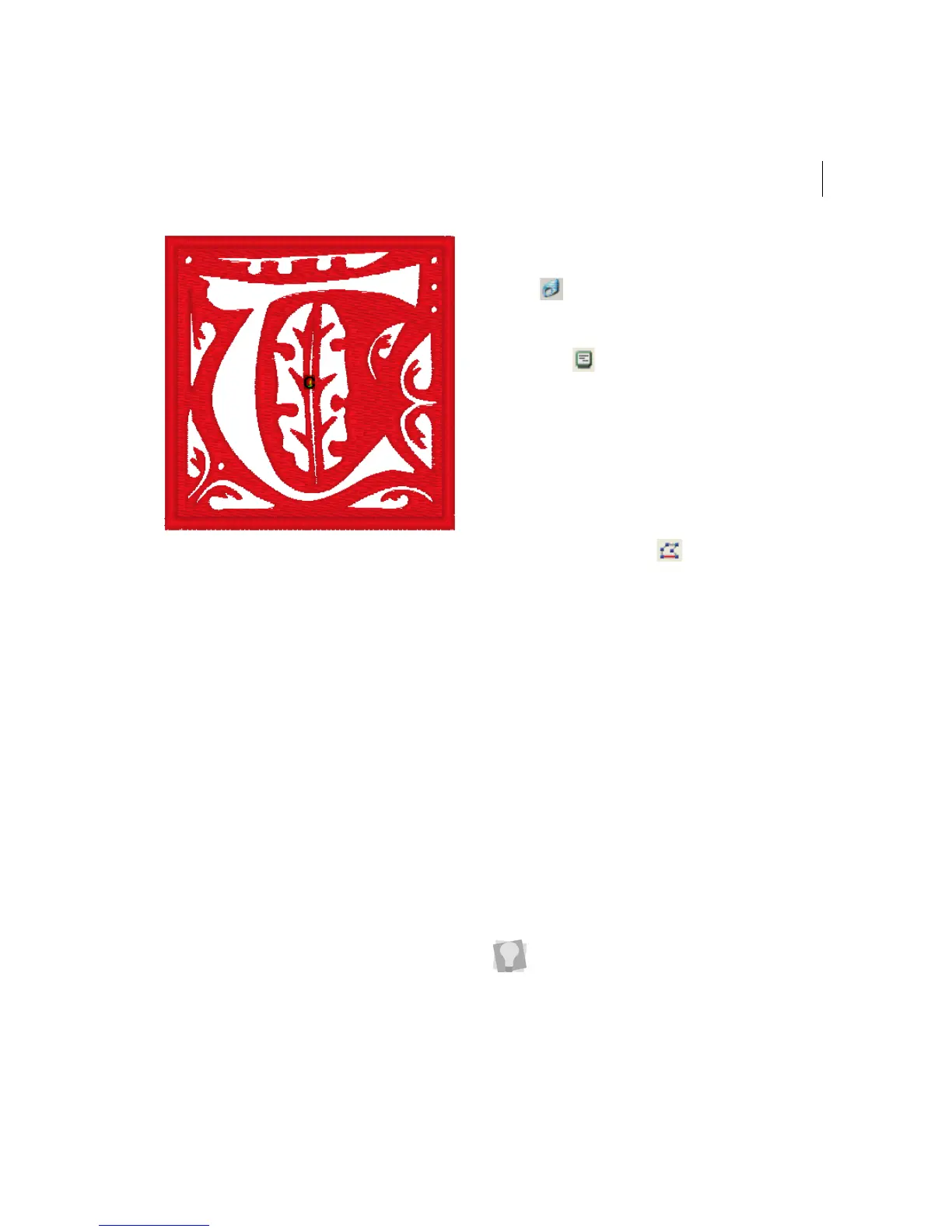
Use the Complex Fill tool to create Satin or
Fill stitches. You select a Satin type or Fill
pattern from the Fills property page.
To create Satin or Fill stitches:
1 In the Punching toolbar, click the Complex
Fill tool.
The pointer becomes a cross.
2 From the ribbon, click the Segment
Settings tool.
You see the Segment Settings dialog
appear.
3 Click the Complex Fill property page.
4 In the Standard Pattern list, select a Satin
type or a Fill pattern.
5 Click OK.
6 On the design workspace, click with your
left mouse button to punch the segment.
7 Click the Auto Close tool on the
ribbon or press H on your keyboard to
close the segment.
8 To complete the segment, press ENTER
on your keyboard.
9 To set the start and stop points and the
angle line for your segment, do the
following steps:
When the pointer becomes a green
arrow, click where you want to set the
start point. You will see a green bead
where you clicked and the pointer
becomes a red arrow.
When the pointer becomes a red
arrow, click where you want to set the
stop point. You will see a red triangle
bead where you clicked and the
pointer becomes a small arrow with a
bead.
After you close the segment, you can
right-click to quickly set the entry and exit
points and angle line by accepting the
system defaults.



 To Next Page