152
To resize an image using the Reference
Points dialog:
1 Load your image.
See "Loading images for punching".
2 Choose Edit—Edit Tools—Backdrop
Select.
Your cursor changes to a black triangle
and plus sign.
3 Right-click the image.
You see a shortcut menu.
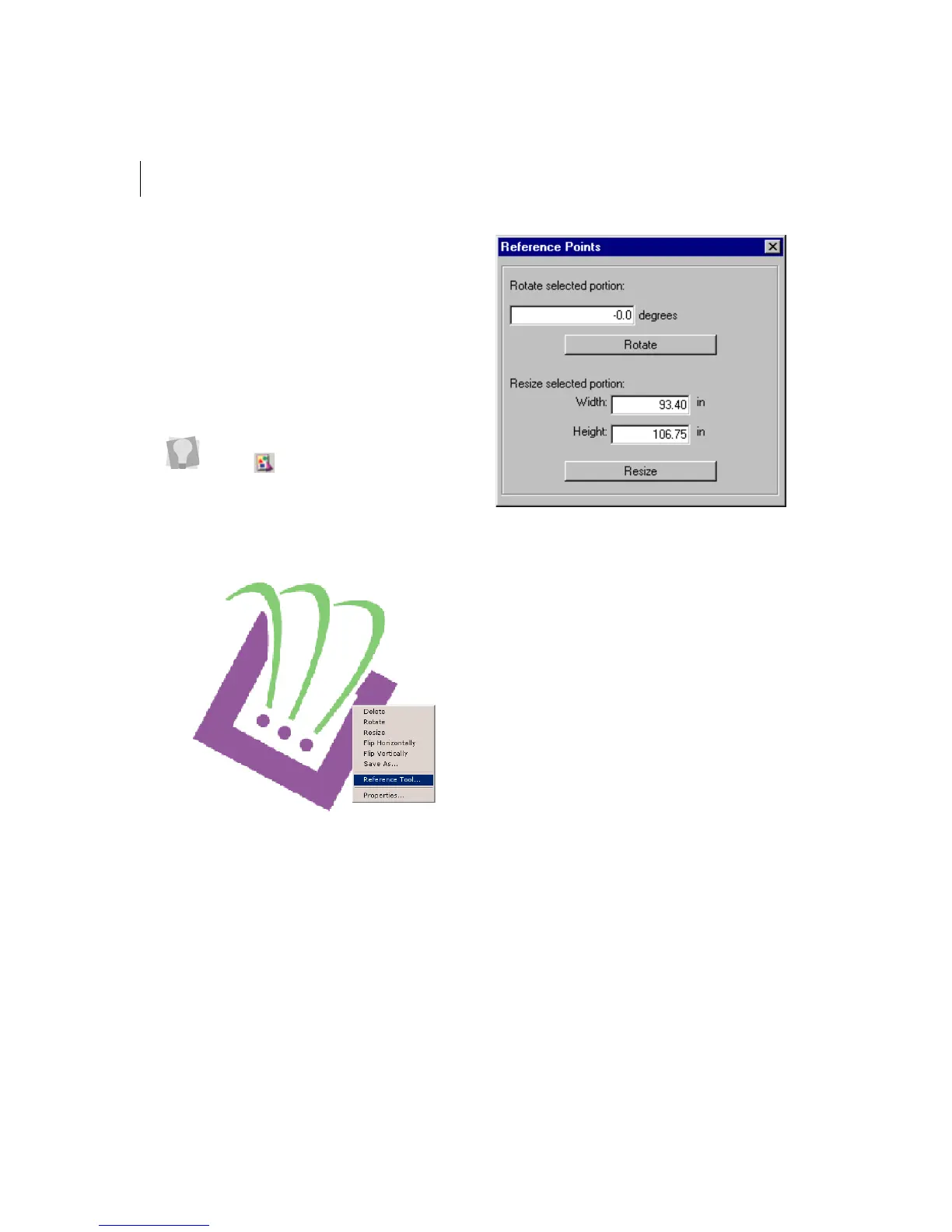
4 Choose Reference Tool from the menu.
You see the Reference Points dialog.
5 In the Width box, enter the width you want
for your image.
6 In the Height box, enter the height you
want for your image.
7 Click Resize to resize the image.
The image is resized. You can keep trying
different size combinations until you find
the correct one.
8 Click the X in the top right hand corner to
close the Reference Points dialog.
Removing scanned
images
You can remove a loaded image from the
design workspace if you loaded the wrong
image by mistake.
To remove a scanned image:
1 Choose Edit—Edit Tools—Backdrop
Select.
Your cursor changes to a black triangle
and plus sign.
You can also choose the Backdrop
Select tool from the Edit toolbar.



 To Next Page