ELNA XPRESSIVE II 145
User’s Guide
Adding angle lines to
segments
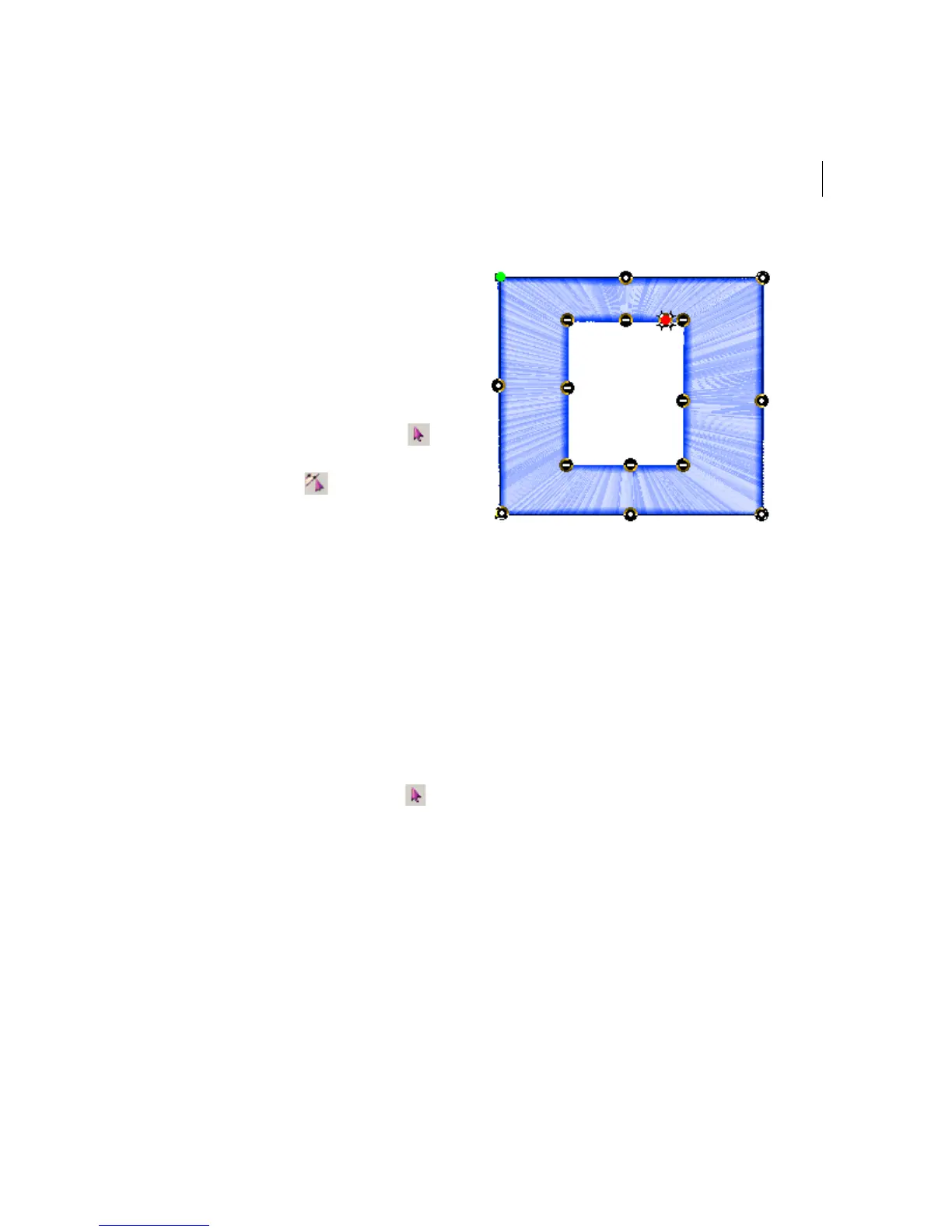
You can smooth the angle of stitches in Satin
segments by adding additional angle lines to
the segment. For more information, see
"Angle Line beads" in the glossary.
To add more angle lines:
1 In the Edit toolbar or the Edit drawer of
the Tool Cabinet, click the Select tool
to select the segment you want to edit.
2 Click Angle Lines .
Your cursor becomes a triangle with a
bead.
3 Add the Angle Line where you want
making sure that you are adding it in the
same direction as the existing Angle
lines.
You can drag the Angle Line beads in
different directions to change the angle
that the stitches will sew.
To add more angle lines by copying an
existing bead:
1 In the Edit toolbar or the Edit drawer of
the Tool Cabinet, click the Select tool.
2 Place the pointer over the existing Angle
Line bead you want to copy.
3 When the pointer becomes a small arrow,
click the existing Angle Line.
4 Hold down CTRL on your keyboard and
drag the selected Angle Line to the right
or to the left to create an additional angle
line.
You can drag the Angle Line beads in
different directions to change the angle
that the stitches will sew.



 To Next Page