144
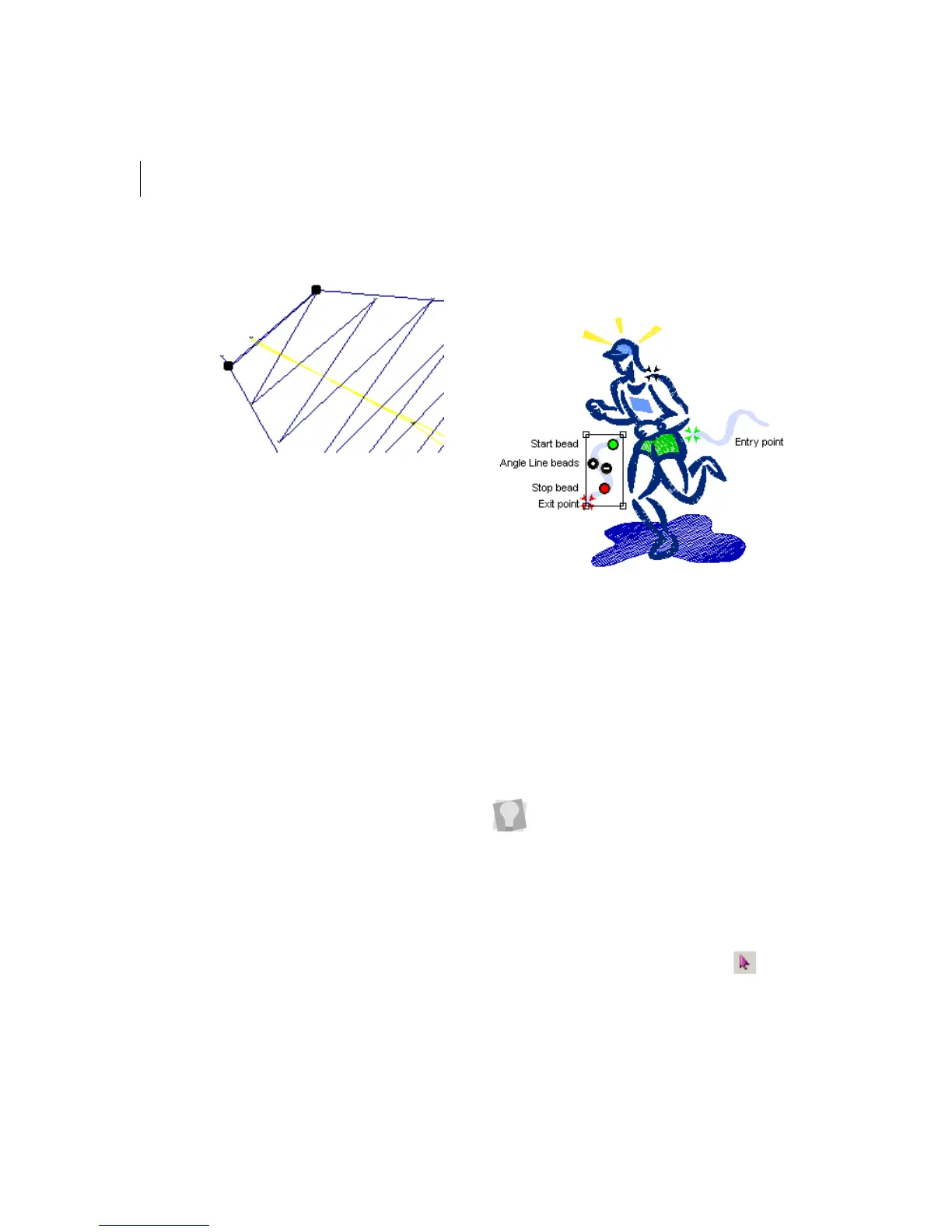
4 Drag the anchor point to create the
desired shape for the segment.
5 Press G on your keyboard to regenerate
stitches.
Resetting Handles
If you change the position of points in a
design, the handles may no longer fit the
shape of the design. You can refresh them
using Reset Handles.
To reset handles:
1 Select the active segment enclosed in
handles.
2 Press Ctrl+E on your keyboard and select
Reset Handles from the shortcut menu.
Working with Beads
Different bead types
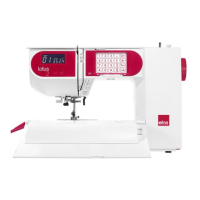
Xpressive works with four different bead
types. Beads are placed on paths to provide
information about stitches. The different bead
types include Start beads, Stop beads, Angle
line beads and Corner beads. You can slide
these beads along a path like beads on a
piece of string, allowing you to move them
precisely where you want them.
Changing the location of
start and stop points
Xpressive places start and stop beads when
you create segments. Start points are
represented by green beads and stop points
are represented by red triangle beads. The
start and stop points are moveable beads
that you can drag to change the location.
To change the location of a start or stop
point:
1 In the Edit toolbar or the Edit drawer of
the Tool Cabinet, click the Select tool.
2 Left-click the bead and drag it to the new
location.
You can also press the ~ key (tilde) on
your keyboard and click the new start
location, and then click the new stop
location.



 To Next Page