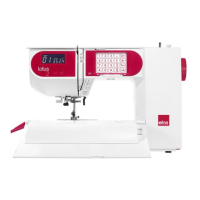
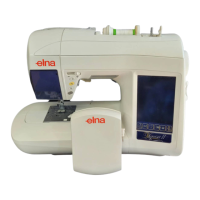
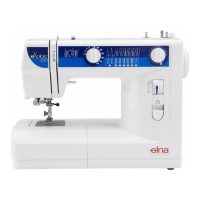
ELNA XPRESSIVE II 39
User’s Guide
Adding custom thread
colors to a custom thread
chart
Using the Windows®2000/XP Color palette,
you can add new thread colors to a custom
thread chart. The available manufacturer’s
thread charts may not have all the colors you
want or the colors are not a close enough
match to your colors; therefore, you can
create your own using the Thread Chart.
To add custom colors to a custom
thread chart:
1 Click at the bottom right-hand corner
of the screen.
You see the Thread Chart Dialog box.
2 In the Chart list, select Custom.
3 Click Add Thread.
You see the Thread Property Page.
4 Click the black square to change the
thread color.
You see the Color dialog box.
5 Select a color from the palette.
6 Click Add to Custom Colors.
You see the color appear in the Custom
Colors squares.
7 Click OK.
You see the Thread Property Page.
8 In the Color box, enter a name for the
thread color.
9 In the Type box, enter the type of thread
for the color.
10 In the Thickness box, enter a value for the
thread thickness.
11 Click OK.
The new color is added to a custom
Thread chart.
Adding standard thread
colors to a custom thread
chart
You can create custom color palettes for your
designs. For example, you may want to
combine colors found in various thread
manufacturers’ thread charts to achieve a
certain look or color combination for your
designs.
To add standard thread colors to a
custom thread chart:
1 Click at the bottom right-hand corner
of the screen.
You see the Thread Chart Dialog box.
2 In the Chart list, select a chart.
You see a new set of thread colors.
3 Click the color you want to add to a
custom color palette.
4 Click Add Thread.
You see the Thread Property Page.
5 Click OK.
6 In the Chart list, select Custom.
You see the thread color chosen in a
custom palette.
7 Click OK.
8 Repeat the steps above to add other
colors to a custom palette.
You cannot add colors to the pre-installed
manufacturers thread charts.



 To Next Page