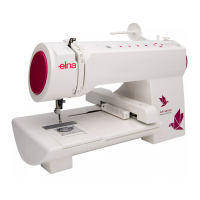
ELNA XPRESSIVE II 43
User’s Guide
Inputting and
Outputting Designs
To input and output designs you will need a
Smart Media card and a Floppy Disk Adapter.
Please refer to the Smart Media Card
definition in the “Glossary” section for more
detailed information.
When you have installed the adapter
software, you are ready to input and output
designs to the Smart Media card. You insert
the Smart Media card into the adapter so that
the card works like a regular floppy disk.
Inputting a design
Using the Smart Media command, you can
input designs from disk. You can then modify
the design if you want, and then output the
design to sew on the Elna embroidery
machine.
To input a design:
1 Insert the disk that has the designs you
want to input into the appropriate drive.
2 Choose File—Smart Media—Input.
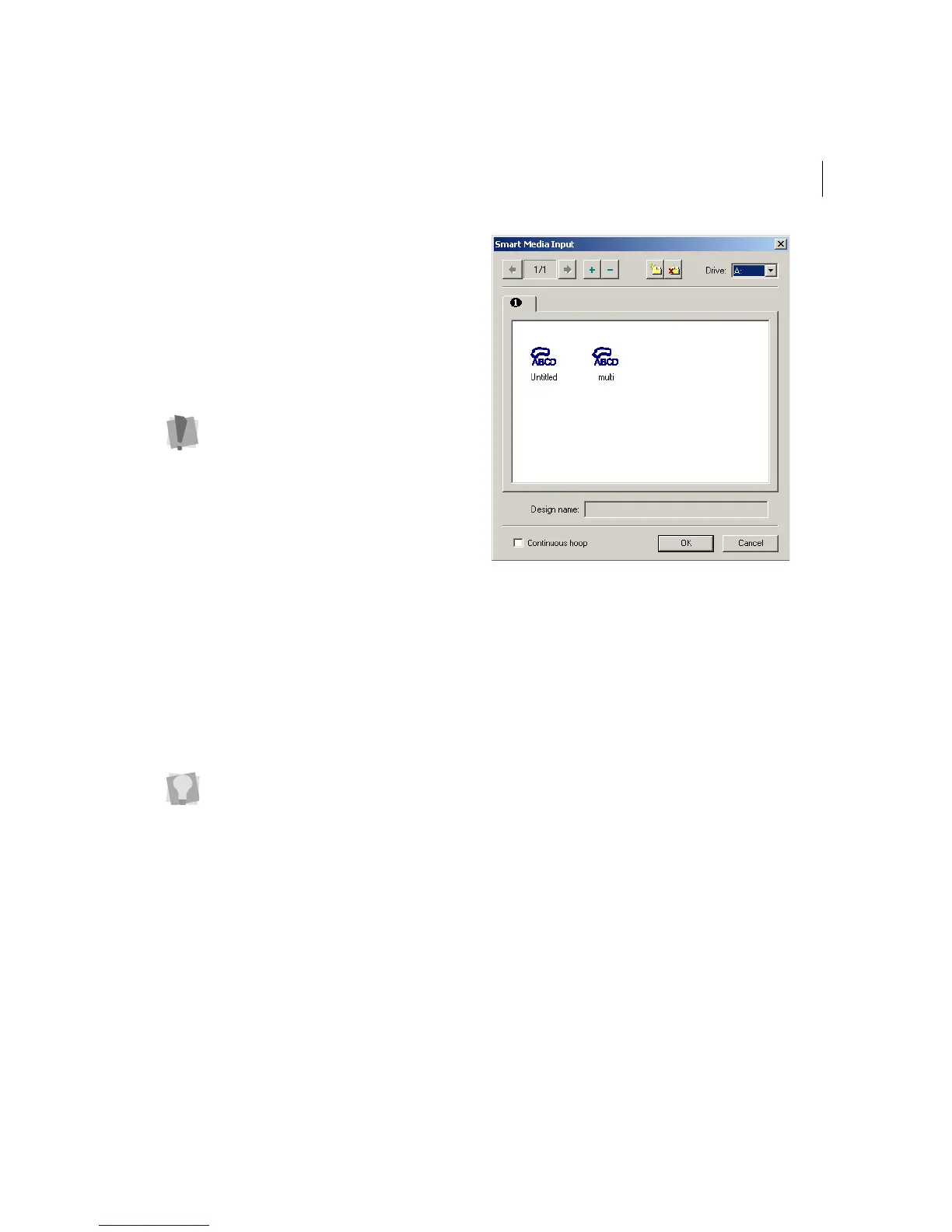
You see the Smart Media Input dialog.
3 In the Drive list box, choose the Drive
location.
4 Click on the design you want to input. To
input more than one design, press the
Shift key.
5 To import a continuous hoop design, click
the Continous hoop check box.
6 Click OK.
The design is loaded into Xpressive.
Outputting a design
Using the Smart Media command, you can
output a design to disk then export the design
to the Smart Media cards that the Elna
embroidery machine uses to read the design.
Once a design is output to the Smart Media
card, you can then sew it on the Elna
embroidery machine.
Before you use the adapter you will need
to install the software that comes with the
adapter. Please see the adapter’s
documentation for more information.
You can use Windows® standard
commands with the mouse as well as the
Shift and Ctrl keyboard functions. You
can also right-click to open a shortcut
menu.



 To Next Page