48
Viewing Methods and
Tools
Magnifying and reducing
the view
Use Zoom to magnify or enlarge parts of your
design. Reducing a design lets you see more
of your design on-screen. With Zoom you can
either left-click to enlarge your design or
right-click to make your design smaller.
To use Zoom:
1 Choose View—Zoom.
The pointer becomes a magnifying glass
with a plus sign.
2 Left-click the design.
3 Do one of the following steps:
Right-click to make your design
smaller.
Left-click that area to zoom-in on a
specific area.
To zoom-in on a specific area:
1 Choose View—Zoom.
The pointer becomes a magnifying glass
with a plus sign.
2 Click and hold your left mouse button and
drag your mouse to form a flexible box
around the specific area you want to see
in detail.
3 Drag the mouse across the area you want
to zoom-in until it is inside the box.
4 Do one of the following steps:
To increase the zoom, continue
clicking and dragging the flexible box.
By doing so, you can view a single
stitch.
In the View toolbar, click the Back to
1:1 tool to zoom back out.
To disable Zoom:
• In the Edit toolbar, click the Select
tool once you get to the level of
magnification you want.
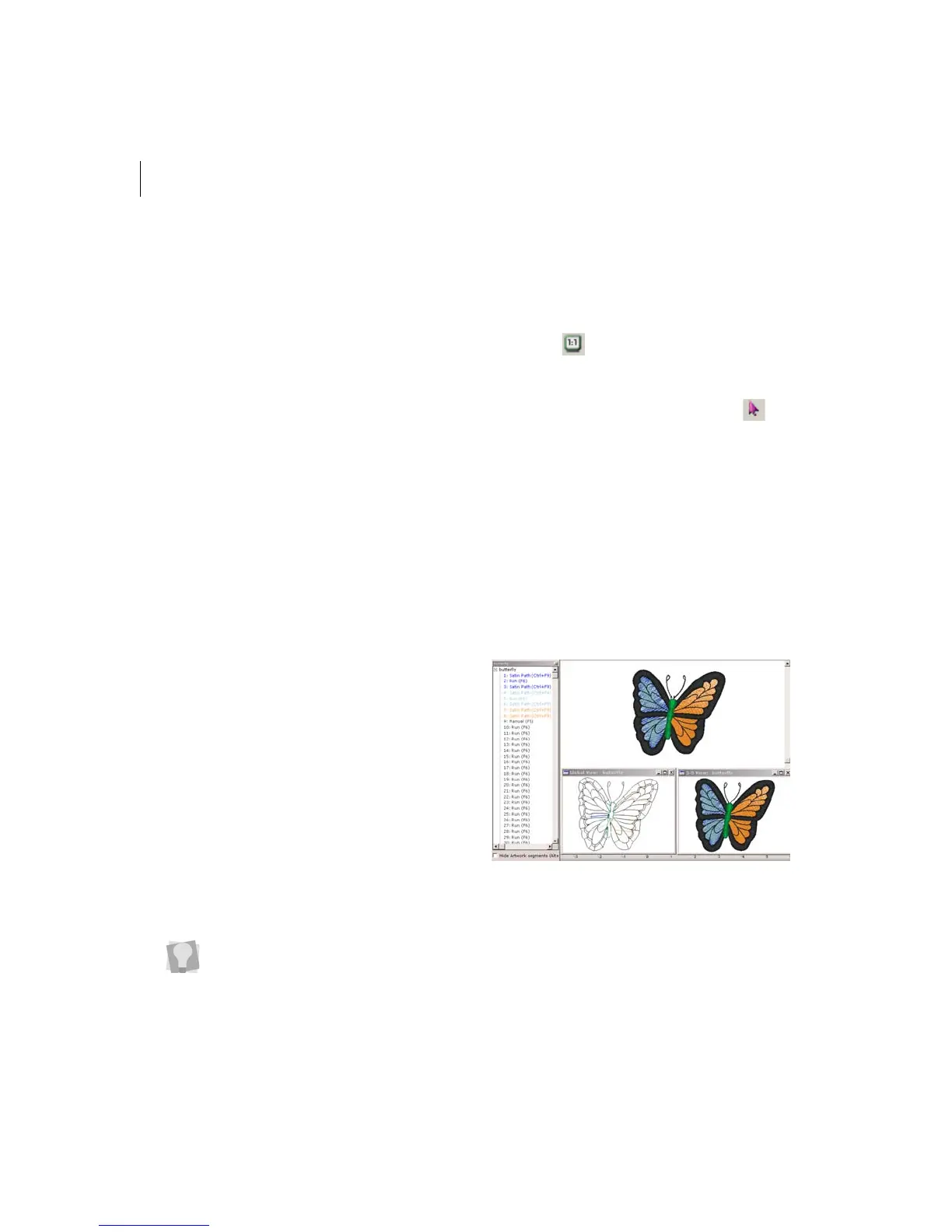
Viewing designs
You can view designs in a variety of ways
using one of the options in the Multi View
Paradigm. The different views are Enhanced
Main View, Sequence View, and 3-D View.
You can have all views open in Xpressive at
the same time.
Multi View Paradigm
Viewing a design in Enhanced Main
View:
• Open the design.
The design opens in Enhanced Main View.
You can also press 1 on your keyboard
to zoom back to the original design size.



 To Next Page