Long Range Wireless Access Point / Client Bridge Version 1.0
26
Save a copy of the current settings: Click on the Backup button to save the
currentconfiguration.
Restore saved settings from a file: Once a file has been backed up, you may
restore it by clicking on the Browse button to select the file, and then the
Restorebutton.
Reverttofactorydefaultsettings:ClickontheFactoryDefaultSettingsbuttonto
resetthedevicetothedefaultsettings.Pleasewaitwhilethedevicerestartand
thenaccessthedeviceusingthedefaultIPaddress:192.168.1.1
4.5.4 FirmwareUpgrade
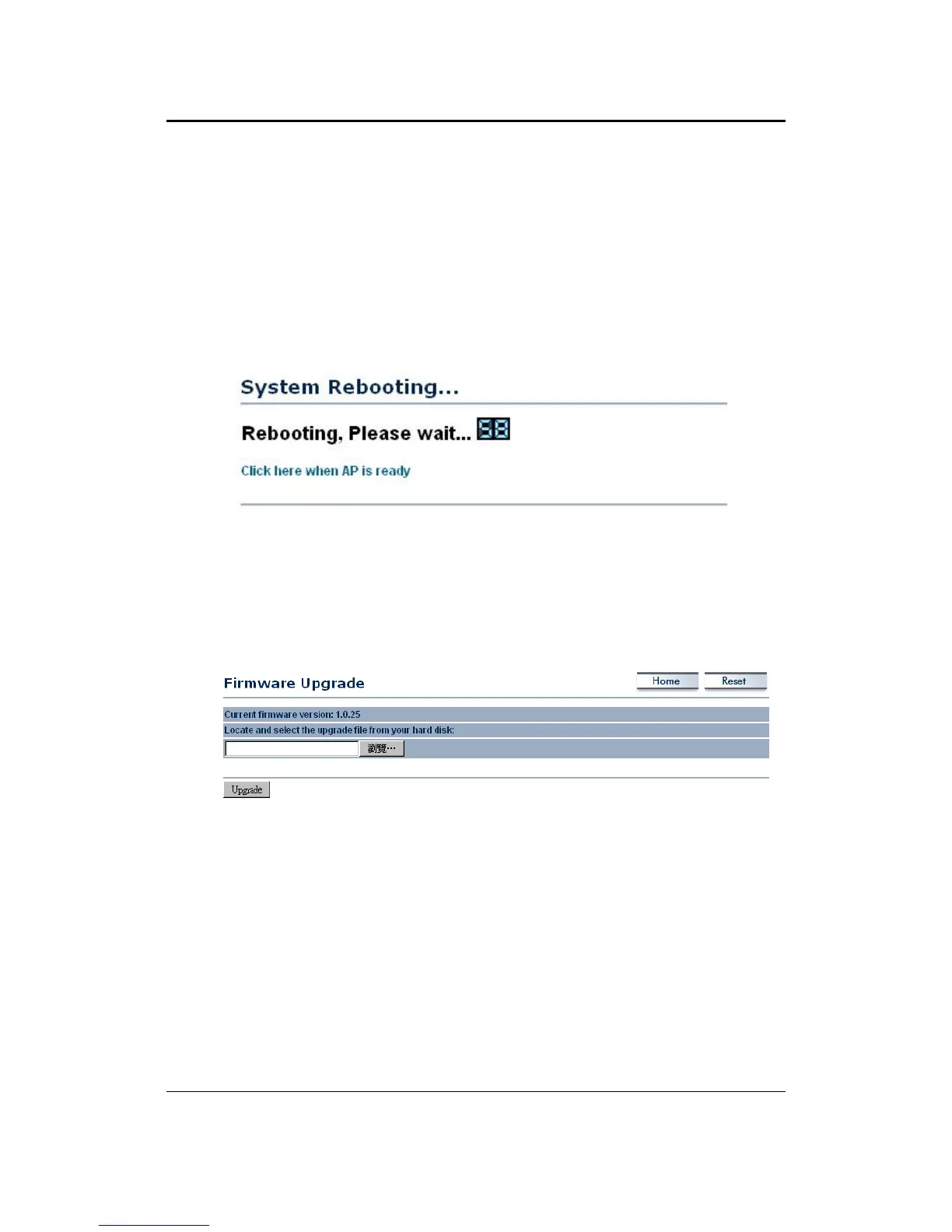
Clickon theUpgradeFirmwarelinkundertheManagementmenu. Thispageis
used to upgrade the firmware on the device. Make sure that downloaded the
appropriatefirmwarefromyourvendor.
Clickon the Browse button and then select the appropriate firmwareandthen
clickontheUpgradebutton.
Note:Theupgradeprocessmaytakeabout1minutetocomplete.Donotpower
off the device during this process as it may crash the device and make it
unusable.
Thedevicewillrestartautomaticallyoncetheupgradeiscomplete.
4.5.5 TimeSettings
Clickon the Time Settingslinkunder the Management menu. Thispage allows
you to configure the time on the device. You may do this manually or by
connectingtoaNTPserver.


 To Next Page