Long Range Wireless Access Point / Client Bridge Version 1.0
37
Data Rate: Ifyou would like to force a data rate, you may select one from the
drop‐down list. However, for best performance it is recommended to use the
Autosetting.
Transmit Power: You may have thedifferent application distance of thedevice
by selecting a
value from the drop‐down list. This feature can be helpful in
restrictingthecoverageareaofthewirelessnetwork.
Fragment:Packetsoverthespecifiedsizewillbefragmentedinordertoimprove
performanceonnoisynetworks.
RTS Threshold: Packetsoverthe specified size will use the
RTS/CTSmechanism
to maintain performance in noisy networks and preventing hidden nodes from
degradingtheperformance.
Protection Mode: If your wireless network is using both 802.11b and 802.g
devices then it is recommended to enable this feature so that the 802.11b
deviceswillnotdegradetheperformanceof802.11g
devices.
WMM:YoucanselectEnableorDisableWMMwhendoingthecommunication
bywireless.
Distance(1‐30km):Specifyadistancebetween1and30Km.
ClickontheApplybuttontosavethechanges.
5.5 Management
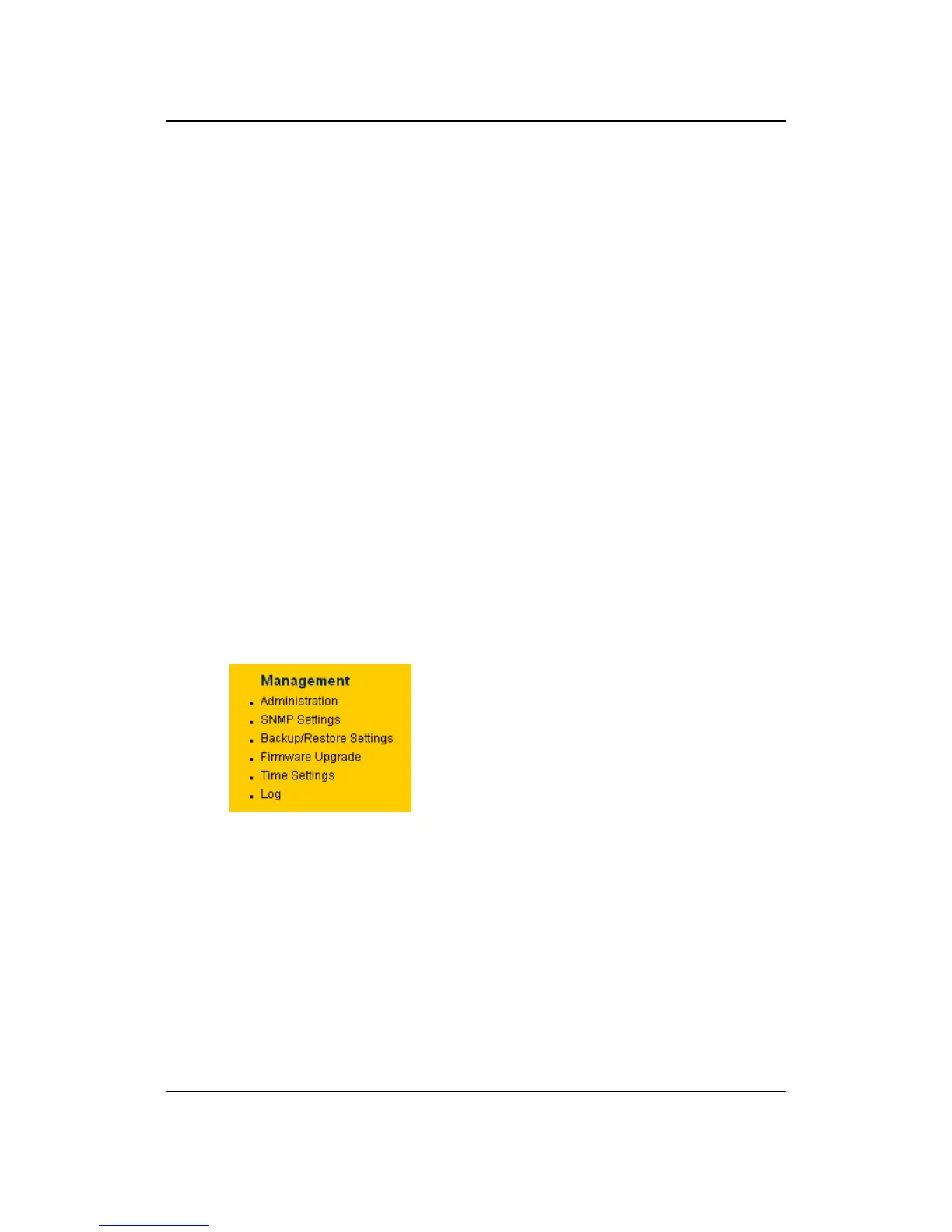
Click on the Management link on the
navigation drop‐down menu. You will
then see six options: administration,
SNMP settings, backup/restore settings,
firmware upgrade, time settings, and log.
Eachoptionisdescribedbelow.
5.5.1 Administration
Click on the Administration link under the Management menu. This option
allows you tocreate a username and password for the device. By default, this
device is configured without a user name and password admin. For security
reasons it is highly recommended that you create a new user
name and
password.


 To Next Page