3 Basics | 19
or
1. Right-click the title bar of the window.
2. In the context menu, click Float.
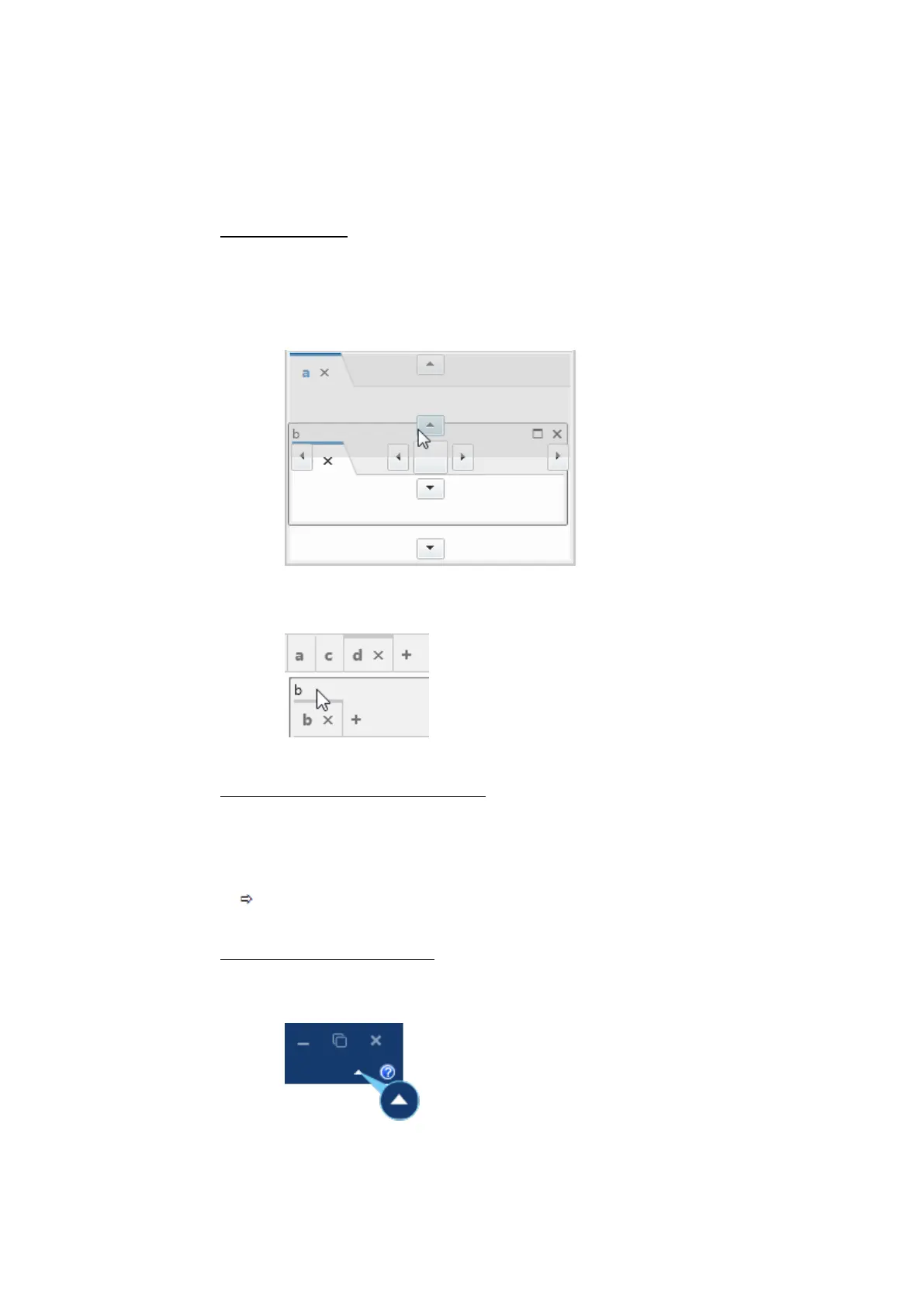
To dock a window
1. Drag the title bar of a floating window to a new position.
2. Do one of the following:
l
Move the cursor to one of the graphical elements.
The future position of the window is displayed in light gray.
l
Move the cursor to the title bar of another window.
The future position of the window is displayed in light gray.
3. If the position is correct, release the mouse button.
To restore the default window layout
1. On the ribbon, select the View tab.
2. Click Restore Default Layout.
3. Restart MDA.
The default layout is restored. This includes the positions and sizes of the
of docking windows.
To hide and unhide the ribbon
1. Do one of the following:
l
Click the arrow on the right side of the Ribbon.
l
Double-click one of the ribbon labels, i.e. File, Configuration, View, or
MDA V8 | User Guide



 To Next Page