5 Layers and Instruments | 47
5 Layers and Instruments
5.1 Layers
To organize the configuration, you can distribute the data on several layers. Each
layer can have multiple instruments. The Configuration Manager helps you to
keep an overview of all existing layers and instruments. Additionally, you can
search for the relevant objects in your configuration. For more information, see
"Searching within the Configuration" on page29.
5.1.1 Using Layers
Layers help you to organize your configuration. Each configuration can have mul-
tiple layers where analysis is run individually.
You can perform the following actions:
"To create a new layer" below
"To color a layer" on the next page
"To duplicate a layer" on the next page
"To rename a layer" on the next page
"To reorder layers" on the next page
"To switch to a specific layer" on page49
"To delete a single layer" on page49
"To delete several layers" on page49
To create a new layer
To see how you can import an MDA V7 configuration and manage the instrument,
watch our video Import and Layer Handling.
1. Do one of the following:
l
On the right of the layer tabs, click the plus symbol.
Alternatively, you can right-click one of the layer tabs and select Add.
l
In the Configuration Manager, right-click a configuration and select Add
Layer.
A new layer is added to the current configuration.
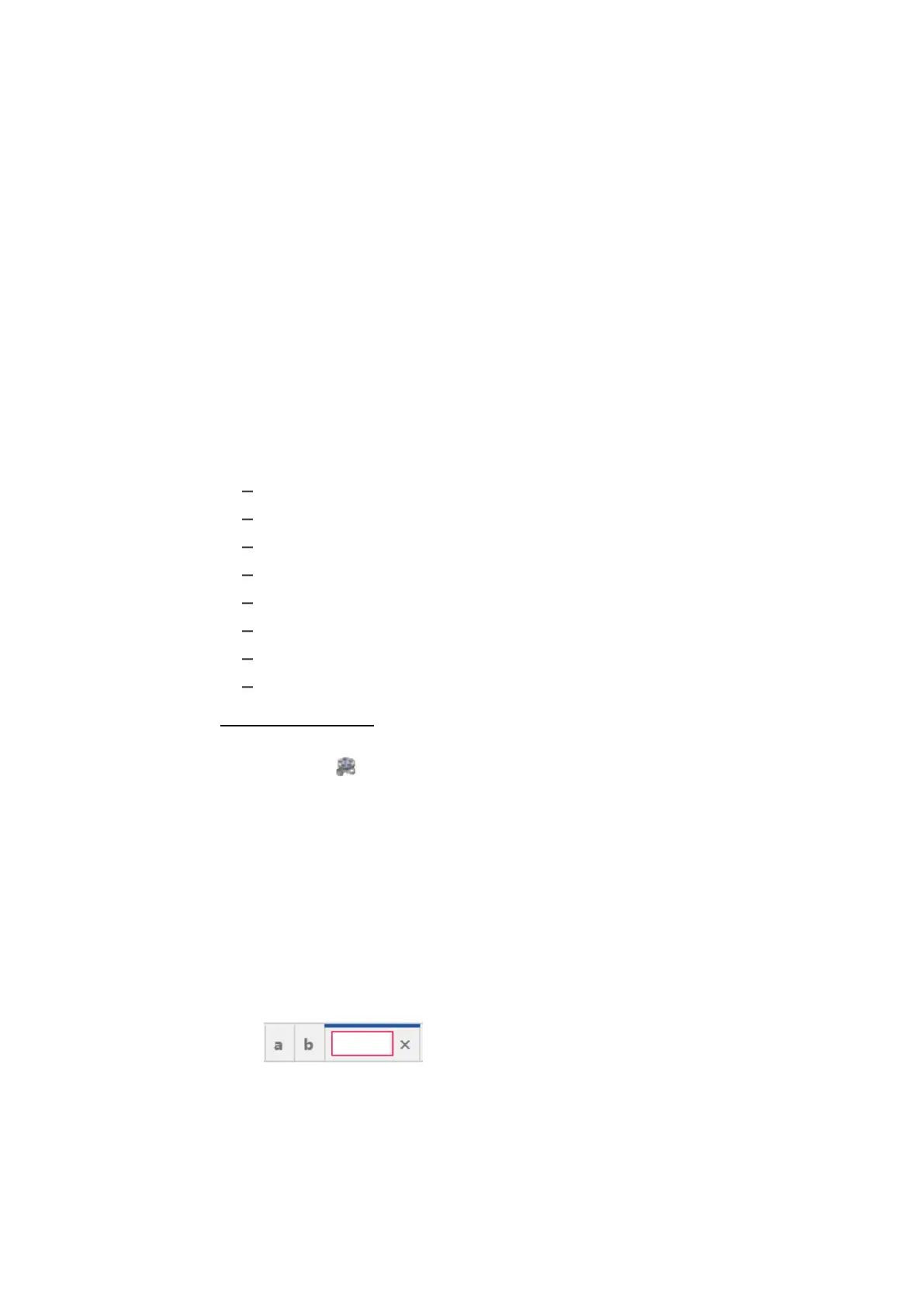
2. Enter a name for the layer. The name can consist of up to 256 characters. If
the name is not valid, it is displayed with a red frame. Refer to the tooltip for
further information.
If you do not enter a name, the name is set to "Layer" by default. If the
name is already in use, it is extended by an increasing number.
MDA V8 | User Guide



 To Next Page