5 Layers and Instruments | 50
1. If the layer taskbar is currently hidden, unhide it. For more information, see
"To hide and unhide the layer taskbar" below.
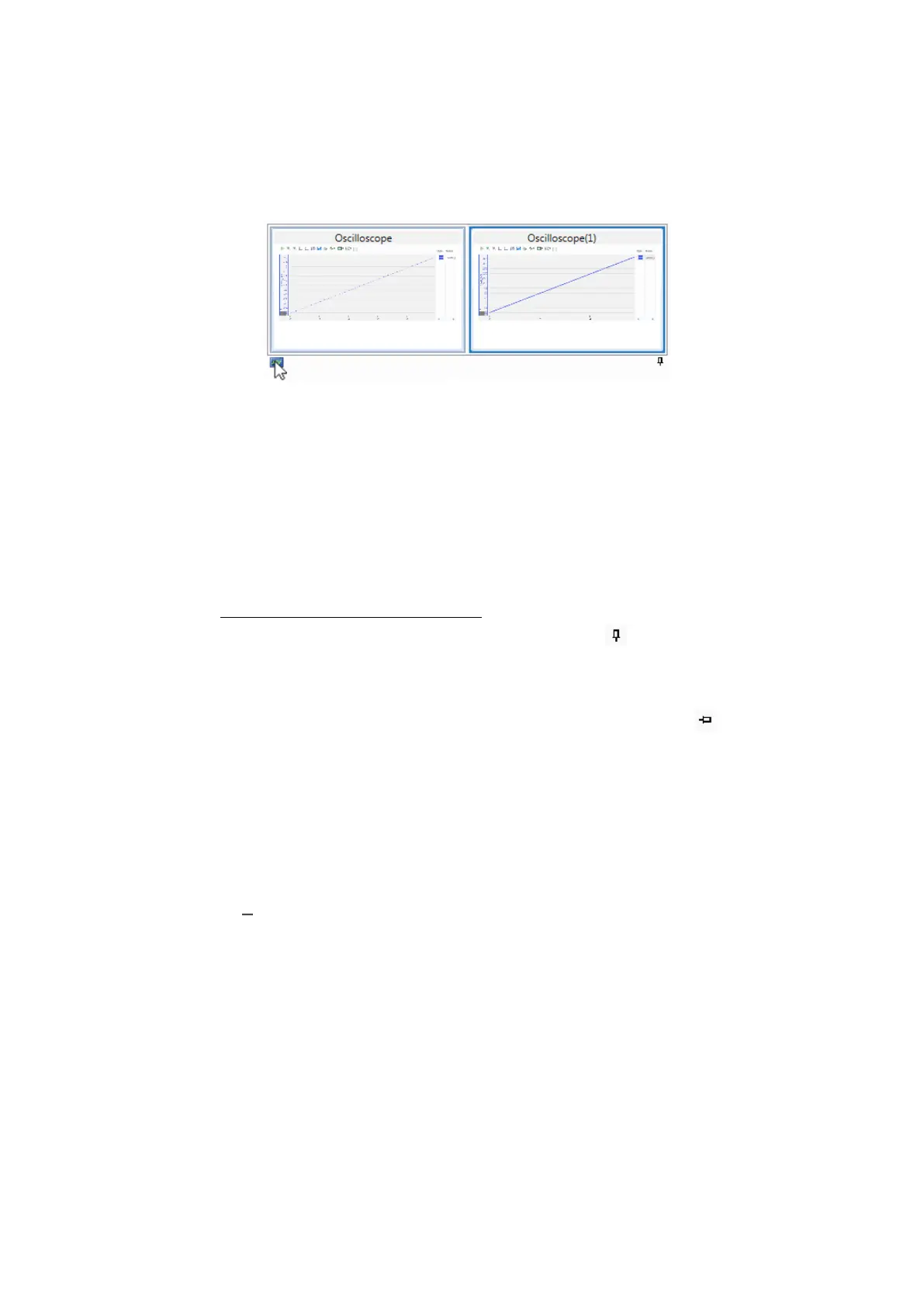
2. On the layer taskbar, hover over the icon of one of the instrument types.
For all instruments of this instrument type, a small preview is displayed. If
more instruments exist than can be displayed in the small preview, arrows
at the left and the right border appear which allow you to navigate to the
relevant instrument. The mouse wheel can be used for navigation as well.
3. Hover the cursor over the preview of one of the instruments.
A large preview is shown in actual size above the small preview.
4. To move the instrument into the foreground of the configuration, click its
small or enlarged preview.
To hide and unhide the layer taskbar
1.
At the bottom of the configuration window, click .
For all layers of the configuration, the layer taskbar is set to auto-hide
mode.
2.
To unhide the layer taskbar, hover over the gray line and click .
5.2 Instruments
The following instruments are supported:
The Battery Imbalance Table allows a quick evaluation of many comparable sig-
nals. It is suited for identifying at one point in time the signals with the highest or
lowest deviation from the average value of all assigned signals.
Oscilloscope
The measurement data are displayed as a graph. This instrument is recom-
mended for:
l
Displaying numeric signals, especially periodic signals and signals with a
large amplitude
l
Getting an overview of one or more signals over the complete time
range of one or more measure files
l
Comparing two signals over time
MDA V8 | User Guide



 To Next Page