5 Layers and Instruments | 49
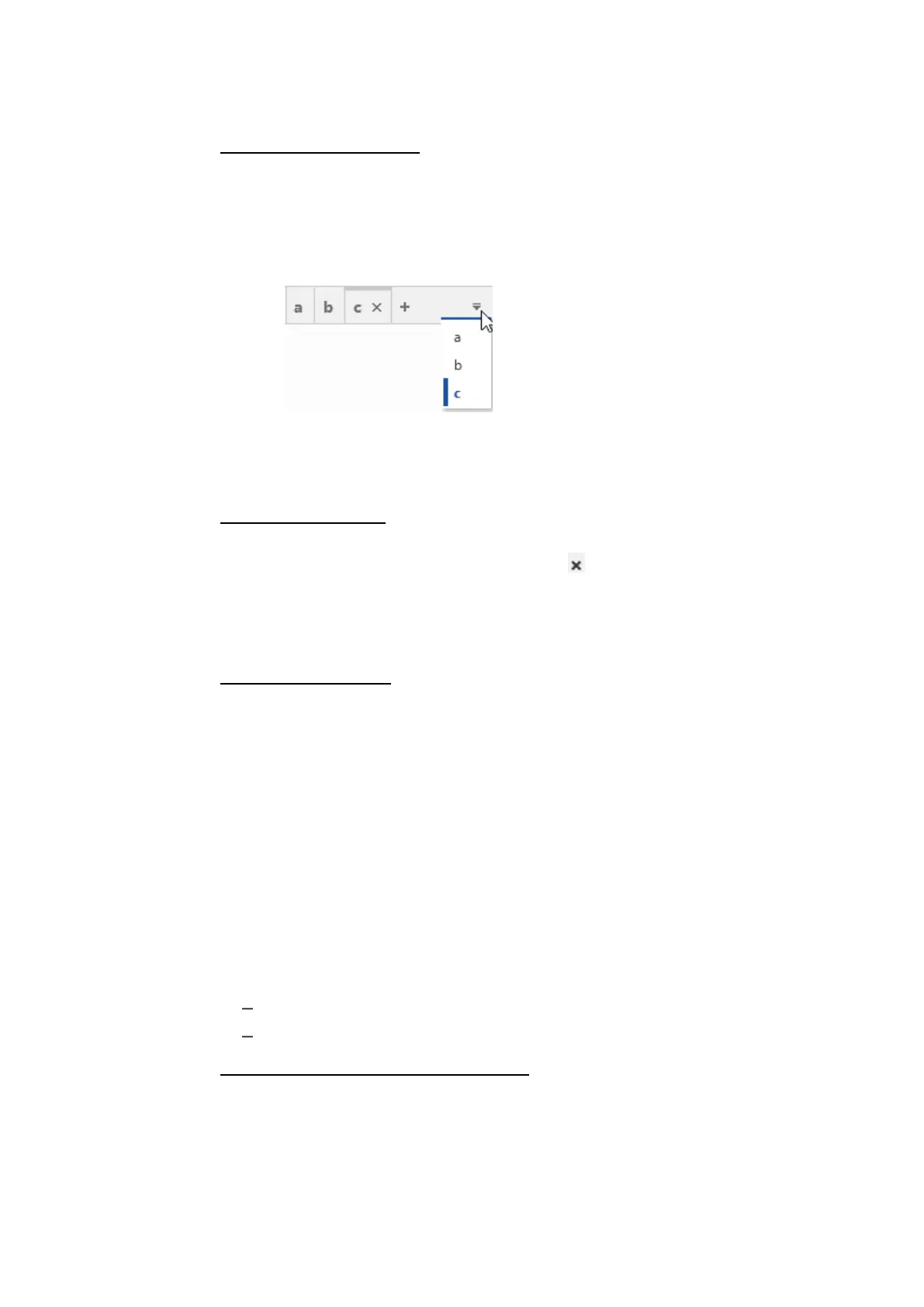
To switch to a specific layer
1. Do one of the following:
l
On the right of the layer tabs, click the drop-down menu.
A list with all layers of the same tab arrangement is displayed in alpha-
betical order. If you click an entry of this list, the selected layer is dis-
played in the foreground of the configuration.
l
To scroll the layer tabs to the left or right, use the arrow symbols next to
the drop-down menu.
Alternatively, you can use the mouse wheel for scrolling.
To delete a single layer
1. Do one of the following:
l
On the layer tab of the active layer, click .
l
On the layer tab, right-click the layer name and select Remove.
l
In the Configuration Manager, right-click the layer name and select
Remove.
To delete several layers
1. Right-click a layer tab.
2. Choose one of the following entries:
l
Remove All Layers But This
l
Remove All Layers
If all existing layers have been deleted, a new default layer is created.
5.1.2 Displaying Previews
The preview allows you to quickly navigate through your configuration and dis-
play the instrument that is relevant for you. If the display in an instrument is cur-
rently scrolling, the preview shows this movement as well. Constraints of your
graphics card can have an impact on the performance of this behavior.
You can perform the following actions:
"To display the preview via the layer taskbar" below
"To hide and unhide the layer taskbar" on the next page
To display the preview via the layer taskbar
In the layer taskbar at the bottom of the layer, all available instruments of the
same type are represented by one icon for the type. Only instruments on the cur-
rently selected layer are displayed.
MDA V8 | User Guide



 To Next Page