6 Signal Selection | 94
On first usage, the first two columns are in this frozen area. A vertical, gray
line separates the frozen area in the table from the unfrozen area.
Columns on the left side of the line remain visible when you use the hori-
zontal scrollbar.
2. To enhance or reduce the frozen area, drag any of the columns into or from
this area.
3. To unfreeze the complete table, click the icon again.
To show or hide columns
1.
In the toolbar, click .
A list of the default columns appears.
2. To show the complete list of columns, click the More columns drop-down
menu.
3. To show or hide a column, select or clear the checkbox of the respective
column name in the list.
To reorder columns
1. Move a column by dragging its column header to the new position within
the table header.
A line between the columns appears to indicate the new position.
2. Release the mouse button.
6.3 Sorting and Filtering
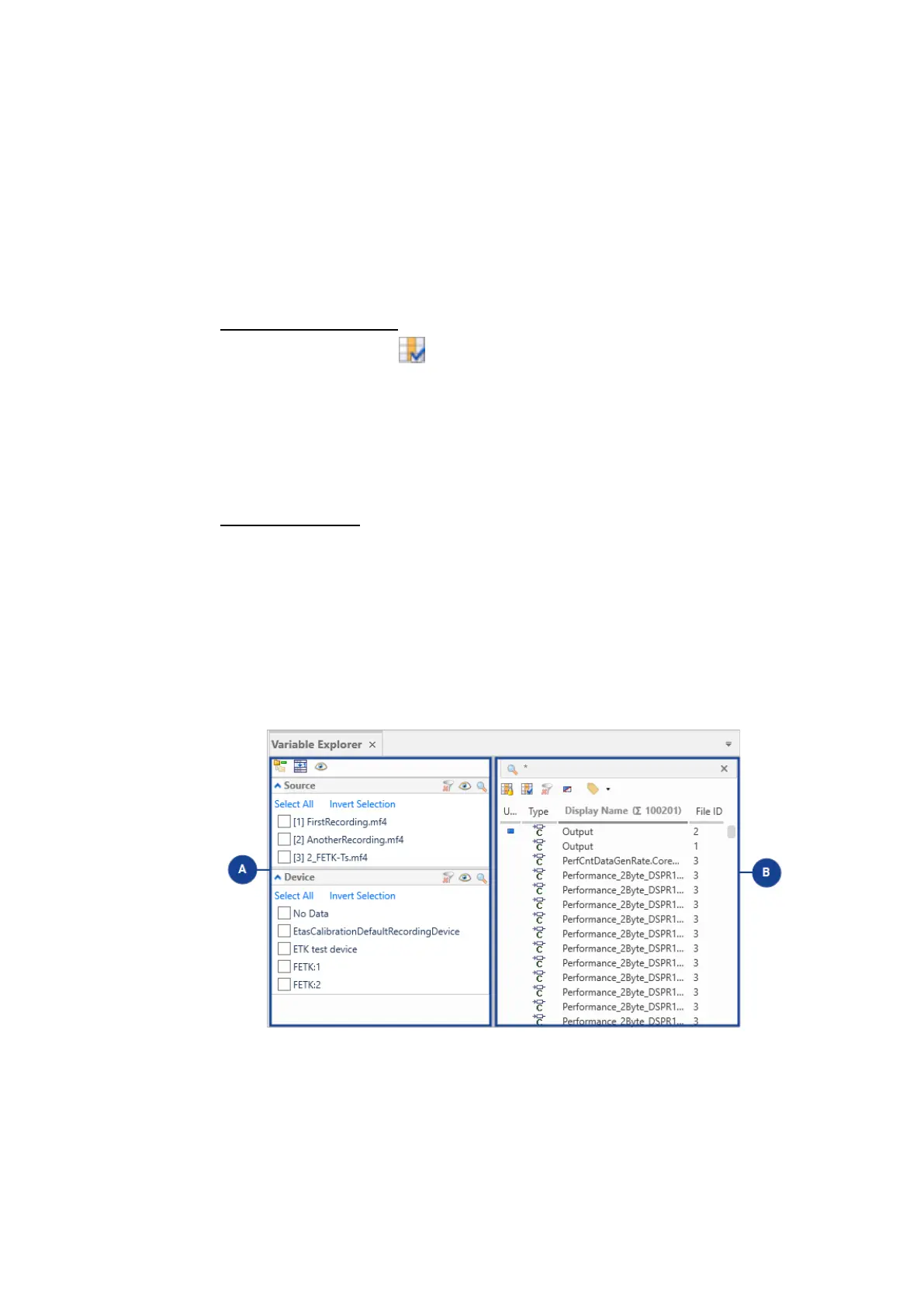
The Variable Explorer is divided into two areas:
MDA V8 | User Guide



 To Next Page