5 Layers and Instruments | 68
To send the cursor time to EHANDBOOK-NAVIGATOR
If V8.6 is connected to EHANDBOOK-NAVIGATOR, the cursor time is automatically
sent to EHANDBOOK-NAVIGATOR each time you change the cursor’s position. For
more information on how to establish a connection to EHANDBOOK-NAVIGATOR,
see "Connecting MDA to EHANDBOOK-NAVIGATOR" on page24.
5.2.2.8 Adjusting Signals
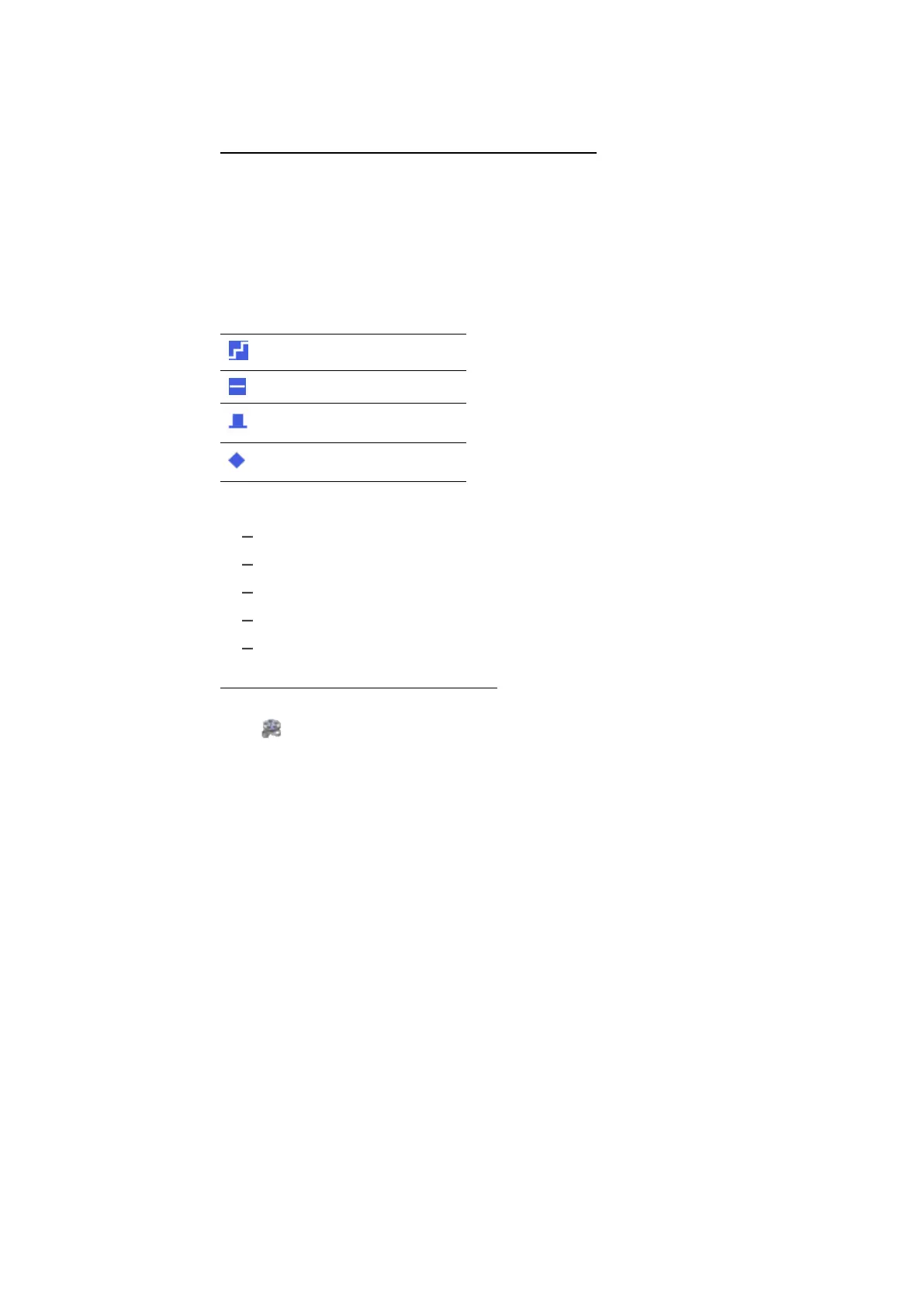
In the Style column, the type of each signal is shown.
icon for discrete signals
icon for continuous signals
icon for Boolean signals
icon for Event signals
You can perform the following actions:
"To define the appearance of the signal" below
"To show or hide a signal curve" on the next page
"To treat a signal as a Boolean or Analog signal" on the next page
"To change the data representation of a signal" on the next page
"To delete a signal from the oscilloscope" on page70
To define the appearance of the signal
To see how you can modify in an oscilloscope signal and axes settings, watch our
video Oscilloscope - Settings for Signal and Axes.
1. Within the Style column, click the colored square of the corresponding sig-
nal. You can multi-select several signals and adapt their settings at the
same time. If a specific signal can not take over the selected setting, this
setting remains unchanged.
A pop-up for the signal settings opens.
2. Do one of the following:
l
You can select a color from the default colors. To define and select
another color, click More Colors.
l
You can change the appearance of the symbol by which the individual
samples of the signal are represented. Select the preferred sample
marker from the Marker Symbol drop-down menu. This setting is only
visible after zooming in when the marker symbols are displayed.
l
For analog signals, you can adapt the line width. Click on the drop-down
menu and choose from five different sizes.
l
For analog signals, you can define the connection line between the
samples. The calculation of the signal is not affected by this graphical
setting. In the Sample Connection drop-down menu, you can choose a
MDA V8 | User Guide



 To Next Page