6 Signal Selection | 95
No. Description
Filters
Entries from several categories (e.g. Source, Device, etc.) can be
selected. They define the variables shown in the variables list of the
Variable Explorer.
Open or close the area for the filters by clicking on the splitter.
Enlarge or reduce the width of the area by dragging the splitter.
Variables list
List of all variables matching the search and filter criteria. From here
variables can be selected to be used for various operations, like dis-
play in an instrument, export into a measure file, or usage as input
for a calculated signal.
To find the desired signals, the Variable Explorer offers different functionalities:
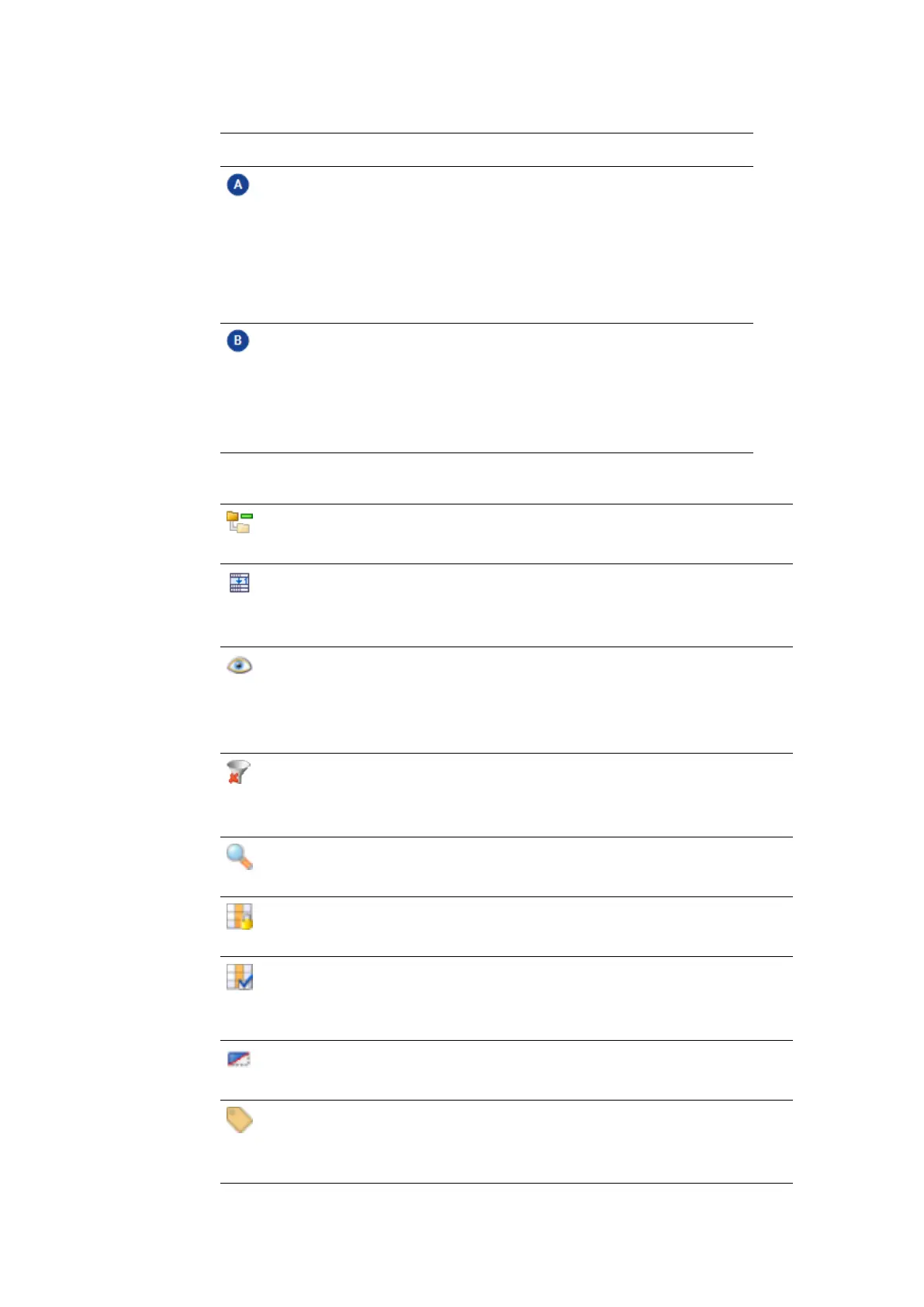
Collapse All Categories
Closes all categories simultaneously.
Accordion
Allows to see only one category at a time. If you activate the accordion
mode, the chosen category expands, while any other one is collapsed.
Enable / Disable Filters
Applies the selected filters. When you disable the filters, the original
selection is maintained, even if you clear all filters using the funnel icon
above in the variables list.
Clear Filters
Deletes all selected entries in one category or all filters in the Variable
Explorer.
Search Items
Searches items per category or in the variables list.
Freeze Columns
For more information, see "To freeze columns" on page93.
Show / Hide Columns
For more information, see "To show or hide columns" on the previous
page.
Used / Unused Signals
For more information, see "To filter used/unused signals" on page97.
Change Display Name
For more information, see "Defining Display Name in the Application" on
page93.
MDA V8 | User Guide



 To Next Page