5 Layers and Instruments | 48
To color a layer
1. Right-click the layer tab.
2. In the context menu click Properties.
3. Select the desired background color.
To duplicate a layer
Within the active configuration, do the following:
1. On the layer tab, right-click and select Duplicate.
The duplicated layer appears right from the active layer. The name is made
unique by adding "(1)".
In between different configurations, do the following:
1. In the Configuration Manager, right-click one or more layers and choose
Copy.
2. If you want to copy the layers into another configuration, select this con-
figuration. For more information, see "To select the active configuration"
on page28.
3. In the Configuration Manager, right-click the configuration and choose
Paste.
The layers are added. If the name is already in use, it is extended by an
increasing number. If you have selected a configuration in which the meas-
ure file is not available, the signals of these newly added layers are indic-
ated as "No-Match" signals. To avoid a "No-Match" situation, an automatic
signal mapping is performed in case the "Copy" source and the "Paste" tar-
get contain both exactly one measure file.
To rename a layer
1. Do one of the following:
l
On the layer tab, double-click the layer name.
l
On the layer tab, right-click the layer name and select Rename.
l
In the Configuration Manager, right-click the layer name and select
Rename.
2. Enter the new name. The name can consist of up to 256 characters. If the
name is not valid, it is displayed with a red frame.
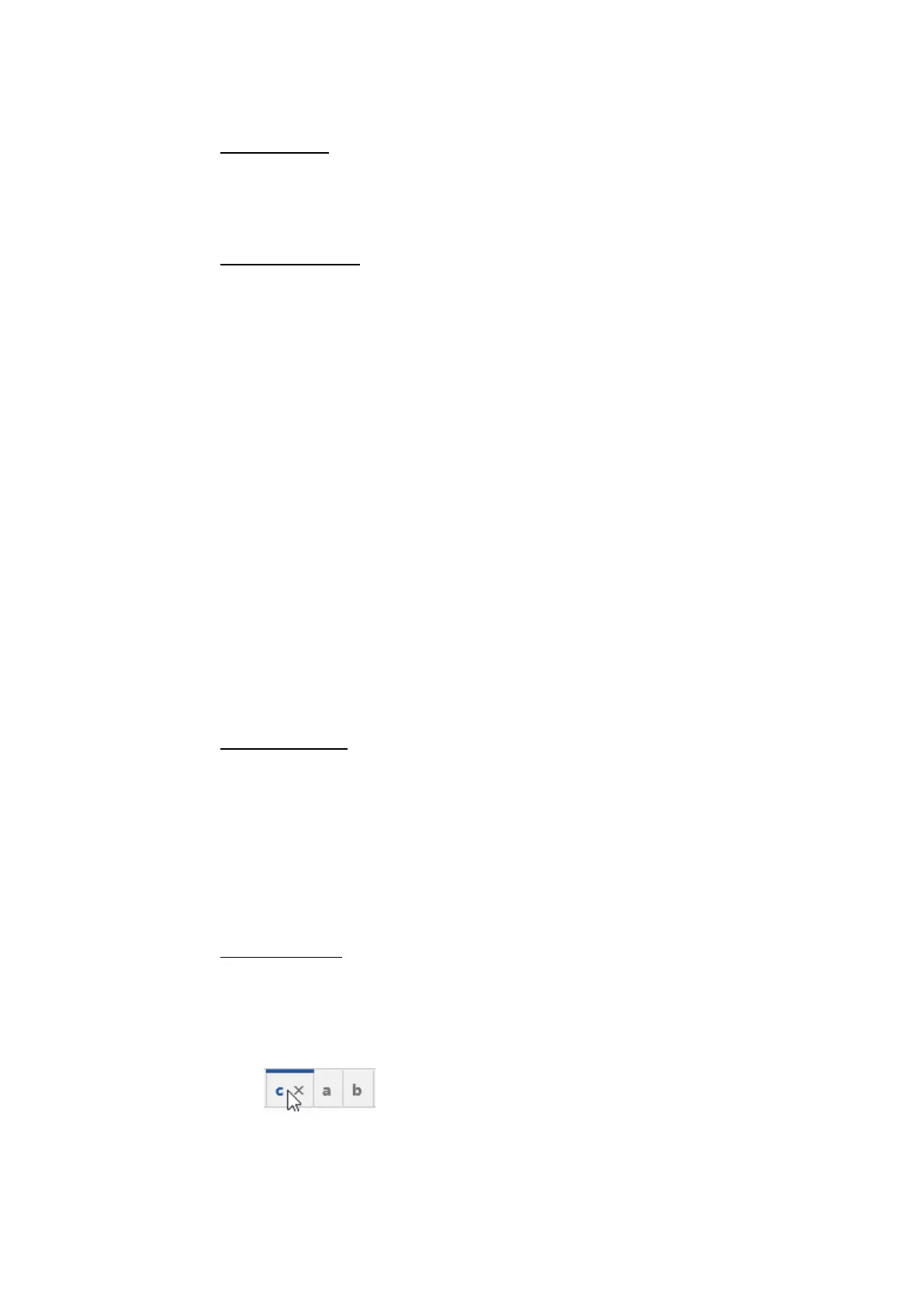
To reorder layers
1. Move a layer by dragging its tab header to the new position within the cur-
rent configuration. You cannot drag a layer to another configuration.
If you move the layer to the left or right border, the tabs scroll in the
respective direction. After scrolling, the new position is indicated.
2. Release the mouse button.
The tab is displayed at the new position.
MDA V8 | User Guide



 To Next Page