4 Configuration Creation | 28
1.
On the Configuration tab of the ribbon, click .
2. Select an existing configuration file in XDX format.
The configuration file is opened.
If the configuration file is invalid or the version is not compatible, an error
message is displayed.
To accelerate the usage of a configuration, V8.6 performs an automatic search
for all files referenced in the configuration. In a first step, MDA tries to load the ori-
ginal file from the referenced absolute path. In a second step, it searches for a
file with the same name in the folder from where the configuration is opened. Fin-
ally, the automatic search is extended to the subfolders. The automatic search
results are shown in a dialog. Use the checkbox to decide whether to replace or
reject a proposed measure file. If no file is found, the file will be listed in the Con-
figuration Manager with as a "missing’" file .
To load a recently used configuration
1. On the Configuration tab of the ribbon, click the drop-down menu Open.
2. A list with the recently used configurations is displayed.
Select one of the entries and the configuration file is opened. If the con-
figuration file cannot be opened, an error message is displayed.
To select the active configuration
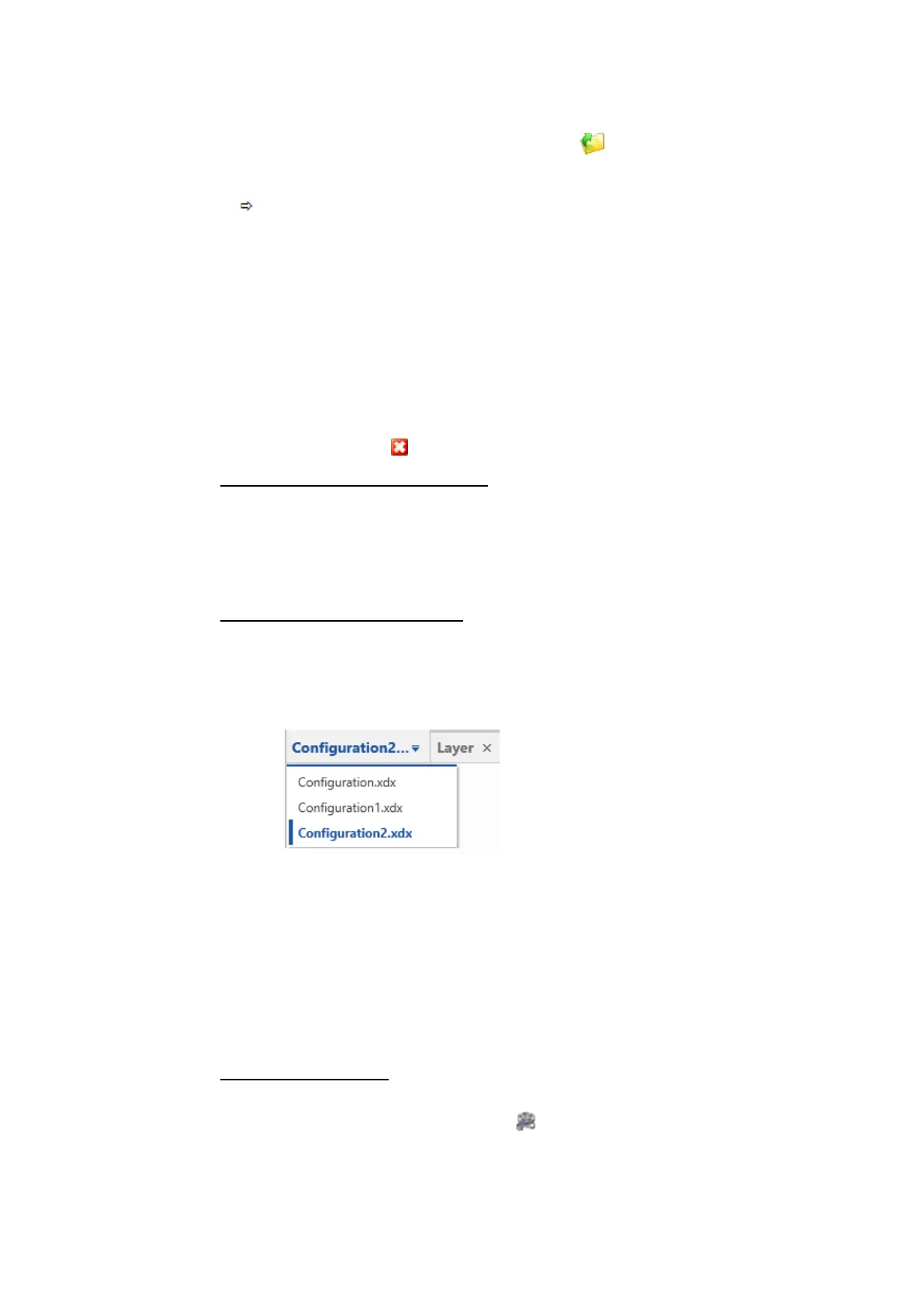
If you have opened several configurations, you can select the active one.
1. Do one of the following:
l
Click on the drop-down menu next to the configuration tab and select
one of the configurations.
l
In the File Explorer, select one of the configurations.
The selected configuration is active. This means that the information of
all other windows refers now to this configuration. You can also select
one of the layers of the active configuration. For more information, see
"To switch to a specific layer" on page49.
l
Press CTRL+TAB and navigate by using the arrow keys to the desired con-
figuration. For more information, see "Operating MDA via Keyboard" on
page14.
To save a configuration
To see how you can add a measure file, save and open a configuration, or add
configuration comments, watch our video Starting to Work.
MDA V8 | User Guide



 To Next Page