EasyManua.ls Logo

EverFocus EFC304 - Page 139

EverFocus EFC304
160 pages
Print Icon
To Next Page IconTo Next Page
To Previous Page IconTo Previous Page
Loading...
15.2
C
Click on
eventh
o
15.2.
1
St
e
1)
2)
3)
4)
15.2.
2
Click th
e
pathto
15.2.
3
Click th
e
functio
n
15.3
C
Click on
eventp
a
C
ardde
p
the menu
b
o
mepage,s
h
1
SearchE
v
e
ps:
Inthese
a
number,
Inputth
e
Clickthe
Iftheus
e
button.
2
ExportE
v
e
“Export” b
u
savethefile.
3
PrintEv
e
e
“Print” bu
t
n
.
C
ardind
“Access Co
n
a
ge.
p
endent
b
ar “Access”
h
ownasfollo
w
v
ents
a
rchdrop
d
andcardh
o
e
searchcri
t
“Search”b
e
rwantsto
v
ents
u
tton, popu
Click“OK”t
o
e
nts
t
ton to ente
epende
n
n
trol” “R
e
Event
“Report”
w
ing:
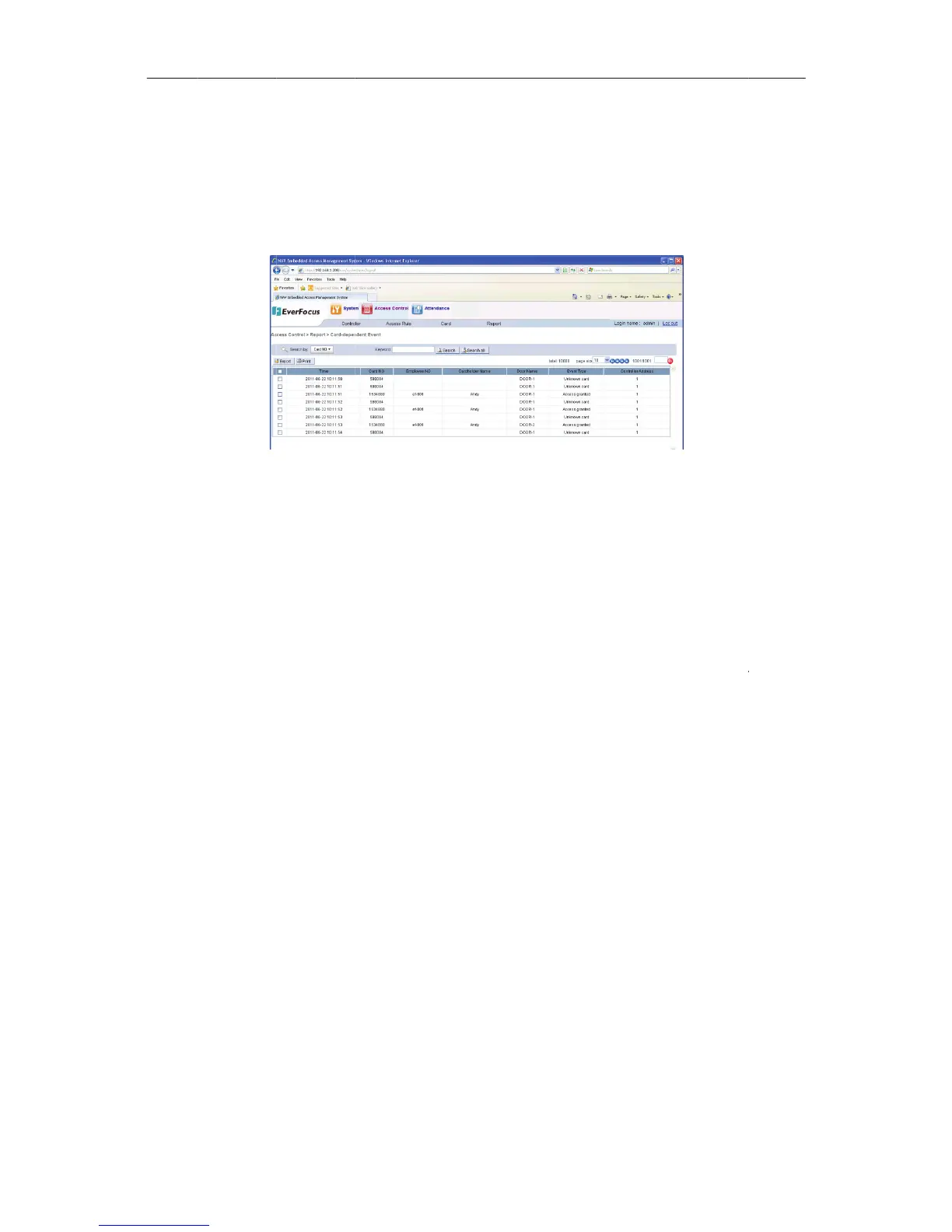
Figure15
d
ownmenu
o
ldername
,
t
eriainthe
utton,the
m
viewallth
e
p download
o
confirm.Pl
e
r to the pri
n
n
tEvent
e
port” “C
a
130
“Cardde
2Carddepen
d
,selectafi
e
,
eventtyp
e
“keyword”
m
atchingc
a
e
cardsint
h
file box, all
c
e
asesee7.1.
7
n
ting page, t
a
rdindepen
d
pendent Ev
e
d
entEvent
e
ld,includi
n
e
.
textbox.
a
rdswillbe
h
econtroll
e
c
ards will be
7
Exportfun
c
he specific
o
d
ent Event”
t
NA
V
e
nt”, enter t
o
n
gcardnu
m
showninc
e
r,clickthe
exported to
c
tion.
o
peration m
e
t
o enter to
t
V
IP Access
c
o
the cardd
e
m
ber,empl
o
ardlist.
“SearchAll
CSV format
,
e
thod see 7.
t
he cardind
e
c
ontrolle
r
e
pendent
o
yee
,
select a
1.8 Print
e
pendent

Table of Contents