EasyManua.ls Logo

EverFocus EFC304 - Page 95

EverFocus EFC304
160 pages
Print Icon
To Next Page IconTo Next Page
To Previous Page IconTo Previous Page
Loading...
Inputt
h
backto
Depart
m
existing
9.1.2
E
Selecta
Enter d
depart
m
“Save”
a
9.1.3
D
Selectt
h
Clickth
e
Note:C
a
h
edepartme
n
department
s
m
ent names
nameinthe
E
ditADe
p
department
epartment
n
m
ent,andthr
a
ndreturnt
o
D
eleteA
D
h
edepartme
e
“OK”butto
n
a
nnotdelet
e
n
tname,clic
s
ettingpage.
cannot be r
e
otherlevelf
o
p
artment
andclick“E
d
n
ame in th
e
oughmodify
o
thedepart
m
D
epartme
ntthatneed
n
,itwillbed
e
e
adepartme
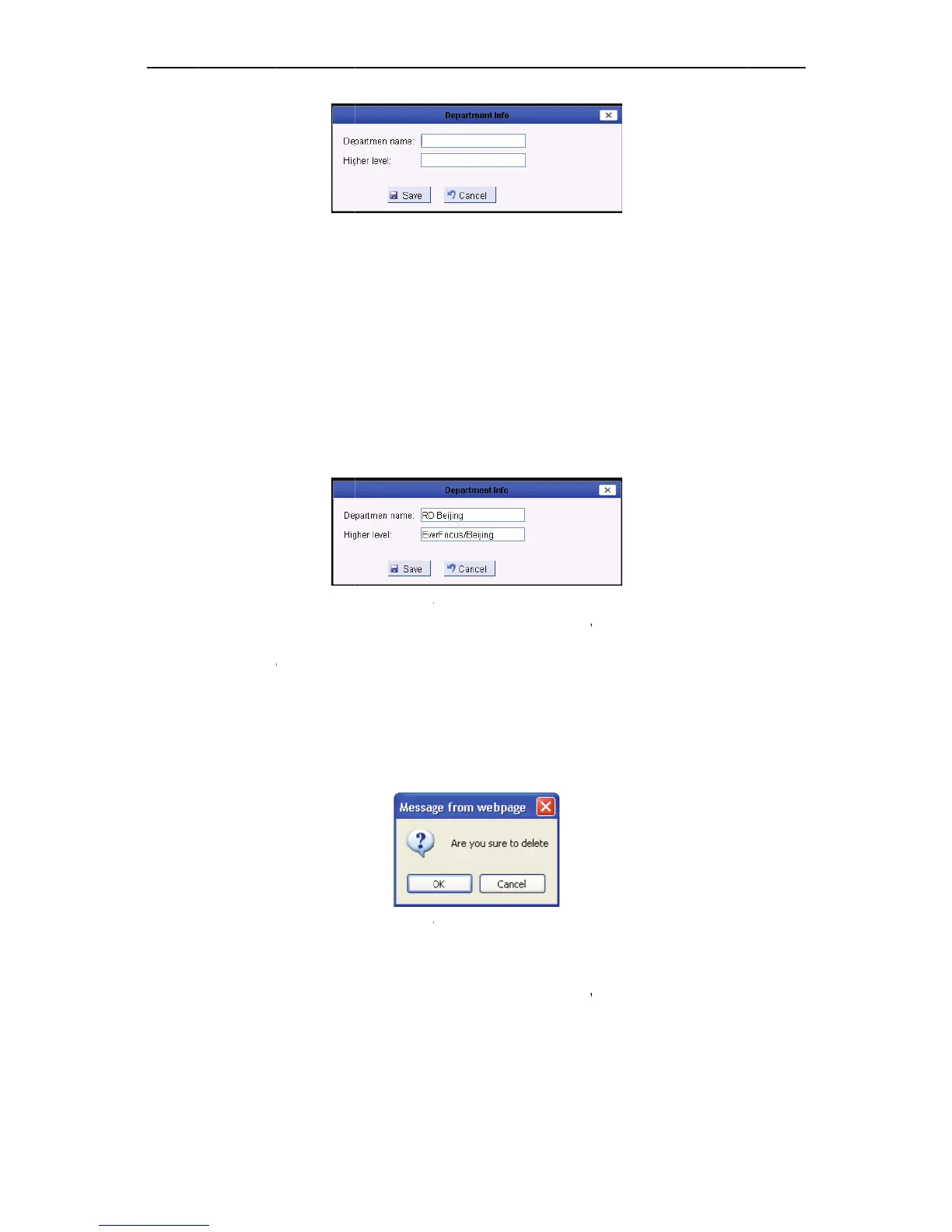
Figure
9
kthe“Highl

e
peated if th
o
rthenewo
d
it”andmod
i
Figure
9
e
input box,
theparent
d
m
entsetting
p
nt
tobedelete
,
Figure94Co
nf
e
letedandit
s
ntwithlow
e
86
9
2AddaDep
a
evel”input
b
ey are in th
e
ne.
i
fydepartme
9
3EditaDep
a
click the
d
d
epartmentt
p
age.
,
andclick“D
nf
irmtoDelete
s
correspond
e
rleveldepa
r
a
rtment
b
oxtoselect
e
same level
ntinformati
o
a
rtment
d
epartment
w
ochangecu
r
elete”see
aDepartmen
t
ingnodewil
l
r
tments,sho
w
NA
V
theparent
d
and it is su
g
o
nseeFigu
w
hich is pa
r
renteditde
p
Figure94
t
l
bedeleted
f
w
nasfollo
w
V
IP Access
c
d
epartment.
S
g
gestion tha
t
re93:
rent of cur
r
p
artment’sl
e
f
romthetre
e
w
ing:
c
ontrolle
r
S
aveand
t
not use
r
ent edit
e
vel.Click
e
.

Table of Contents