Working With the TestFlow Mobile Application
Optical Explorer 149
Working With a Wireless Network
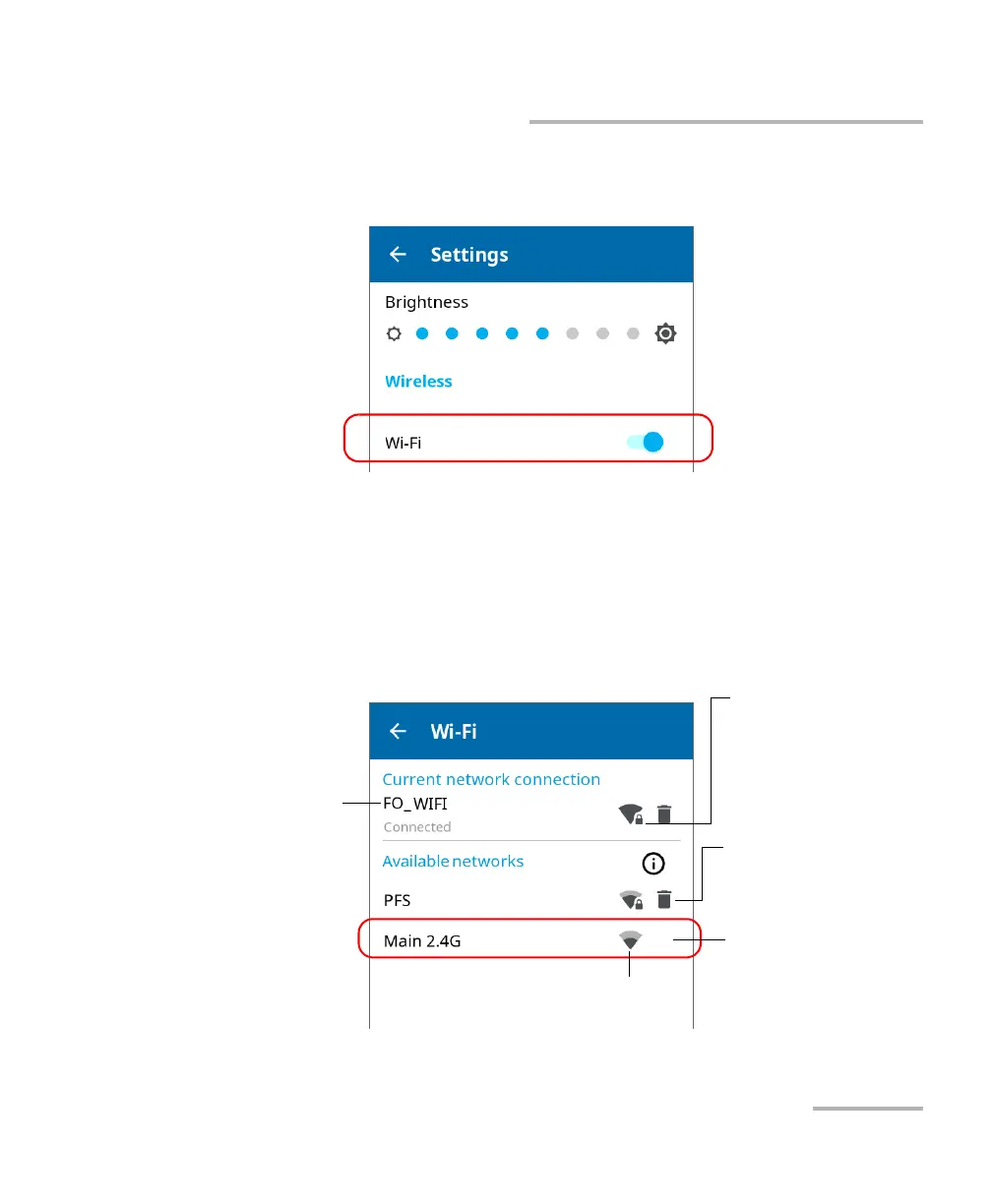
2. If it is not already done, enable the Wi-Fi communication on your unit
using the corresponding toggle.
3. Tap Wi-Fi.
4. Under Available networks, tap the item corresponding to the wireless
network that you want to configure.
Note: No garbage can icon appears next to the networks that have not been
configured yet.
Network to which the unit
is currently connected or
network used during the
last work session
Already-configured
network (garbage can icon
visible)
Network not configured
yet (no garbage can icon
visible)
Secured network
(identified by a lock icon)
Signal strength


 To Next Page