89
SunSDR2 DX User Manual
© 2020 Expert Electronics
ExpertSDR2 SOFTWARE DESCRIPTION
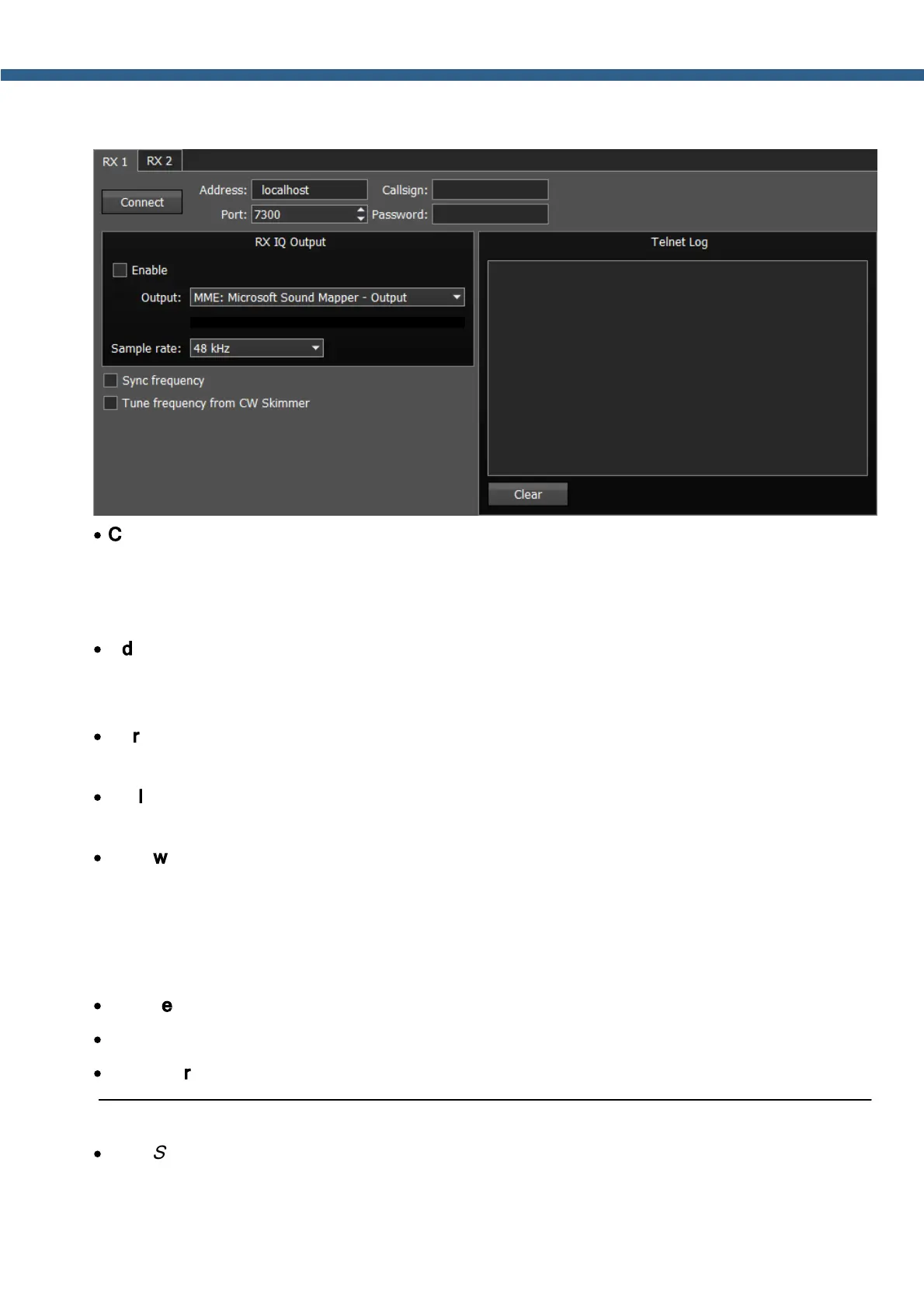
Settings in the CW Skimmer menu has two identical tabs RX1 and RX2 with connection
settings for each software receiver, let's take a look at one of them.
·
Connect - Button to launch the connection with the CW Skimmer software or Internet server-
spotter.
Press the Connect button, after adjusting all settings, to make a connection with the CW
Skimmer software or Internet server-spotter.
·
Address - IP address or DNS name of the CW Skimmer/server.
Enter this 127.0.0.1 address or localhost, if you want to connect to the CW Skimmer, which is
installed on the transceiver's PC.
·
Port - Data exchange port.
Enter the exchange port number in the Port input box.
·
Callsign - Callsign input box.
Enter your callsign if the server requires it.
·
Password - Password.
Enter the password if the server requires it.
To transfer the IQ signal in the CW Skimmer you need to adjust the settings of the audio device
in the RX IQ output category, it consists of:
·
Enable checkbox - Enable the IQ signal transfer from the EpertSDR2 to the CW Skimmer.
·
Output – select physical output and driver type for the audio device.
·
Sample rate – sampling frequency.
Note:
·
If CW Skimmer is installed on the transceiver's PC, then for the signal output you need to use
Virtual Audio Cable.


 To Next Page