88
SunSDR2 DX User Manual
© 2020 Expert Electronics
ExpertSDR2 SOFTWARE DESCRIPTION
works as a server for any amount of ExpertSDR2 clients (devices), which are connected to it.
ExpertSync is an open source project for third-party developers.
·
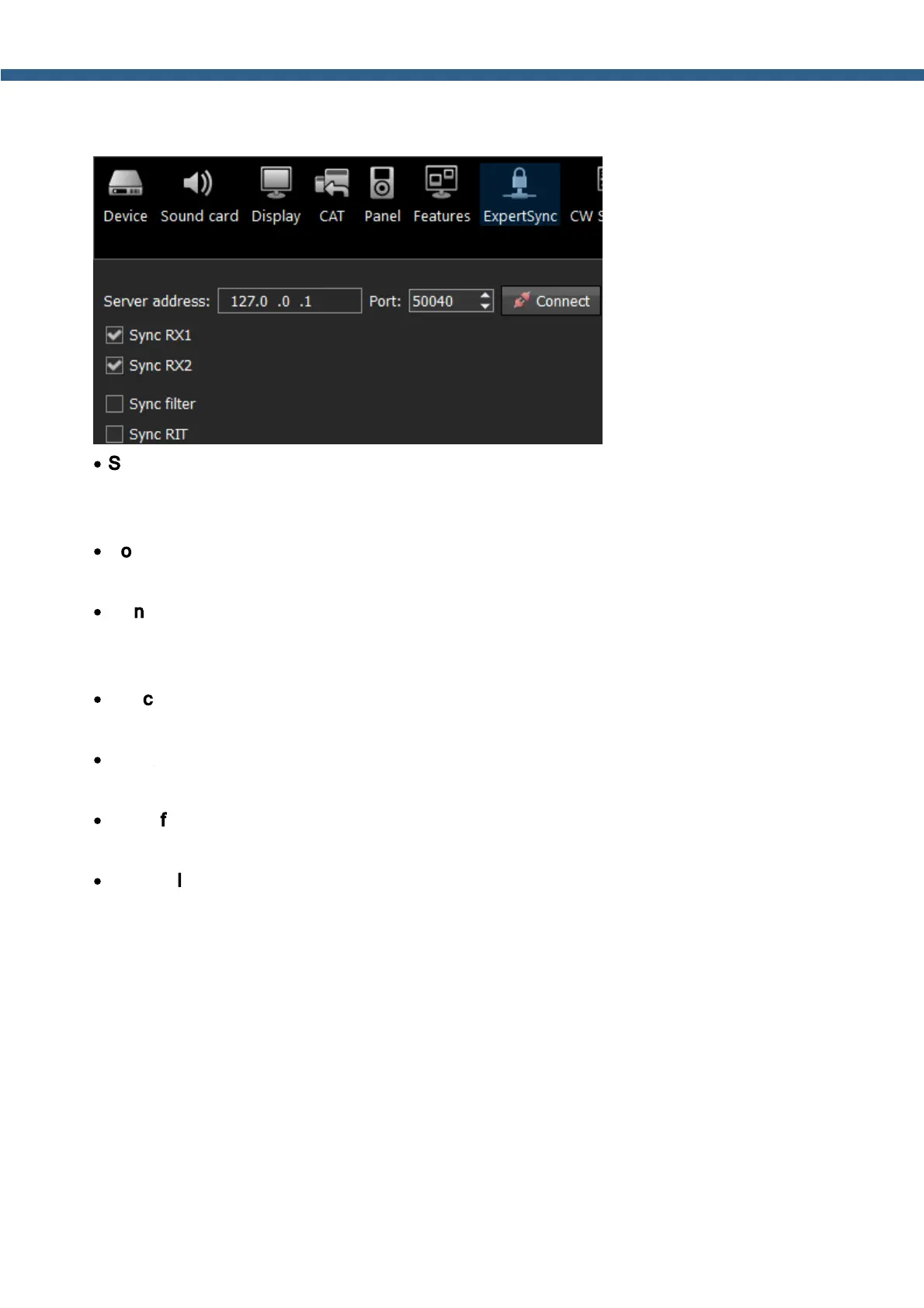
Server address - ExpertSync server IP address.
Enter the ExpertSync server IP address. If the the ExpertSync server is launched on the
transceiver's PC, then the address will be 127.0.0.1.
·
Port - Data exchange port.
Enter the exchange port number in the Port input box.
·
Connect - Start the connection.
Press the Connect button to launch the connection between the transceiver's software and
ExpertSync. Blue indicator means there is a connection.
·
Sync RX1 - RX1 receiver sync button.
Set the Sync RX1 checkbox to synchronize the RX1 receiver with the remote RX1 receiver.
·
Sync RX2 - RX2 receiver sync button.
Set the Sync RX2 checkbox to synchronize the RX2 receiver with the remote RX2 receiver.
·
Sync filter - set the Sync filter checkbox to synchronize the filter bandwidth with the other
device connected via the ExpertSync software.
·
Sync RIT - set the Sync RIT checkbox to synchronize the receive frequency offset (RIT)
with the other device connected via the ExpertSync software.
5.7.9 CW Skimmer
In the CW Skimmer menu, you can see the connection settings between the transceiver
software and CW Ckimmer software or Internet server-spotter.


 To Next Page