CHAPTER 4 COLLECT
4-10
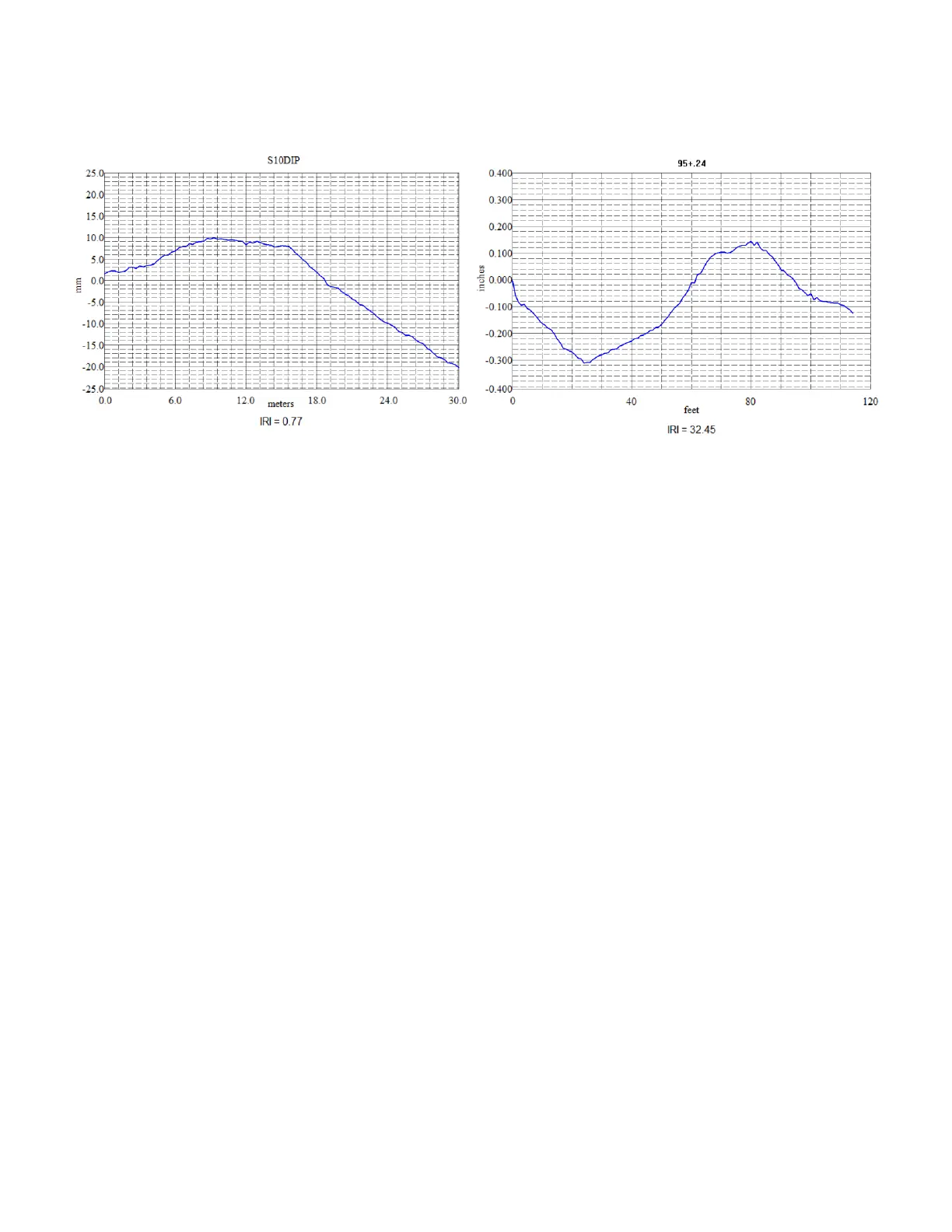
The name of the Run is shown at the top of the graph and the IRI is shown at the bottom of the
graph.
Tap the "Close" box at the upper right corner to close the graph display.
You can bring the graphs up again, either one at a time or in several on one page, by using
REPORT/GRAPH.
START ANOTHER RUN
You may now start a new run the same way you did the last one.
TO VIEW REPORTS ON THE 2277 COMPUTER
You can get reports right on the RFCOLLECT menu on the 2277 computer. Single-Tap the Run
you are interested in to make it dark. Tap the REPORT Menu header with your stylus, then tap
the Run report you want to see. You can view the Readings and elevations of all points on the
Run by using REPORT/DATA POINT LISTING. You may read any Notes that you collected
during the Run, or you may bring up a Graph of the Run profile. These report features are covered
in detail in Chapter 5 (PROCESSING DATA) of this manual.
Once you download this data to your desktop PC, you'll be able to print any of these reports from
the RoadFace program on your PC to any printer connected to your PC, either local or network.
TO EDIT DATA THAT YOU HAVE ALREADY COLLECTED
You can EDIT Runs right on the RFCOLLECT menu. Just Tap EDIT, then the Edit feature you
want.
When you are familiar and comfortable with basic data collection and reporting, you should learn
about the other features built into the Dipstick. These include Editing data, collecting data in
"Boxes" for longitudinal profiles, and more. These editing features are covered in detail in
Chapter 5 (PROCESSING DATA) of this manual.
If you had any problems collecting data, you will want to do it again for practice. Chapter 8 is
"TROUBLESHOOTING" for when you get stuck.



 To Next Page