CHAPTER 5 PROCESS
5-2
SELECTING RUNS
To Process data, you'll need to know how to select Runs, either one at a time or in groups of two
or more, so you can process them. Selecting multiple Runs is easy, but is slightly different
between doing it on a PC and on the Tablet.
To select a single Run, just single-click (desktop PC) or single-tap (2277 Tablet) the
item you want to work with. The key is to get the item you want to work with highlighted.
DO NOT DOUBLE-CLICK. The program does not respond to double-clicking Runs.
To select two or more adjacent entries in a list on a desktop PC, single-click on the
first one you want, then, while holding down the <Shift> key, click or tap on the farthest
item in the list that you want to select. You may also use the up or down arrow keys to
highlight all the items of interest, so long as you hold down the <Shift> key. All the items
between the first and last will be selected.
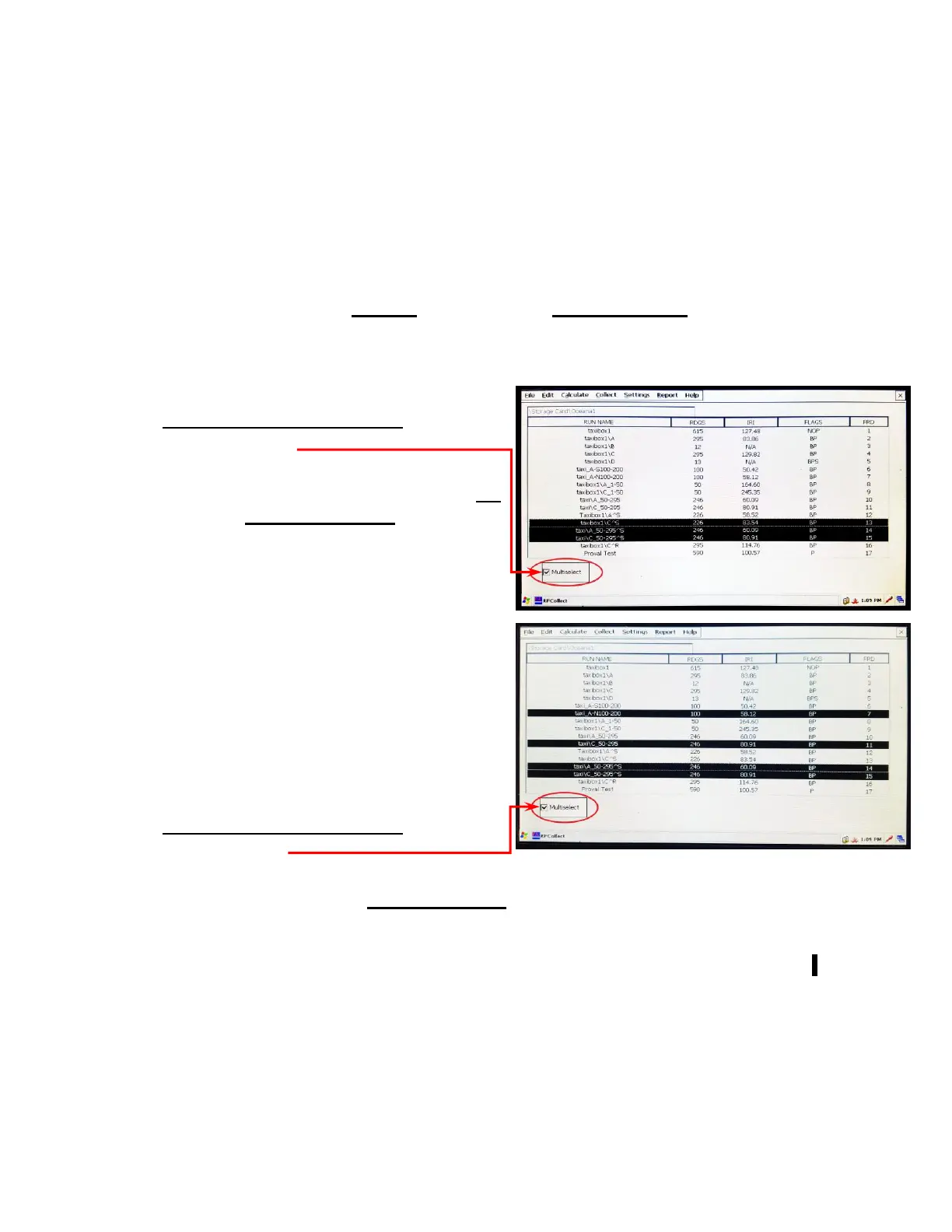
To do this on the 2277 Tablet, first tap the
“Multiselect” box at the lower left corner
and tap the Runs that you want to select.
To select two or more entries that are not
adjacent, on a desktop PC, click on the
first one you want, then press and hold
<Ctrl> and click or tap the next item. Only
the specific items you selected will be
highlighted. You may repeat this process to
select as many items as you like. You may
use the arrow keys instead of clicking or
tapping. Move the highlight to the first item,
then press and hold the <Ctrl> key. While
holding the <Ctrl> key down, move the
cursor with the arrow keys, then press the
<Spacebar> after you have reached the
second item. You may repeat this process to
select as many items as you like.
To do this on the 2277 Tablet, first tap the
“Multiselect” box at the lower left corner
and tap the Runs that you want to select. (The same process as above)
To deselect a single run on a desktop PC, (after it has already been selected), press
and hold the <Ctrl> key, then click or tap the item you wish to deselect. You may do the
same thing by using the arrow keys: while holding down the <Ctrl> key, move the
highlight to the one you want to de-select, then press <Spacebar>. Only the specific it em
you de-selected will be removed from the highlighted list. You may repeat this process to
de-select as many items as you like.
To deselect multiple runs (after they has already been selected), click or tap any other
item, or press the arrow key. All the runs except the one at the cursor will be de-selected.
(One item will always remain selected)



 To Next Page