Chapter 6 The 2277 Tablet Computer
6-3
TRANSFERRING DATA TO ANOTHER COMPUTER
Transferring data from the SD Card to the hard drive of your PC or laptop is called
"downloading" or "backing up" the data. Regardless of what you call it, you should always do
it daily, so you will have two copies of your data - one on the SD Card, and one on your laptop or
PC. This is quite easy and fast using the SD Card Reader supplied with the Dipstick. This way
you will have copies of the data in two places on two different storage media, and will minimize
the risk of losing data. Most users also prefer to use a Desktop PC or a laptop computer to do
final processing of the data and printing, because the screen and keys on your desktop are much
larger.
You can use the SD Card Reader on your desktop PC as if it were a separate disk drive. Just pull
out the SD Card and plug it into the Flash Reader. Connect the SD Card Reader to the USB port
on your PC. The first time you use the SD Card Reader on your laptop or desktop PC, it will take
a minute to automatically load the drivers, then it will open the drive so you can see the data on
the SD Card; after the first time, it will open almost instantly.
The SD Card will usually be named "Removable Disk E" or something like that. Drag and drop
the data folders you want from the named "Removable Disk E" to wherever you want on your
desktop PC. We recommend keeping all your Dipstick data folders as subfolders in the main
folder where you have installed the RFCollect program, such as C:\Dipstick\Data. The SD Card
Reader is extremely fast. You can copy several jobs in a few seconds.
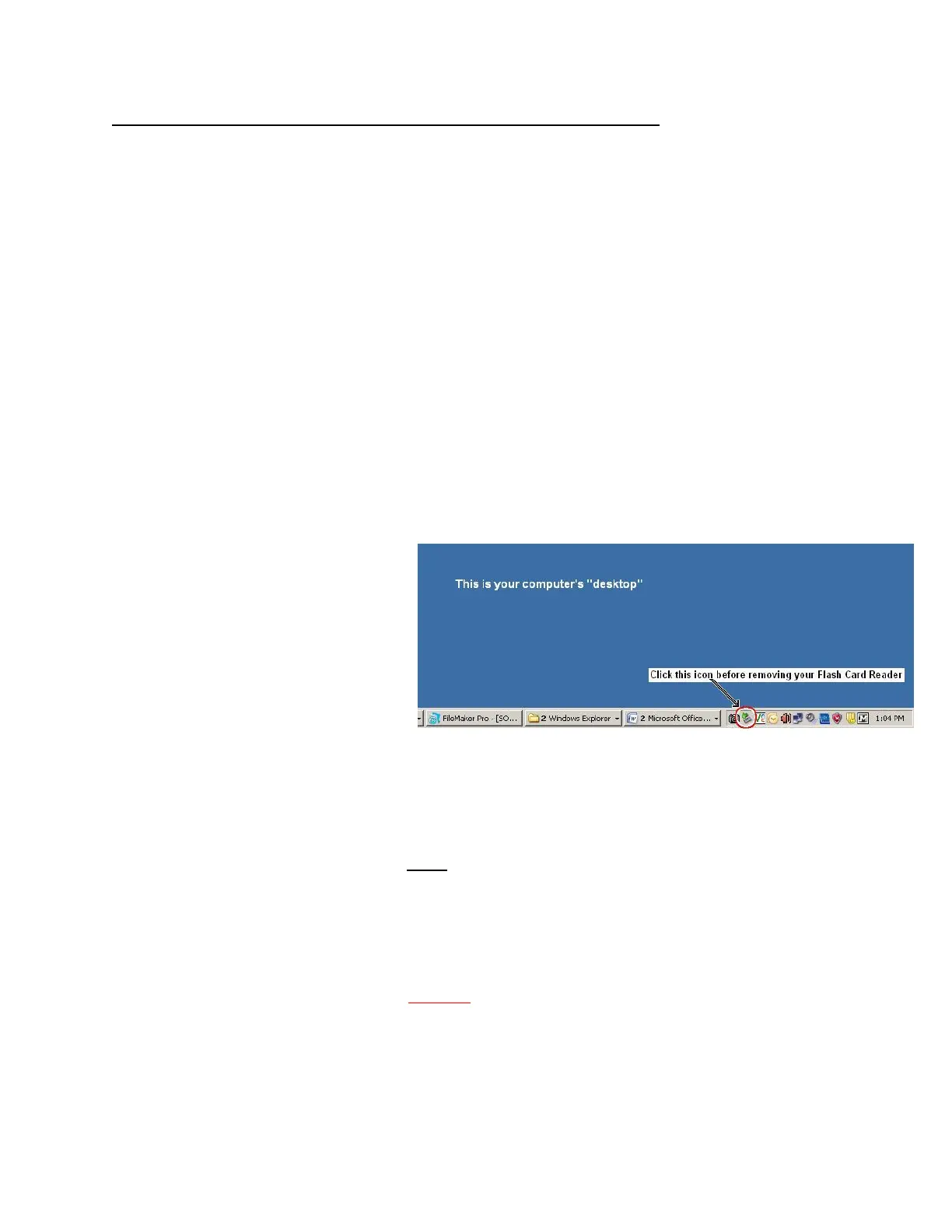
When you are finished copying the
data to your hard drive, always click
on the “Safely Remove” icon as
shown in this image. Some versions
of Windows
®
have different icons, but
they all work the same.
Saving your data:
It's best to save your data on a desktop or laptop PC. If you download daily and save a copy of
your data in two different places (on two different media) you will never lose your data. You
might save your data on the hard drive of your PC, and zip a copy of the data to save on a thumb
drive or a different computer. That way, if the hard drive of your desktop PC ever crashes, you'll
have a backup copy of the data on a thumb drive or on a different computer. There is plenty of
space on the SD Card to store 10 or 20 years worth of data. However, we do not recommend that
you retain all your data files on the SD Card forever, just because it makes it harder for you to
find what you want when there are hundreds of Job folders.
IMPORTANT NOTE: If you download the data from a single project to your PC more than
once, your computer will see that you are downloading data from the same folder and it will ask
you if it is OK to overwrite data files. NEVER allow it to overwrite data files. If you download
the same Job folder more than once, make sure that you rename one of the folders to a slightly
different name before you download. If your Job Name is “KMART”, rename one of the folders
to “KMART1” or something like that before you download the second time, so there will be no
conflict.



 To Next Page