Appendix A Collecting Elevation Profile Data in Wheelpaths
A-5
The program will automatically name the four legs Box_A, Box1_B, Box1_C, and Box1_D.
After the legs are separated, the computer will automatically calculate the IRI of each leg. (Assuming the
legs are long enough to get an IRI)
You will then unbox each of the other boxes in turn to create Box2_A, Box2_B, and so on. Finally, you will
link all the _A legs together to form a single run along the right wheelpath, and you will do the same with all
the _C legs to form a single run along the left wheelpath. The computer will automatically calculate the IRI
of any runs that are long enough to get an IRI.
You can do this on the Dipstick's on-board computer, or you can do this on your desktop PC. The software
works the same in both programs.
Link Runs
Any two or more runs may be joined together to create one long continuous run by using EDIT/LINK.
1. Tap “Multiselect”, then select the first Run, (Box1_A) then select the second Run. (Box2_A) Be sure
you select the Runs in the sequence you want them linked. You want the second Run to be linked onto
the tail end of the first Run, so select them in the order you want them to link.
2. Tap EDIT/LINK to link these two Runs. The program will now join the two runs you highlighted, using
the first run as the "base" run and linking the second run to the end of it. The new record will have the
same name as that assigned to the first run but will have a ^L suffix attached to it, showing that it was
Linked. In this example, it will be named Box1_A^L, and which will now be 500 steps long. The
computer will automatically calculate the IRI of the new Linked run.
3. Select the newly Linked Run Box1_A^L. Now select the Run named "Box3_A", and use EDIT/LINK
to link the last A leg to the first two. Again, the computer will automatically calculate the IRI of the new
Linked run. You have just created the right wheelpath profile and IRI.
4. Select leg _C of the first Box (Box1_C) then select the corresponding leg from the second Box.
(Box2_C) Use EDIT/LINK to link these two Runs. Do the same for Box3_C, and you will have the left
wheelpath profile and IRI.
You are finished.
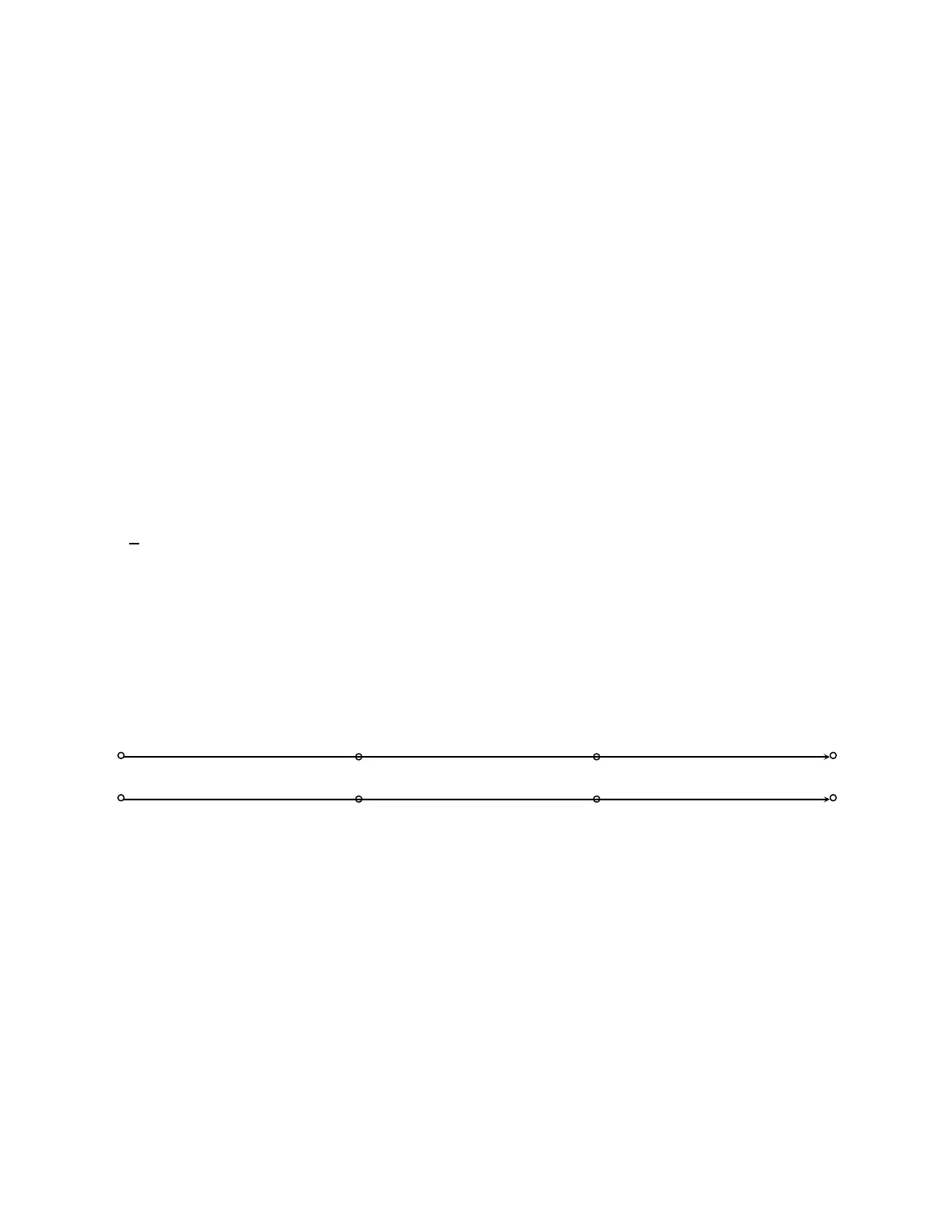
Note: Arrows show the profile after UNBOXing and Linking.
Start Point Left wheelpath
Start Point Right wheelpath
End Point Right wheelpath



 To Next Page