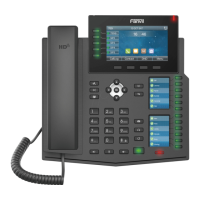
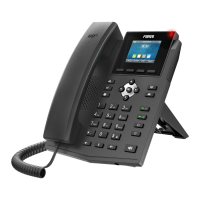
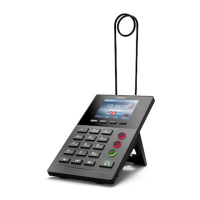
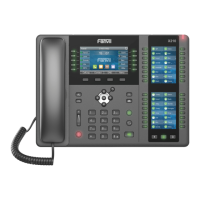
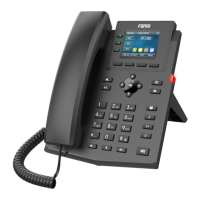
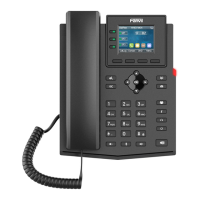
connection status, etc.).
The lower half of the area is the function menu key, which is also the first layer of function menu keys,
through which users can operate the phone.
Users can restore the phone to the default standby screen interface by picking up and dropping the
handle.
The left and right part of the area shows default configuration of Side key, which dynamically
displays the configuration of SIP information, message, headset, etc., which can be customized by
users.
The icon description is described in 6.1 appendix I.
The following is the default standby interface of X7C. Unlike X7, X7C displays the current default
page number of Side Key.
Picture 6 - X7C default home screen
In some screens, there are many items or long text to be displayed which could not fit into the
screen. They will be arranged in a list or multiple lines with a scroll bar. If user sees a scroll bar, user
can use up/down navigator buttons to scroll the list. By long-pressed the navigator keys, user can
scroll the list or items in a faster speed.
The following figure is the case that the X7 screen cannot be fully displayed. You can click the up or
down icon in the next page to scroll to see other items or text content.

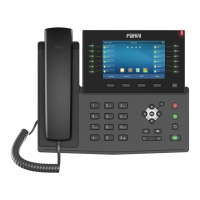

 To Next Page