FARO
®
Laser Scanner Focus
3D
X 130 Manual
January 2014
62
Chapter 6: The Focus
3D
X 130 Controller Software
Focus
3D
X 130. If the charge state of the battery reaches 10 percent the Focus
3D
X 130 will stop scanning and will automatically shut down.
Clock - shows the current time of the Focus
3D
X 130. See “Setting the Date
and Time” on page 38 for information on how to change the date and time of the
scanner.
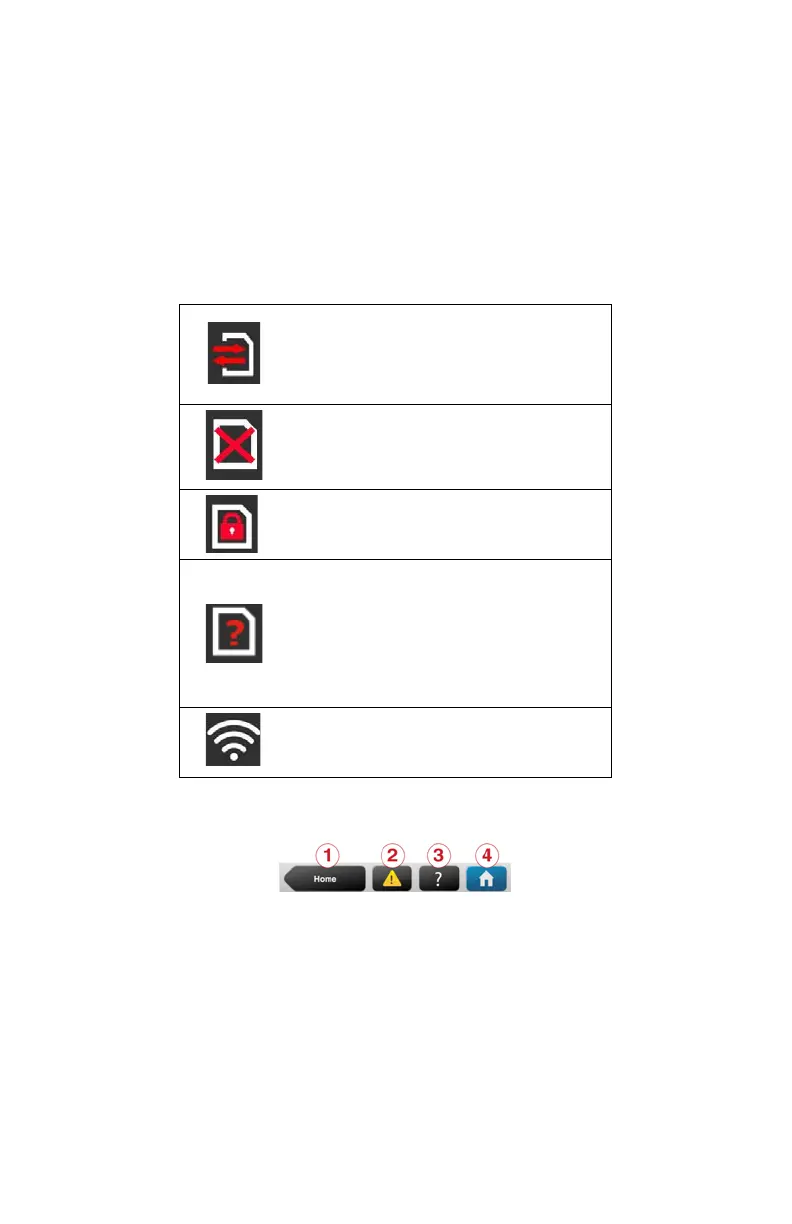
Further situational icons of the status bar:
Navigation Bar
Back button - returns you to the previous screen.
Errors and Warnings button - this button only appears if warning or errors
are present. Pressing the button opens a screen that informs about details of the
existent warnings or errors. See “Errors and Warnings” on page 88.
Help button - opens the online help of the currently active screen and
provides access to the Focus
3D
X 130 video guide. See “Online Help” on
page 104.
SD Card is busy.
Do not remove the SD card from the
scanner while it is busy, otherwise you
risk corrupting the data on the card.
No SD card inserted.
SD card is write protected. Remove
write protection to be able to scan.
Unknown SD card inserted. The card
cannot be read. This might be due to the
SD card being formatted in an unsup-
ported file system. You should format
the SD card with the built in format
function. See “SD Card” on page 89.
WLAN is turned on.
Figure 6-2 Navigation Bar


 To Next Page