SYSTEM AND USER SOFTWARE 114
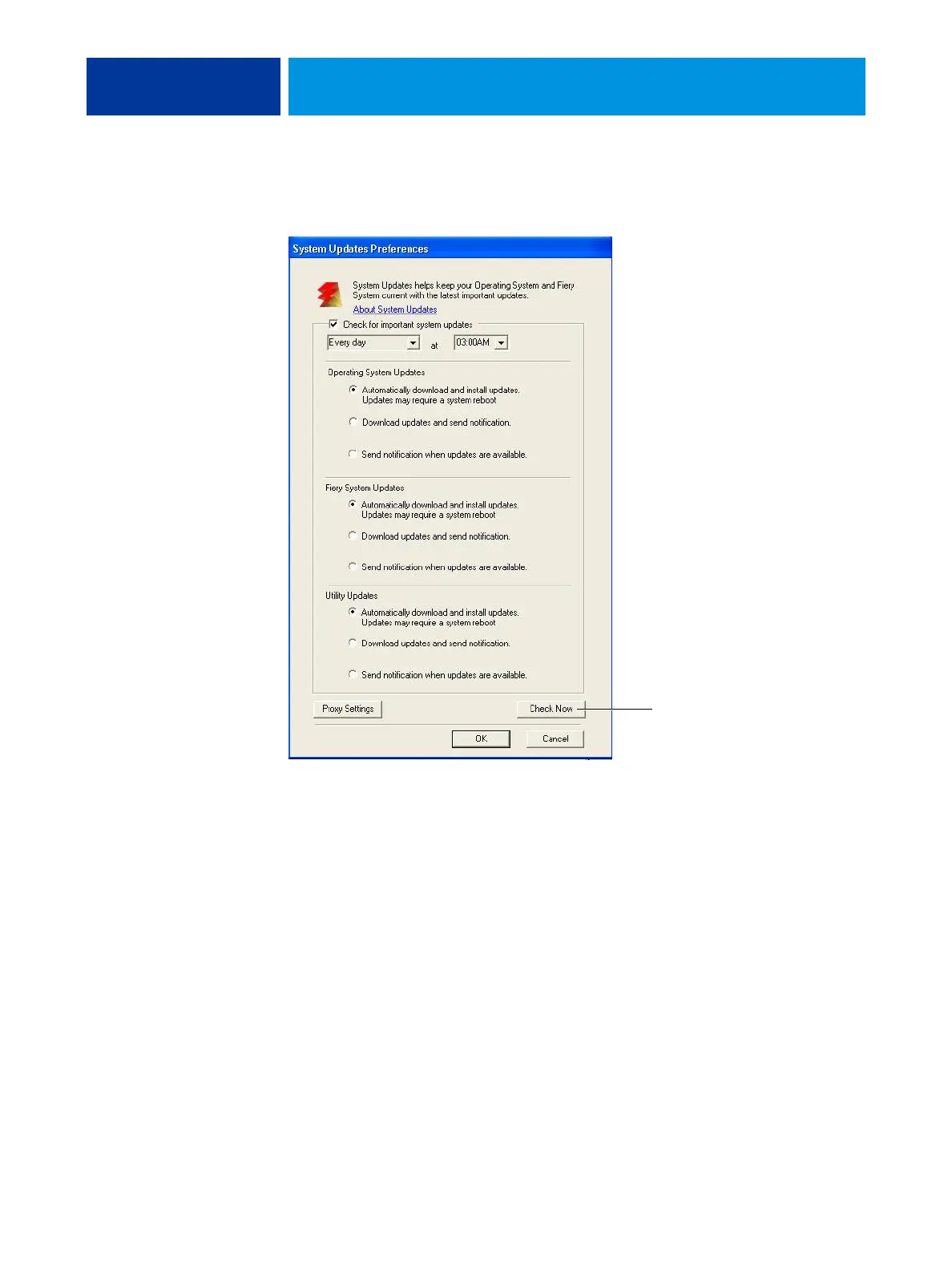
2. Select “Check for important system updates” (or “Enable System Updates” in Command
WorkStation or WebTools).
3. Specify how often the E-41 contacts the Update Server.
This feature sets a schedule for installing, downloading, and/or notification of updates.
4. Choose a method for updating the E-41 operating software, system software, and
utility software:
• Automatically download and install updates (preferred method)—Automatically
downloads updates to the E-41 and installs them. Your intervention is not required.
•
Download updates and send notification—Automatically downloads updates to the E-41
but does not install them; sends a notification that updates have been downloaded. After
the updates are downloaded, you can install the updates manually.
•
Send notification when updates are available—A notification displays in the E-41 task bar
when new updates are available for download from the Update Server. To manually
download the updates to the E-41, access Check Now by clicking the notification in the
task bar. (Requires FACI or a Remote Desktop connection; see “Using Check Now” on
page 116.)
Not available when accessed from
WebTools or Command WorkStation


 To Next Page