Getting started
Operators manual 17
FDS 400-301
3.3 Shortcuts Shortcuts are used to provide user’s with a quick path to commonly used functions. There
are four user defined shortcuts buttons.
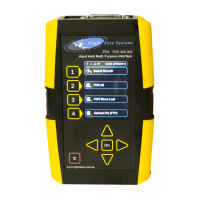
The HHMPI displays the shortcut keys following the start-up and self-test. The shortcut
keys default to the following functions:
Select Aircraft
FDR All
FDR Since Last
Upload File (FTP)
3.4 Menu structure The HHMPI is controlled by a menu system. The four arrow buttons are used to navigate
the menu system. Generally, the right button is used to enter menus and the OK button
is used to confirm selections.
3.5 HHMPI
configuration
The HHMPI can be configured via a web interface, or directly on the unit. Using the web
interface is the easiest way to set up the HHMPI, see Section 5.4.1, ”Changing the HHMPI
configuration via the web interface” on page 39.
3.5.1 Clock Settings
Set the date and time format.
3.5.2 Display Settings
Set the brightness of the display, 1 is minimum brightness and 10 is maximum brightness.
3.5.3 Memory Settings
Set the preferred memory to download or file transfer by selecting one of the following:
▼▲
Main Menu > Device Configuration > Shortcut Keys > Shortcut n
Note The menu options may change depending on the type of
recorder or other devices attached.
Tip To return to the Main menu from any other menu, press left
repeatedly.
▼▲
Main Menu > Device Configuration > Clock Settings
▼▲
Main Menu > Device Configuration > Display Settings
▼▲
Main Menu > Device Configuration > Memory Settings


 To Next Page