Operation
24 Operators manual
Handheld Multi-Purpose Interface (HHMPI)
download, and then press right. There is usually four download commands, depend-
ing on the type of recorder:
FDR All, downloads all the available data.
FDR Since Last, downloads all the data recorded since the last download.
FDR Mark, downloads the data from a pre-recorded marker.
FDR Time, downloads data for a specified time, for example, 20 minutes will
download the last 20 minutes recorded.
5. If an external storage device, like a USB flash drive, is plugged into the HHMPI, you
may now select to store the data onto this device. To start downloading the data,
press right.
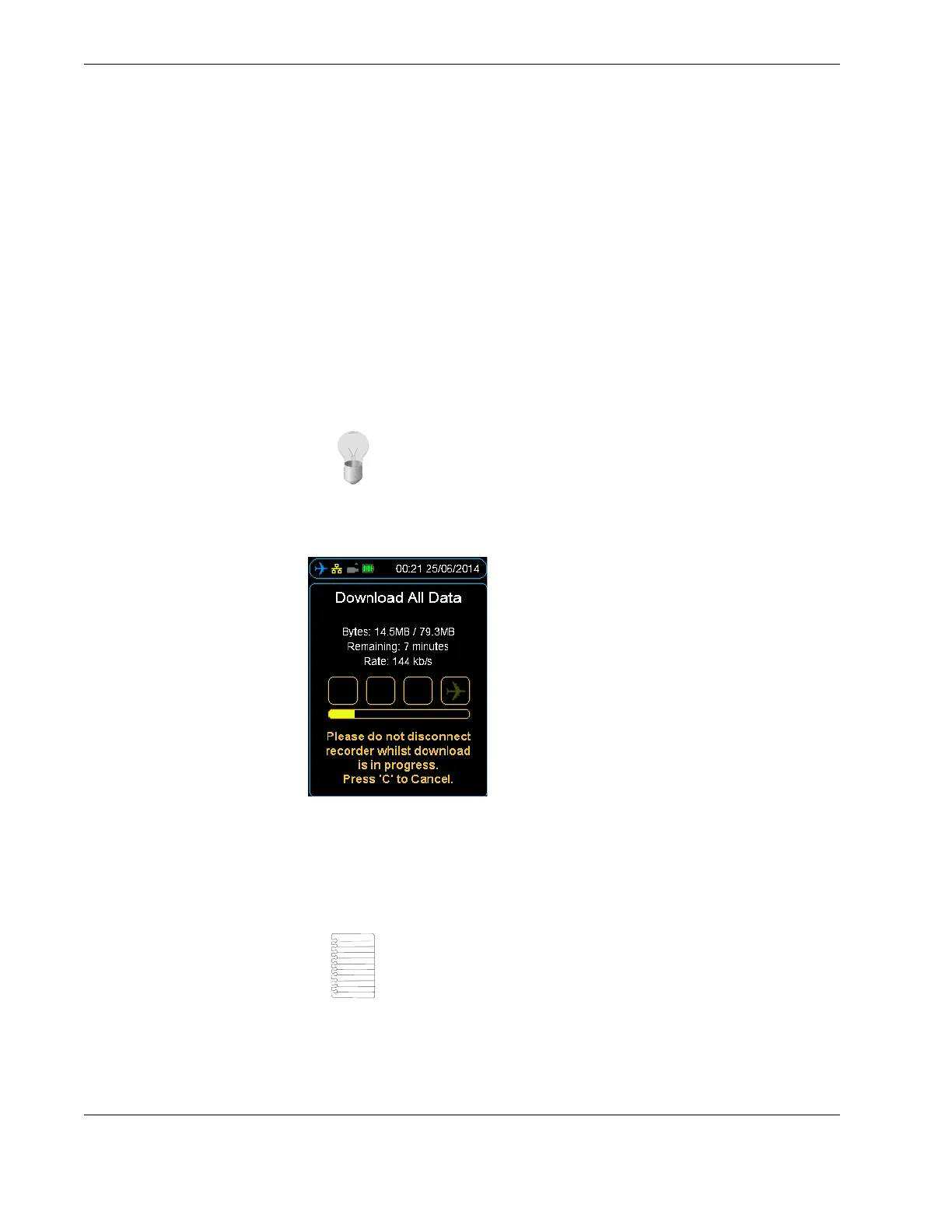
The display will now show the download progress. When the download completes,
press OK.
Figure 13.0 Downloading progress bar
4.3.2 Decompressing CVR data at the aircraft
To play CVR files on a computer or another device, you may need to decompress the raw
file into a waveform file (.wav). See Section 4.3, ”Downloading flight data” on page 23.
After selecting CVR download, the De-multiplex to Wave option will appear. Press the
OK button to decompress the raw CVR file to waveform files. Generally there will a wave-
form for each channel recorded on the CVR. If you do not want to decompress the raw
Tip You can set the preference of external storage devices from the
Memory Settings menu. For example, prioritise the USB flash drive,
when present, over the HMMPI internal memory.
Note To decompress CVR data at the aircraft, the de-multiplexing
feature needs to be enabled on the HHMPI. Contact Flight Data Sys-
tems for more information about this feature.


 To Next Page