SMITHS VADR Interface Supplement
60 Operators manual
Handheld Multi-Purpose Interface (HHMPI)
11.0 SMITHS VADR Interface Supplement
This supplement details the additional functions supported by the Smiths VADR. For spe-
cific details on these recorders, refer to the appropriate Smiths VADR OEM documenta-
tion.
11.1 Select Aircraft The Smiths VADR Select Aircraft menu is pre-installed with ARMY and RAAF models and
registration information. See Figure 4.2.5, ”Adding Entries to the HHMPI Aircraft File”, on
page 21 to add additional aircraft.
11.2 Download
Operations
The Smiths VADR supports the following download options:
FDR All - Retrieves all flight data from the recorder.
CVR All - Retrieves all cockpit voice recordings from the recorder.
11.3 FDR
Configuration
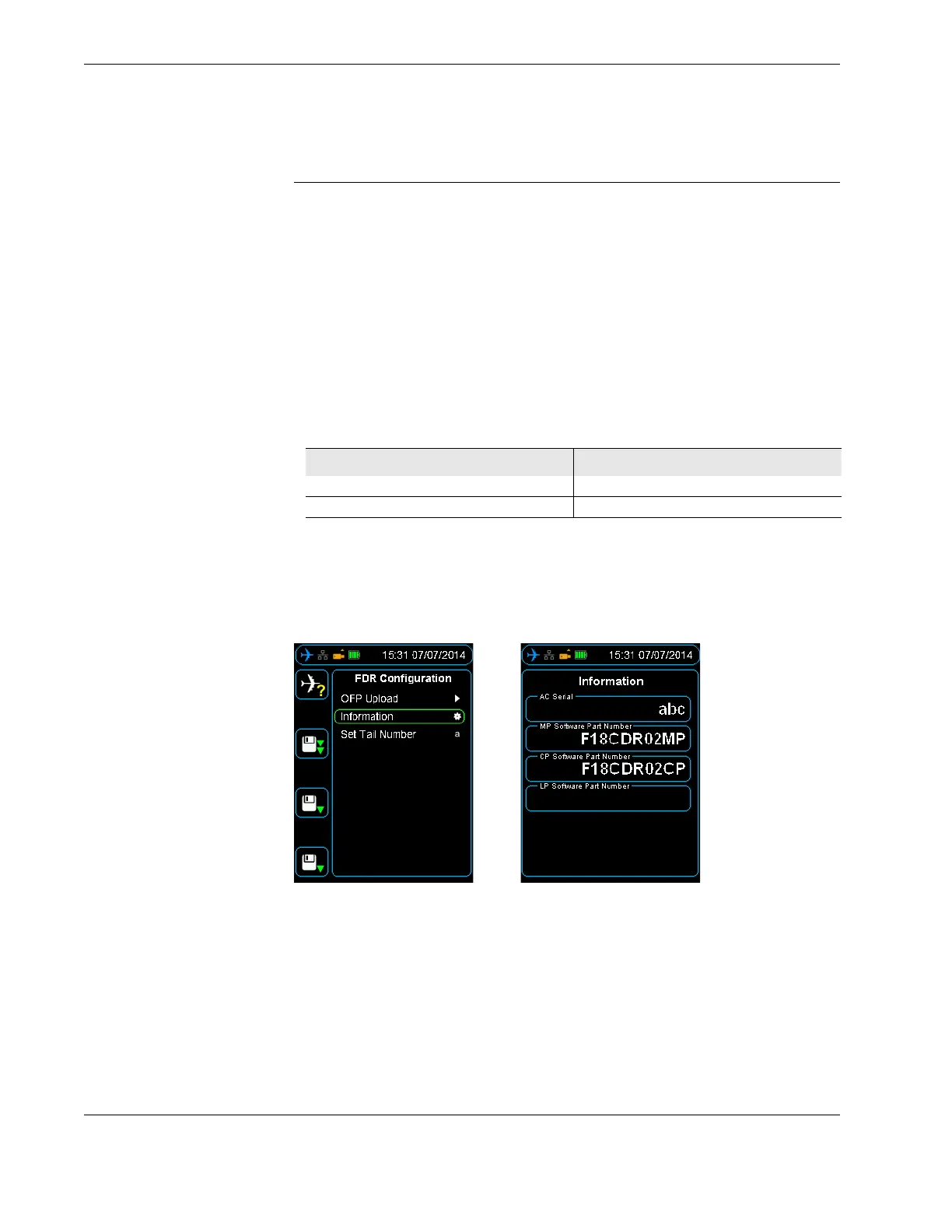
The FDR configuration menu details information such as aircraft serial number, version
numbers (MP Software P/N and CP Software P/N), upload of Operational Flight Program
(OFP) and settings for the aircraft tail number. See Figure 46.0, ”VADR information”, on
page 60.
Figure 46.0 VADR information
11.4 Upload OFP to the
HHMPI
To upload OFP to the HHMPI:
1. Power up the HHMPI and connect to the VADR using a VADR aircraft interface cable.
2. Insert a USB flash drive into the USB port on top of the HHMPI containing the OFP
files.
3. From the Main menu, press down until you reach the FDR Configuration command,
and then press right.
4. Select OFT upload, and then select the .cpi file from the USB flash drive and confirm
the selection by pressing the OK button.
5. Repeat step 4 for the .mpi file.
Table 13.0 File extensions of files downloaded from the Smiths VADR
Data Type Extension
FDR .rdf
CVR .rdf


 To Next Page